Ericarthurc
Participant
December 31, 2018
Answered

Orbiting Objects Along Elliptical Path

  • December 31, 2018
  • 1 reply
  • 5593 views

Hello AE Community!

I am trying to make an animation of a logo I made, wherein 4 atoms (orbiters) rotate infinitely around the artwork. Now, I have been able to achieve this for the most part, however, I need the atoms to follow the elliptical paths in my artwork.

Here is the artwork:
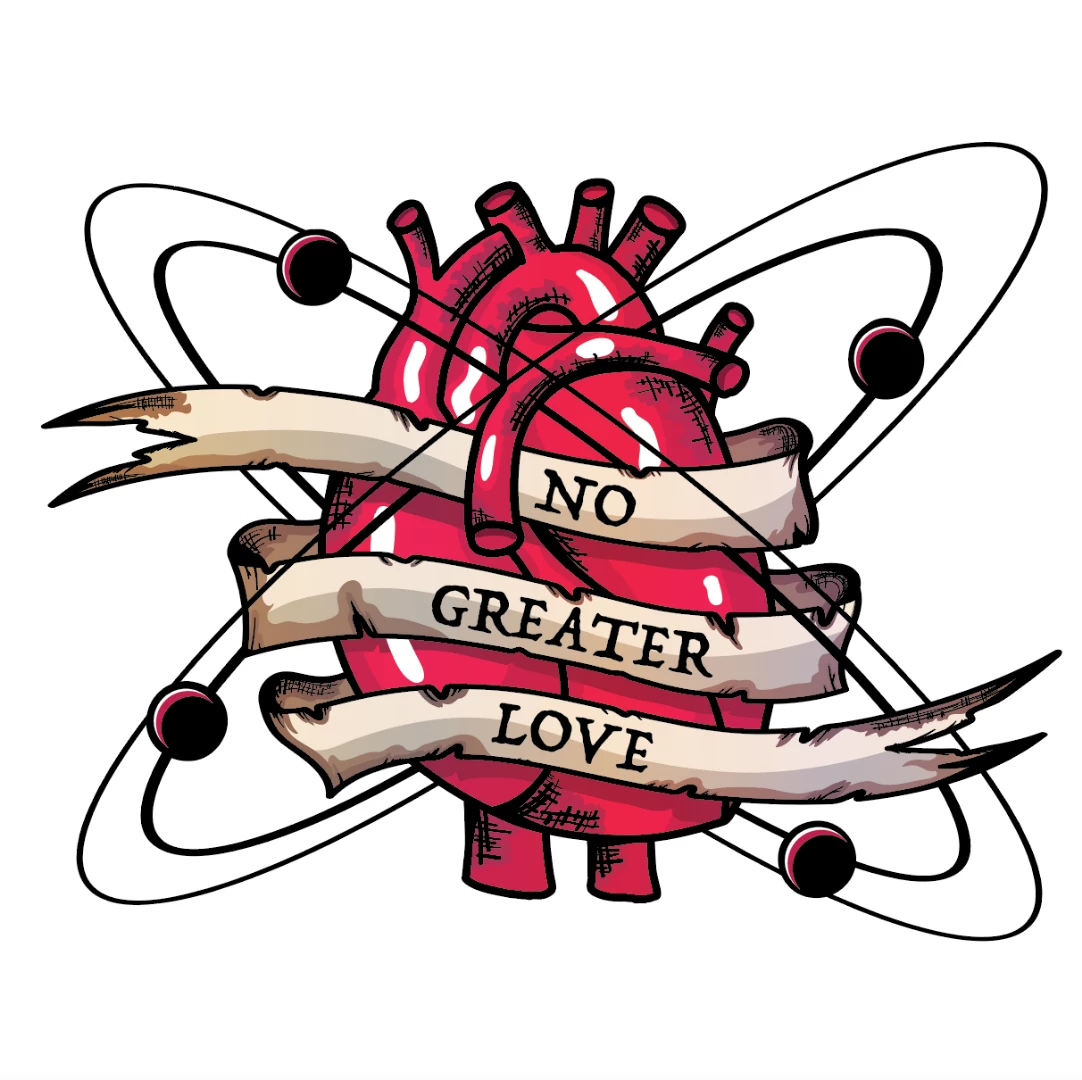
I followed a YouTube video that shows how to orbit objects, but the end result is that they remain in a flat plane (I hope I described that correctly). I just need to modify it so that the atoms follow the ellipses in my artwork. Otherwise, I have achieved all that I want it to do.

Here is the tutorial I followed:

Anyone know how to make the atoms orbit like they do in the tutorial, but also while following a specific elliptical path, such as the ones in my artwork above?

    This topic has been closed for replies.
    Correct answer Roei Tzoref
    How would I make the orbiter follow that path, but still maintain the smoothness and the way it goes in front of and behind the object, like it does in the original tutorial video I posted?

    you create keyframes and adjust the motion path in the compositing window to make nice curves, and in the timeline you make sure the velocity is in a smooth pace. here this tutorial was just posted:

    you might want to invest some time learning the basics here: After Effects tutorials | Learn how to use After Effects CC

    1 reply

    Roei Tzoref
    Legend
    December 31, 2018

    like demonstrated in the tutorial, setting the objects to "orbit towards camera" will make them always face the camera. this way the don't reveal their flatness.

    you can also make the path anyway you like in 3D  (adjust in in 3d view) and skip the whole "orbit towards camera" business since it's only needed if you are using a null and you don't have to.

    you could also simply fake it. make the objects move in the path you want, then before moment they need to be above/below the artwork you can split the layer. make the second part of the layer below/above the artwork. this way you have half of the movement below and half above (this is the easiest way)


    here are examples of each technique:

    Orbit.aep - Google Drive

    Ericarthurc
    Participant
    December 31, 2018

    Thank you for your reply and for the orbit project file. It does everything I want it to do, except for one thing. So I just made a quick screen recording to show what I want, all I did was record as I manually dragged the object in the path I want it to follow:

    How would I make the orbiter follow that path, but still maintain the smoothness and the way it goes in front of and behind the object, like it does in the original tutorial video I posted?

    P.M.B
    Legend
    December 31, 2018

    I don;t understand.  The tutorial shows you how to adjust the path the orbiter takes by adjusting the orientation of the null.  so just do that.  If the orbit (circumference) is too large reduce the radius by moving the orbiter closer to the null.  If it's too small move it further away from the null.  Continue tweaking everything until it matches.  If it still doesn't match up perfectly it's because your rings that you drew are not perfect ellipses.  If you created them using vector paths they should be fine. If you hand drew them then they're probably not perfect and you either need to hand animate the POSITION in 3 dimensions to match your drawing.  Or you can animate the position in two dimensions and use the split layer method Roei described to fake the third dimension.  Another option is to  create vector (shape  or mask) paths over your artwork, copy the path information to the position of the atoms, orient them to always face the camera as Roei described and then, because paths can only be drawn in two dimensions, use the split layer method that Roei described to fake the third dimension

    ~Gutterfish