
harmonyrump
Participant
May 11, 2020
Answered

Paint stroke thickness

  • May 11, 2020
  • 1 reply
  • 1087 views

Hey everyone, I was making a line animation using the "paint effect" and when I finished the animation I realised the strokes were too thick. Is there any way of changing the thickness of the lines in the paint effect after they have been drawn? Thanks!
This topic has been closed for replies.
Correct answer David Arbor

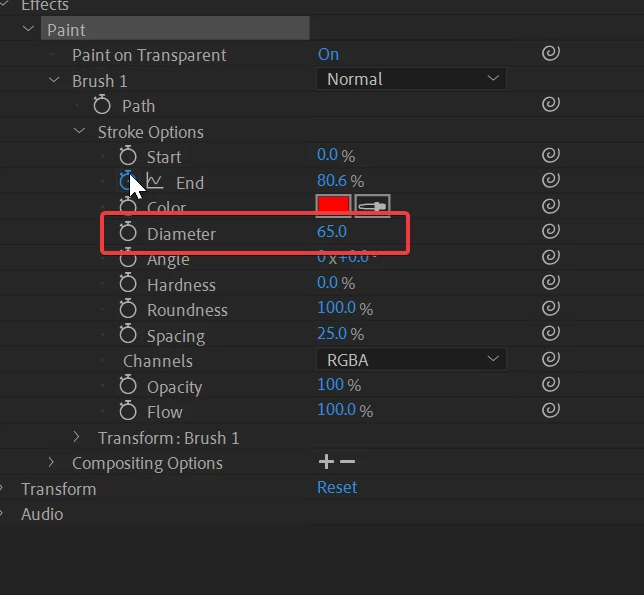
Yup! You can double-click on the "Paint" effect in the Effects Controls panel to reveal it in the Timeline (or just twirl your layer down), then expand the "Brush" group, then the "Stroke Options" group. The thickness parameter is called "Diameter" and you can adjust or animate that, as well as the "Angle," "Hardness," "Roundness," "Spacing," and other parameters that you originally had access to in the "Brushes" panel. See the attached screenshot for what that looks like.


1 reply

David ArborCorrect answer
Inspiring
May 11, 2020

Yup! You can double-click on the "Paint" effect in the Effects Controls panel to reveal it in the Timeline (or just twirl your layer down), then expand the "Brush" group, then the "Stroke Options" group. The thickness parameter is called "Diameter" and you can adjust or animate that, as well as the "Angle," "Hardness," "Roundness," "Spacing," and other parameters that you originally had access to in the "Brushes" panel. See the attached screenshot for what that looks like.


harmonyrump
Participant
May 11, 2020

Hey that's PERFECT, thanks a lot! Quick last question though, does it matter when the stroke options are all in red?


Community Expert
May 11, 2020

When a property is in red it is controlled by an expression. If you did not add the expression they you have used an animation preset or 3rd party script to help with your paint strokes.