Participant
September 10, 2026
Answered

Pairing anchor points

  • September 10, 2026
  • 8 replies
  • 80 views

Hi,

Hopefully I can describe this correctly…

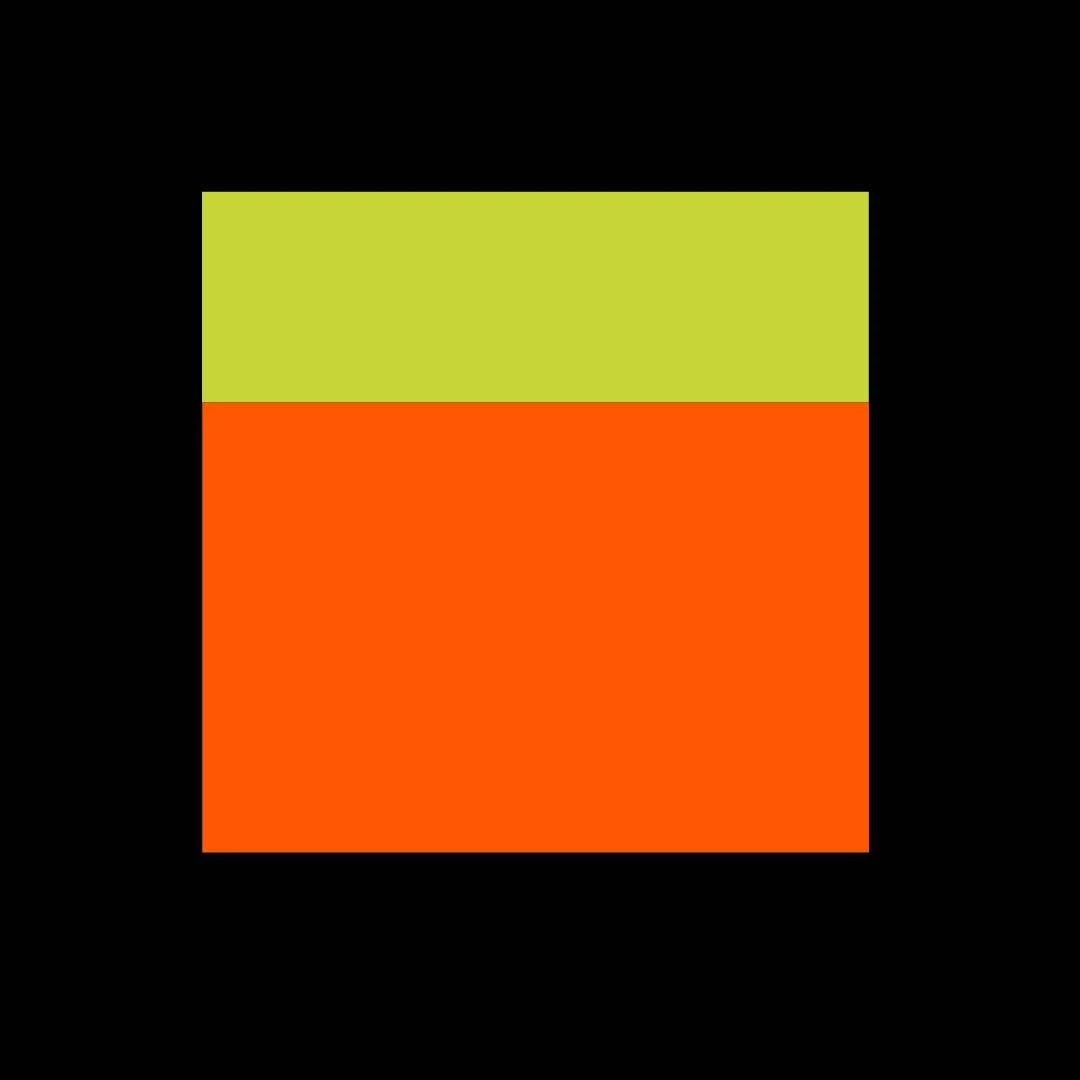
I’m essentially looking to pair/join the bottom anchor points of the green rectangle with the top anchor points of the orange rectangle, so that I can animate the boxes changing their depth up and down whilst the overall group never changes height or width.

Does that make sense?
Can anyone help with this?

Cheers
Steve


    Correct answer thepixelsmith

    If I understand you correctly you want to be able to adjust the relative heights of your two rectangles? So as the Green one gets taller the Red one gets shorter and vice versa?

    No one who answered this understood what you wanted because of a terminology issue. What you referred to as Anchor Points (in every other Adobe program) are called vertices (vertex if singular) in After Effects.

    SOLUTION

    There are a couple of ways to do this. You can use script to link a property like one rectangles height or vertical scale to the height or scale of the other. Alternatively you could skip the script and do it with Nulls linked to the vertices of the shapes.

    The set-up:

    1. Create two shapes, they can be shape layers, imported, whatever.
    2. Move the anchor point of the green box to the top of the shape, and the anchor point of red box to its bottom. (NOTE: in this case anchor point refers to the crosshairs on the layer. this is the point that all layer transformation occur from. Yo move it with the Pan Behind tool)
    3. Add this script to the Red Layer:
      const green = thisComp.layer("Green");
      const greenY = green.transform.scale.value[1];
      const restY = green.effect("Rest Y Scale")(1).value;
      const delta = greenY - restY;
      [value[0], value[1] - delta]
    4. Unlink the scale of the Green box and now changing it or animating it will adjust the scale of red box. 

    You can still add a null object to teh scene and parent the two shapes to it to control their transform properties together.

    NOTE: if you want the non script way let me know and I’ll try to make a video about it.

    NOTE: I use the AE beta and the AI Assistant to write this script.

    NOTE: I included the AEP for the test file I created.

     

    8 replies

    Roland Kahlenberg
    Legend
    September 23, 2026

    There are lots of scripts that solve lots of old problems - Absolute Anchor Point is a feature I built into Anchor Point Pro - there are also advanced features such as Text Baselines and Extruded Layers, including 3D Meshes. 


    https://youtu.be/5aM2tulMuM0

    Very Advanced After Effects Training | Adaptive & Responsive Toolkits | Intelligent Design Assets (IDAs) | MoGraph Design System DEV
    thepixelsmith
    Community Expert
    thepixelsmithCommunity ExpertCorrect answer
    Community Expert
    September 21, 2026

    If I understand you correctly you want to be able to adjust the relative heights of your two rectangles? So as the Green one gets taller the Red one gets shorter and vice versa?

    No one who answered this understood what you wanted because of a terminology issue. What you referred to as Anchor Points (in every other Adobe program) are called vertices (vertex if singular) in After Effects.

    SOLUTION

    There are a couple of ways to do this. You can use script to link a property like one rectangles height or vertical scale to the height or scale of the other. Alternatively you could skip the script and do it with Nulls linked to the vertices of the shapes.

    The set-up:

    1. Create two shapes, they can be shape layers, imported, whatever.
    2. Move the anchor point of the green box to the top of the shape, and the anchor point of red box to its bottom. (NOTE: in this case anchor point refers to the crosshairs on the layer. this is the point that all layer transformation occur from. Yo move it with the Pan Behind tool)
    3. Add this script to the Red Layer:
      const green = thisComp.layer("Green");
      const greenY = green.transform.scale.value[1];
      const restY = green.effect("Rest Y Scale")(1).value;
      const delta = greenY - restY;
      [value[0], value[1] - delta]
    4. Unlink the scale of the Green box and now changing it or animating it will adjust the scale of red box. 

    You can still add a null object to teh scene and parent the two shapes to it to control their transform properties together.

    NOTE: if you want the non script way let me know and I’ll try to make a video about it.

    NOTE: I use the AE beta and the AI Assistant to write this script.

    NOTE: I included the AEP for the test file I created.

     

    Jerron Smith | www.thepixelsmith.com
    SteveCalAuthor
    Participant
    September 28, 2026

    Hi, 
    Thanks for replying. 
    Unfortunately I can’t open the test file even though my Beta version is up to date. (See attached.)
    Are you able to back save to an earlier version to see if that works?

    Also, a video of the non-script version would be much appreciated, thanks.


    Roland Kahlenberg
    Legend
    September 28, 2026

    I see that I misread your OP. 

    The details in this screengrab - the expression and the placement of the Anchor Points should suffice. 


    Very Advanced After Effects Training | Adaptive & Responsive Toolkits | Intelligent Design Assets (IDAs) | MoGraph Design System DEV
    Warren Heaton
    Community Expert
    Community Expert
    September 20, 2026

    ​Hi, @SteveCal:


    To give the two rectabgles the same Anchor Point, create a Null Layer (Layer > New > Null Layer), position it where you want the shared Achor Point to be, then use the Parent & Link column in the Timeline to link the rectangles to the Null.


    This establishes a parent-child link between the Null (the parent layer) and the rectangles (the child layers).  As such, the child layers share the Anchor Point of the parent.  The child layers also share Position, Rotation, and Scale.


    Community Expert
    September 10, 2026

    If I’m understanding your question correctly an easier solution may be to pre-compose both layers. Put the pre-comp in 3d space and then change the Z position.

    SteveCalAuthor
    Participant
    September 11, 2026

    Hey, I’ve not really used 3d in AE...can you be more specific?