LARV
Inspiring
February 16, 2018
Question

Photos overlapping in 3d flashes black

  • February 16, 2018
  • 2 replies
  • 3841 views

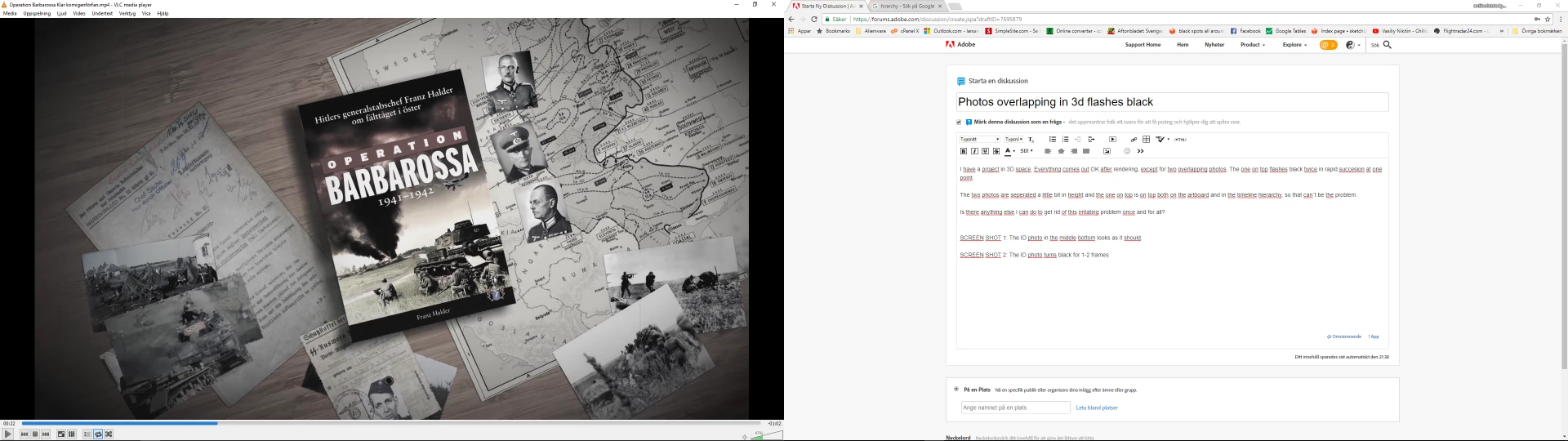
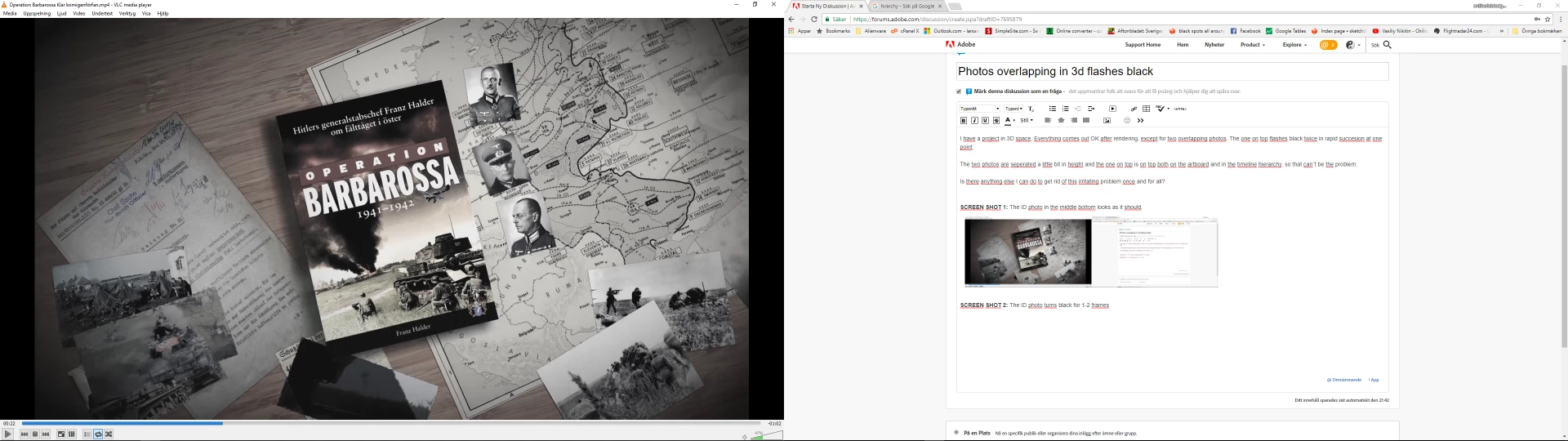
I have a project in 3D space. Everything comes out OK after rendering, except for two overlapping photos. The one on top flashes black twice in rapid succesion at one point.

The two photos are seperated a little bit in height and the one on top is on top both on the artboard and in the timeline hierarchy, so that can´t be the problem.

SCREEN SHOT 1: The ID photo in the middle bottom looks as it should.
SCREEN SHOT 2: The ID photo turns black for 1-2 frames
Is there anything else I can do to get rid of this irritating problem once and for all?
Any help appreciated!

    This topic has been closed for replies.

    2 replies

    Roland Kahlenberg
    Legend
    February 18, 2018

    Any 2D layer placed in the Timeline, between 3D layers, will break 3D interactions.

    More details are available here - Use 3D layers in After Effects

    I'm not certain that you should be too keen/concerned with disabling 3D interactions. It's not exactly a good thing. The most often use-case where you do not want 3D interactions is if you do not want 3D Layers to intersect - when flat imagery intersects, it often doesn't look good even though such flat intersections may be what you want on certain occasions.

    For your specific issue, breaking the 3D interaction may not have helped - I can't be certain but if you want to dive deeper then it's an easy test on your end since you now know how to break 3D interactions. A more elegant solution would be what you did and that is to increase the z-position differential between the two affected layers.

    Very Advanced After Effects Training | Adaptive & Responsive Toolkits | Intelligent Design Assets (IDAs) | MoGraph Design System DEV
    LARV
    LARVAuthor
    Inspiring
    February 19, 2018

    This is impossible... I just rendered it out now that I had heightened the top photo. Instead of flashing two times it flashed constantly, about 200 times. I now know I can´t trial and error this by just going to a single frame...

    I have too many layers to just randomly lower or heighten. I can´t go thru them all. 60 hours of work wasted. F****g s***t, this reminds me of working in the nightmare Adobe Edge Animate...

    I also relaized that heightening the top photo makes no difference. The Photo is still colliding with the side of the book.

    And many layers are on the 0 px height, and they look fine. I get contradictory information...

    Thanks for all the help, though.

    And fix the issue, Adobe.

    Kyle Hamrick
    Community Expert
    Community Expert
    February 19, 2018

    It looks like a complex project. Sometimes that means you run into complex problems, and we can only do so much to diagnose on a message board. There are probably hundreds of different combinations of things that could ultimately be in play here. This could be due to an actual problem with the way After Effects is handling something that SHOULD work, or it's possible you just built it wrong. It could also be due to your video card (are the drivers up to date?) or any number of other things actually unrelated to After Effects itself.

    If you can precomp this thing, or otherwise isolate it, that can be a good way to troubleshoot and/or find an alternate solution. Try using a matte so the offending layer doesn't "exist" there. Solo the piece and pre-render it. There are a ton of workarounds that can sometimes end up being easier/faster than pulling your hair out trying to "fix" it.

    DigitalSpatula
    Inspiring
    February 16, 2018

    hey Larv

    I assume the elements are in 3D space? If so, then their position in the timeline generally doesn't matter. It's their position in 3d space that matters. if two images are on the same position in Z space, that will cause problems. Simple move whatever element you want forward by 1 pixel to fix that issue.

    Hope this helps,

    Steve

    LARV
    LARVAuthor
    Inspiring
    February 17, 2018

    Thank you, Digital Spatula, but I have already done that as well. I even tried seperating them more than 1 pixel in height.

    Any other tip?

    Roland Kahlenberg
    Legend
    February 17, 2018

    Clear your cache - Edit>Purge>All Memory & Disk Cache

    See if this helps by committing to a Preview by setting your WorkArea to encompass a duration slightly longer than the problem frames. If purging cache and memory doesn't help then I would take a look at how the layers and lights are set up from multiple views - just to see if one or more lights has its Light Settings and/or position in such a manner as to create this issue.

    Very Advanced After Effects Training | Adaptive & Responsive Toolkits | Intelligent Design Assets (IDAs) | MoGraph Design System DEV