
Playback/Preview Window Will Not Display
Hi all! I am at a loss with this issue and I'm hoping one of you kind folks have dealt with something similar and can lend a helping hand!
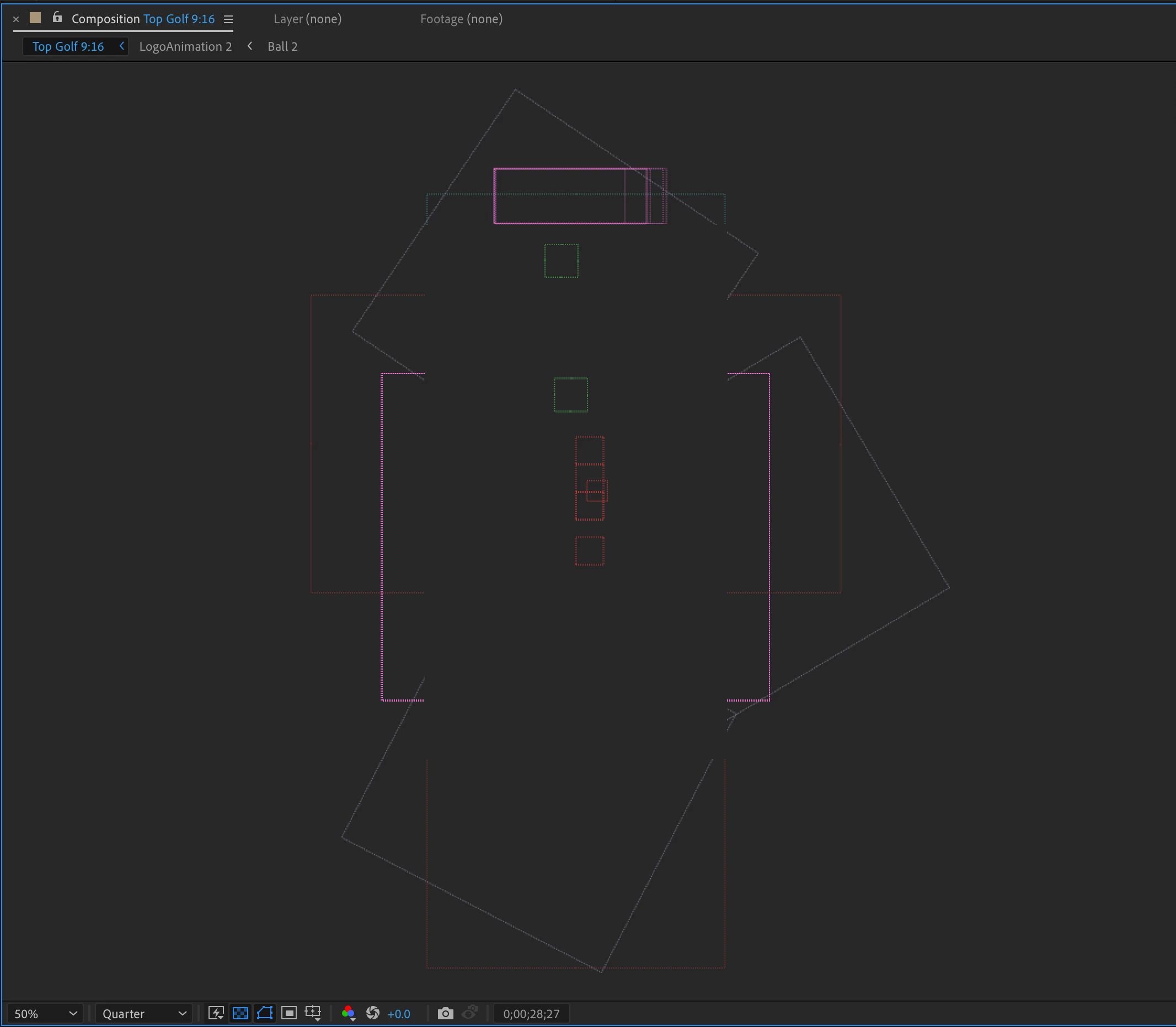
As you can see, nothing displays in my preview window. We can see outlines of the layers, but nothing else. This issue happens in ALL comps, not just this one.
The preview preference is set to adaptive resolution, and yes I do have the most current version of After Effects. This issue does not occur if I open a new file and try to work in it, so it is specific to this file.
Some things I have tried and have not worked:
- Emptied disk cache & cleaned database
- Restarted computer
- Moved cache folder
- Collected file and reopened
- Tried on two different systems (only have Mac available)
- Tried on several older versions of AE
- Tried to drop file into new AE and open, same issue and crashes file. Even copy and pasting some layers into a new comp won't work.
- Changed color profile
Rendering does not work at all, in Media Encoder or AE, which was my worst case scenario solution.
A little about the project: This is a fairly simple, 45 second spot that has an animated phone and some text, it's really nothing crazy. It uses a mix of .ai files and .pngs. The only effects used are turbulant displace and CC ripple, the only other things used are trim paths and position/rotation/scale keyframes, as well as some color changing effects sprinkled throughout. There is no usage of 3D whatsover. When I collect the file, it shows 8.4 MB used.
If anyone has any advice at all, it would be greatly appreciated! Thank you so much in advance 🙂
 AdChoices