
jongsikm72386965
Participant
September 4, 2018
Question

Position Adjustment issue on VR plane to sphere fx.

  • September 4, 2018
  • 3 replies
  • 450 views

Hi, thank you all for reading this issue.

I feel really great having VR support on both AE and Premiere,

But I have encountered some minor issue on using VR plane to sphere fx on one of my 2d image. (On AE)

Right now, I want to place my 2d image on the area indicated by the red arrow below (the vr video is top/down stereoscopic)

In premiere, this can be easily done with adjusting Position value on Motion fx ( it seems its a default fx)
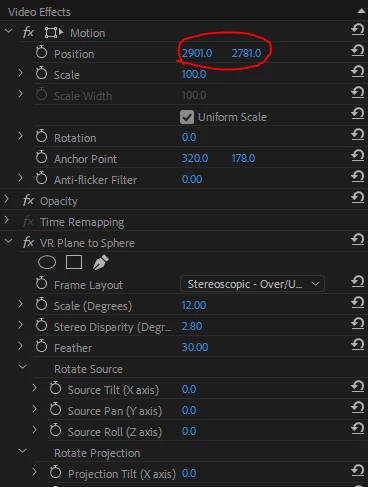
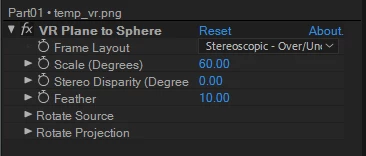
But here's the problem. In AE, the value for adjusting position of the image is missing.

All I ve got is VR plane to sphere fx only. How should I approach this issue?

the position value of the image it self seems locked. If I adjust them, it only affects pivot of the image.
Hope to hear from you soon.

Thanks again for reading this post.

Have a good day!

    This topic has been closed for replies.

    3 replies

    Participant
    November 5, 2024

    If you're experiencing position adjustment issues when transitioning from a plane to a sphere effect in VR, consider the following:

    1. Coordinate Conversion: Ensure you correctly convert 2D coordinates to 3D spherical coordinates using the appropriate formulas.

    2. Position Offset and Scale: Check for any offsets and ensure the sphere's radius and the plane’s scale are aligned.

    3. Camera Adjustments: Verify that the camera settings, such as position and field of view, match the transformation to prevent misalignment.

    4. Interpolation: Use smooth interpolation methods to transition between the plane and sphere.

    5. Debugging: Utilize debug tools to trace positions in VR to identify discrepancies.

    For more tips on VR development, visit PupFeast.

    Participant
    October 21, 2024

    i love its editing features. it has many presets and many other features which is loveable

    Participant
    August 9, 2024

    Verify Software Version: Ensure you are using the latest version of the VR software to avoid compatibility issues.

    2. Check Calibration: Properly calibrate your VR equipment to ensure accurate positioning.

    3. Adjust Plane to Sphere Settings: Verify that the settings for converting a plane to a sphere are correctly applied.

    4. Update Drivers: Make sure your VR system and graphics drivers are up-to-date for optimal performance.

    5. Reconfigure Positioning: Reconfigure the positional parameters within the VR software to match your requirements.

    6. Test Different Angles: Experiment with various angles and positions like age to see if the issue persists across different settings.

    7. Check for Software Bugs: Look for any known bugs or issues in the software documentation or forums.

    8. Verify Object Scaling: Ensure that the scaling of objects in the VR environment is accurate and consistent.

    9. Adjust Field of View: Modify the field of view settings to see if it affects the positioning issue.

    10. Examine Hardware Connections: Check all hardware connections to ensure they are secure and functioning correctly.

    11. Restart Software/Hardware: Restart both the VR software and hardware to clear any temporary issues.

    12. Review Age-Related Factors: If age-related adjustments are needed in the VR experience, make sure that settings and parameters are age-appropriate to avoid discrepancies.