Popp9000
Participant
April 3, 2019
Answered

Problems with blending modes and video copilot's Saber plugin

  • April 3, 2019
  • 3 replies
  • 14302 views

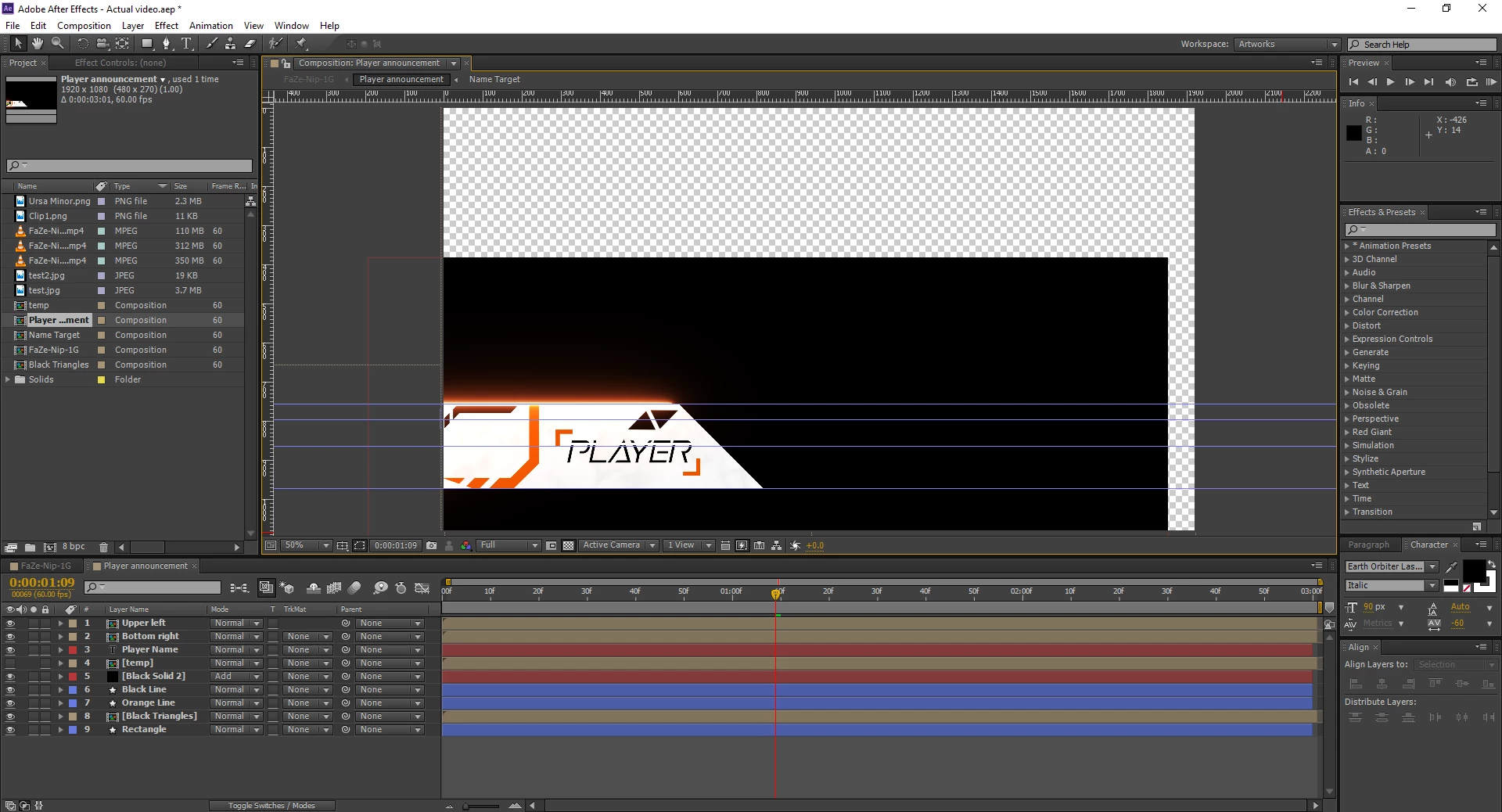
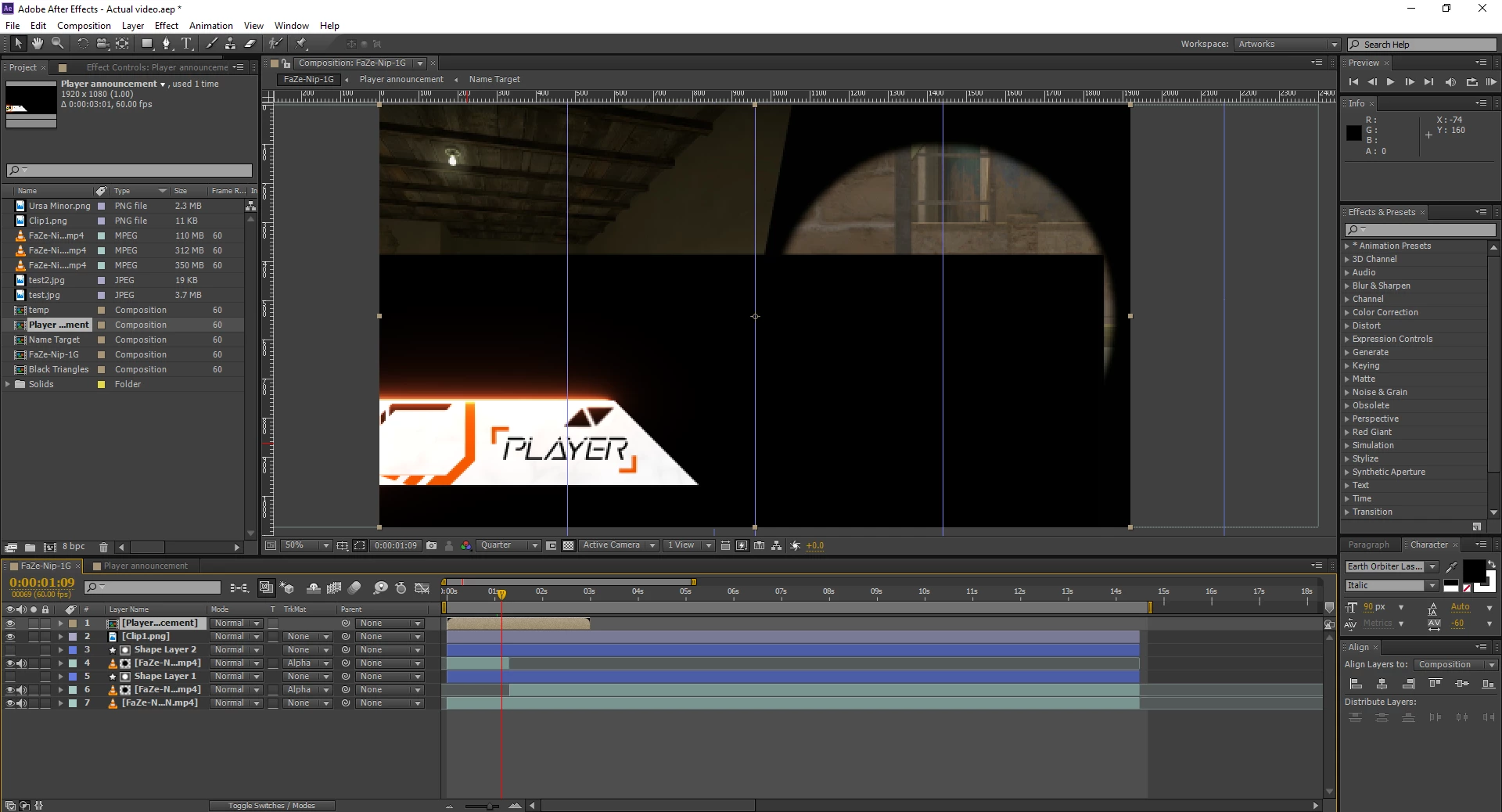
So I've got a problem. I've made a new composition with an animation, call that comp1. I've used a black solid with the video copilot plugin Saber. I animated some stuff on top of that solid. To make sure everything looks right in comp1 I've used blending mode 'Add' for the solid layer with the Saber effect. Now the problem arises when I put comp1 into comp2, over a video file. No matter the blending mode, it never blends right. I get a rectangle over my video. I've tried to mask the black background away, but that won't work as that also gets rid of the glow the Saber effect provides. Does anyone have any idea how to fix this? Thanks in advance, sorry for wall of text.. Top screenshot is comp1, bottom is comp2.
This topic has been closed for replies.
Correct answer Mike_Abbott

If I'm understanding what you're wanting to do...

In Comp 1 set the Saber / Black solid to normal blending mode.

In the Saber effect, twirl down Render Settings and set Composite Settings to Transparent.

In your comp 2 - leave the comp layer set to normal.

3 replies

Participant
May 21, 2020

I have installed the saber plugin and then created a new comp and a new text .. but when i apply saber effect there is no response just it is being a blank screen...what should i do now?

Participant
January 7, 2024

same problem

Rameez_Khan
Legend
April 4, 2019

Hi Popp9000,

Which version of After Effects are you using? FAQ: How to find the exact version of After Effects you're using?

Thanks,

Rameez

Popp9000
Popp9000Author
Participant
April 4, 2019

Hey RameezKhan,

I'm currently using After Effects CS6 version 11.0.0.378

Thanks for the reply,

Popp9000

Participating Frequently
April 4, 2019

Hi. I'm a little confused. In your Comp 2 you don't have a blending mode set for your Comp 1 layer.

Popp9000
Popp9000Author
Participant
April 4, 2019

Hey Towerguy,

Yes you're right in comp2 I dont have a blending mode selected. I've tried basically every combination of blending modes in comp1 and 2 though and none really worked as I wanted to. The second screenshot without a blending mode in comp2 is to most clearly show the problem, but It would still have the problem, albeit maybe slightly less extensive, with another blending mode.

Sorry for being unclear about that, hope this clears it up,

Thanks,

Popp9000

Mike_Abbott
Mike_AbbottCorrect answer
Legend
April 4, 2019

If I'm understanding what you're wanting to do...

In Comp 1 set the Saber / Black solid to normal blending mode.

In the Saber effect, twirl down Render Settings and set Composite Settings to Transparent.

In your comp 2 - leave the comp layer set to normal.