
samuelm36729305
Participant
July 24, 2018
Question

Problems with Fixed Transparency on Vector Shapes

  • July 24, 2018
  • 5 replies
  • 1029 views

Hi everyone,

I've created a series of symbols and icons in Illustrator, vectorized them, saved as a .ai file and imported into After Effects.

When I select the 'create shapes from vector layer' option, only 1 of the 5 converts correctly - the remaining 4 become transparent with no ability to make them colored - but in the layer properties all colors are still showing as present.

Here is a before and after shot. As you can see they've been correctly vectorized from the paths that have been generated:
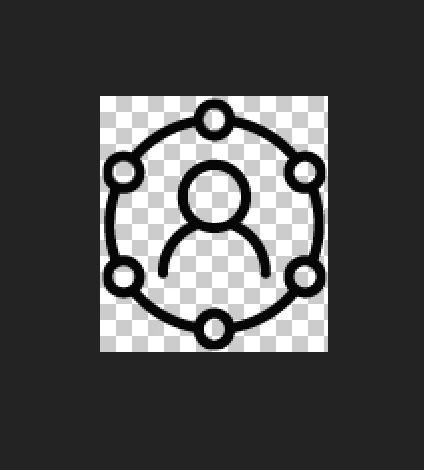
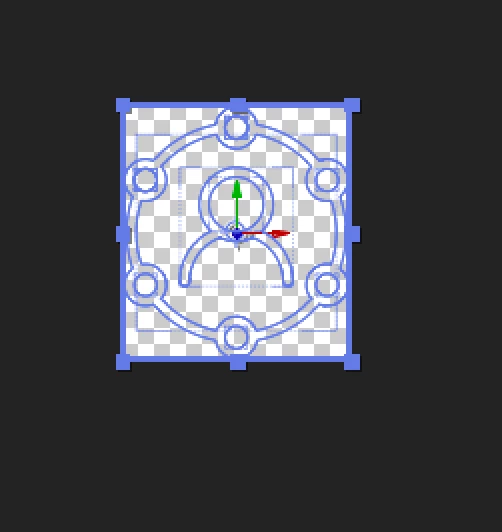
If anybody has any suggestions or ideas for fixing this I'd appreciate it very much!

Thanks

    This topic has been closed for replies.

    5 replies

    mdking1291
    Participant
    May 28, 2019

    I've been having the same issue, and I've figured it out.

    Open up the shape, and open CONTENTS. You'll see all the different GROUPS there. These are each of your elements.

    Zoom into them in the comp and look at each one of the pieces. You're looking for parts that look like they might be disconnected on the elements that are not filled in.

    Reconnect them with the pen tool by clicking one side of the opening and then the other. Repeat for all the pieces that are not filling in and that should fix your problem.

    Kevin J. Monahan Jr.
    Community Manager
    Community Manager
    July 31, 2018

    samuelm,

    Have you solved this issue with the advice of our experts? Let us know!

    Thanks,
    Kevin

    Kevin Monahan - Sr. Community and Engagement Strategist – Adobe Pro Video and Audio
    Roland Kahlenberg
    Legend
    July 25, 2018

    It's quite common that AE incorporates AI's Artboard which becomes merged with the vector segments. This results in AE inadvertently applying a Shape Layer Merge Operator when it isn't needed. So ... as suggested, dig into the various Shape Layer Groups - solo each group by switching off the eyeball for the other Groups. Then disable the Merge Operator while you begin to identify which Path (within the Group) should be disabled, permanently.

    Very Advanced After Effects Training | Adaptive & Responsive Toolkits | Intelligent Design Assets (IDAs) | MoGraph Design System DEV
    Community Expert
    July 24, 2018

    First question: Why are you converting to shape layers? There are only three reasons to do so.

    • you want to extrude the layer using the Ray-traced or C4D rendering engine
    • you intend to use the shape layer animators available under the add button
    • you intend to edit the actual vector paths

    If you are not going to do any of those things converting vector layers to a shape layer is a waste of time. You also lose things like gradients, gradients on strokes, and a bunch of other very useful features available in AI.

    Second question: How did you prepare the illustrator files? Complicated objects that are intended to be converted to shape layers should be simplified before importing into AE. Depending on the artwork you can use tools like Expand Appearance to do this. Any stroke that has had a brush applied will be converted to a filled shape. If you really need to convert the artwork to shape layers then you'll have to go back into illustrator and simplify the appearance until they work in AE.

    Roei Tzoref
    Legend
    July 25, 2018

    Great suggestions so far. this documentation is very useful:
    Preparing and importing still images in After Effects

    Why are you converting to shape layers? There are only three reasons to do so.

    I can think of another reason:
    4. you want the project to be native - not depended on any linked assets. this becomes more important if you are sending projects to other people like templates for example.

    Kyle Hamrick
    Community Expert
    Community Expert
    July 24, 2018

    You may need to dig into the shape layer a bit and rearrange some things.
    Cntl/Cmd+click the main layer twirly, and it will reveal EVERYTHING.

    You might try just grabbing the paths within the other shape groups, and putting them all into one. For your shape, I suspect that's all it'll take. This'll also mean you've only got one fill effect to worry about changing now, instead of multiple.