
Participant
March 28, 2018
Answered

Random keyframes when attempting to speed ramp in AE

  • March 28, 2018
  • 1 reply
  • 1696 views

So my issue here is that when i attempt to make a speed ramp in After Effects random additional keyframes/ramps appear in my timeline. 
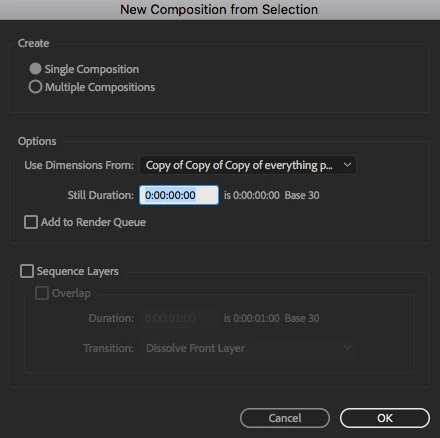
I don't recall this screen in the past when i had made speed ramps prior to this. 

Is there anything here that may be contributing to my issue posted below?

I bring the clip into AE. Right click the clip to "create new composition from selection".^^

Then I click Graph Editor.

Next i right click the clip in the timeline and click Time - Enable Time Remapping.

Everything appears ok so far
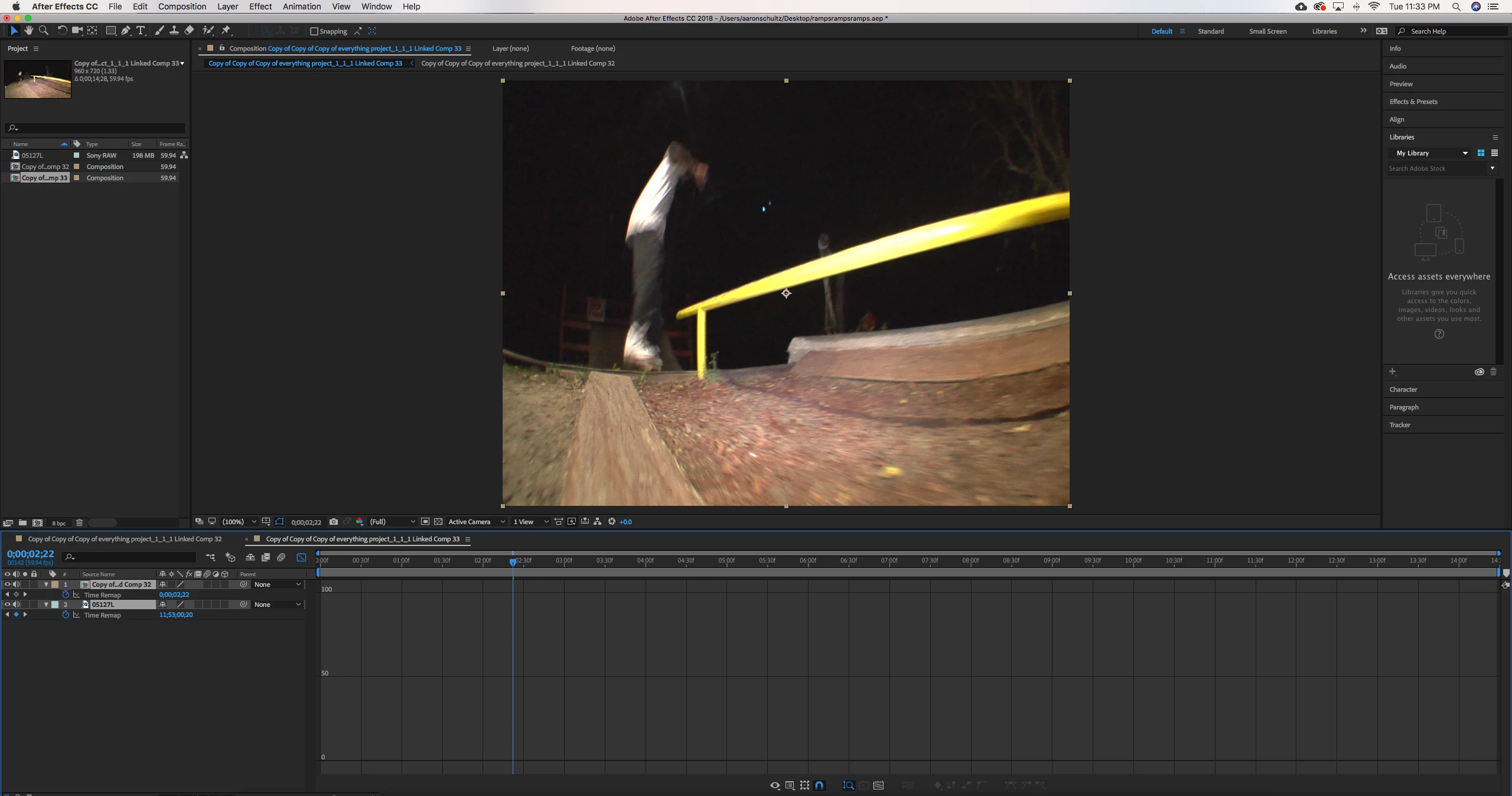
Then i go to add a keyframe using the diamond in the lower left hand corner of this screen.

But the i add a keyframe, it brings in additional keyframes/ramps that i don't want.
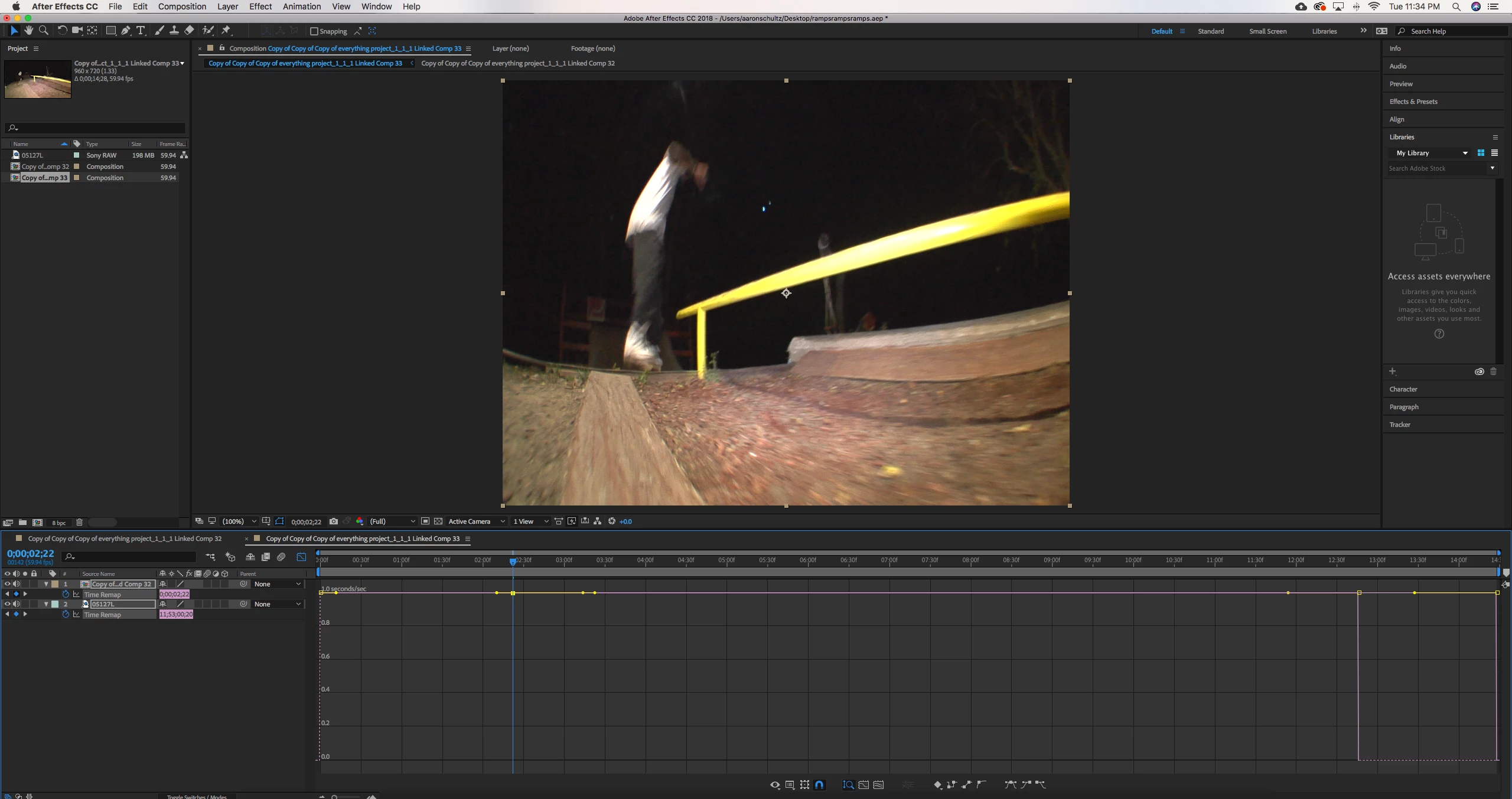
I tried hovering over the keyframes on the right that i don't want in order to either delete them or click the diamond again hoping that would undo the keyframe but if i do that it deletes the keyframe i actually want.

Any idea what i did to cause this issue or what i could do to fix it?

Any and all help is appreciated?

Thanks,

Aaron

    This topic has been closed for replies.
    Correct answer Roei Tzoref

    While this is not directly an answer to your question, I would recommend you look at the Time Remapping options/workflow in Premiere. If that's the only thing you're coming to After Effects for, you might find the way it works in Premiere to be more intuitive, and would likely be a more convenient workflow if this is primarily an edit piece.


    I second Kyle's suggestion. in Premiere the time remapping is based on speed and not time, so you can add keyframes at the segment you want to manipulate and intuitively drag the graph down while the rest of the footage will automatically push forward. it makes making speed ramps very easy and intuitive, contrary to Ae TR which can be much more advanced and specific (confusing).

    this is how it looks in Premiere:

    in Ae there's also the Timewarp effect which will let you affect speed. simply add it to your footage, change the speed to 100%, go to the start of the section where you want to slow down, add a keyframe for 100% speed, go a little forward, add another (say 50%), go to almost the end of the segment, add another 50%, go to the end of the segemnt and add another 100% to be back to normal. set the easing for gradual slowing down/back to normal speed.

    if you do this a lot and need faster/more accurate result, you might want to invest in this plugin: Twixtor - RE:Vision Effects

    1 reply

    Mylenium
    Legend
    March 28, 2018

    There is no issue. It's just your inexperience with time-remapping and understanding how it works. Uisng it will always add an additional keyframe at the start and end to "pin" down the original start and end timing of the source clip and naturalyl this figures into the rest of the keyframes by ways of the keyframes' interpolation behaviors. Again, nothing wrong. I would suggest before making an even deeper mess you study tutorials on keyframing in general (re: that interpolation stuff) and some more specialized ones that tackle time-remapping.

    Mylenium

    Participant
    March 28, 2018

    I've made speed ramps before but have not experienced this issue in the past.

    Normally i just got into the timeline and create a keyframe where i want to ramp to start and another where i want the ramp to end.

    Pull one frame to the side so the bar drops down to around 50% speed then shift click both keyframes and drag up to create the curve.

    Now when i create the first keyframe it automatically adds keyframes further down the timeline and when i go to delete the extra keyframe it also deletes the one i want to keep.

    I'm basically copying what he does in this video which has worked in the past.

    How to ramp slow mo in Adobe After Effects CC 2016 - YouTube

    Notice how when he creates the first keyframe it doesn't automatically add others further down the timeline.

    Kevin J. Monahan Jr.
    Community Manager
    Community Manager
    April 24, 2018

    Galenskater,

    Did you ever get this issue solved? Let us know.

    Thanks,
    Kevin

    Kevin Monahan - Sr. Community and Engagement Strategist – Adobe Pro Video and Audio
