January 19, 2026
Question

Randomly scale 223 circles for a map animation

  • January 19, 2026
  • 3 replies
  • 91 views

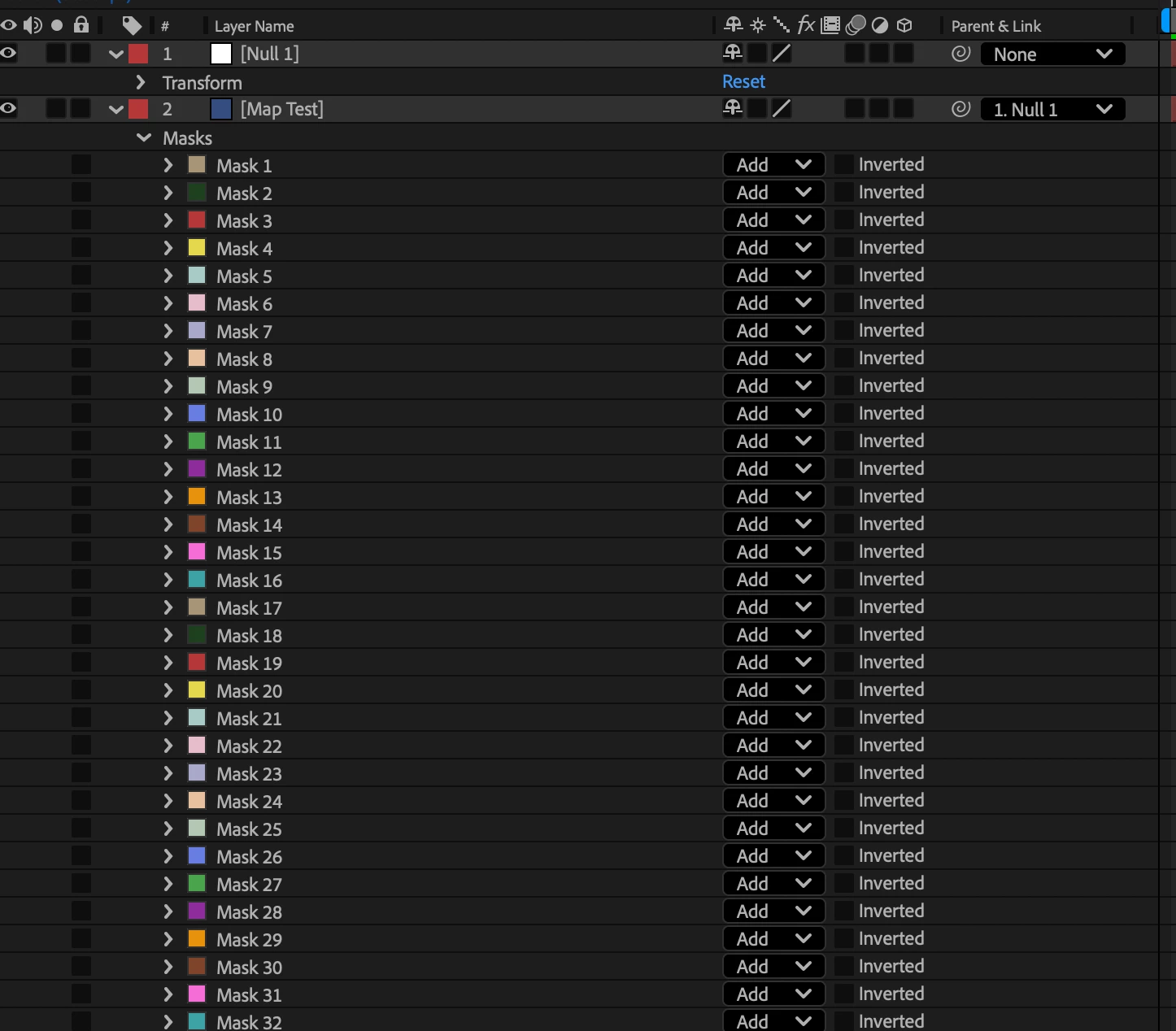
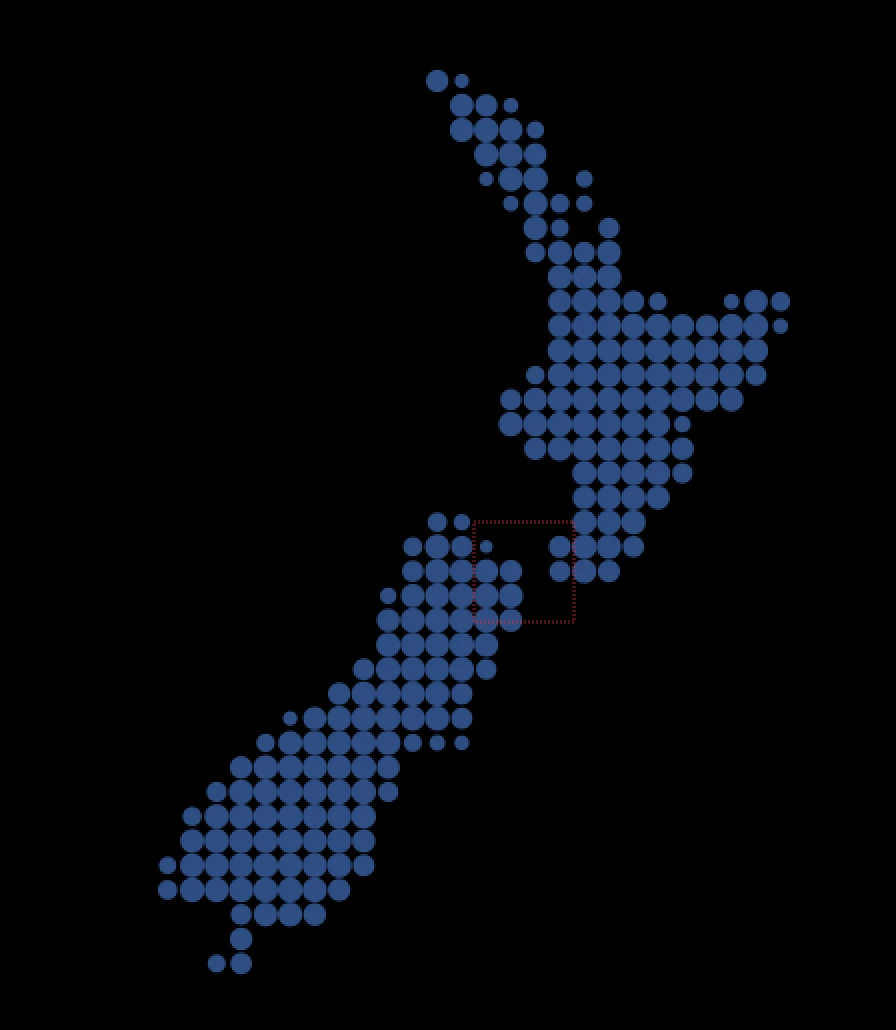
Hey team, I have a vector file with a map that I'd like to animate on. Ideally have each individual circle scale up like a little 'pop', but not all at the same time? I have a layer with the vector file linked, and another layer set as a solid with the circle masks pasted onto them.
I could manually animate all 223 circles, but that is time I'd rather spend on the main video edit. Is there a quick solution here? I'm comfortable in AE but no guru.

Thank you!
 

875473i927B51C08981C2D4.png875474i0E9F9A2FB15C4F4D.png

3 replies

thepixelsmith
Community Expert
Community Expert
January 23, 2026

I have one addition to what @AidanEdits wrote. If you don't want to have to use the built in command Release to Layers (Sequence) you can use a script in Illustrator instead.
Layer Me This

https://thepixelsmith.gumroad.com/l/layermethis
It makes it a little easier to separate to layers and gives yo the ability to name them all at once.

It's name what you want pricing, so just say Zero (0) and you're good.

Jerron Smith | www.thepixelsmith.com
Inspiring
January 26, 2026

Smart! Adding this to my script library. Thanks for the tip  

thepixelsmith
Community Expert
Community Expert
January 26, 2026

No problem. Hope it helps..


Jerron Smith | www.thepixelsmith.com
Inspiring
January 22, 2026

You don't want to use masks for this as they do not have their own Scale properties. If you import your Ai vector file and drag it into the comp, you can right click the layer>Create>Create Shapes from Vector Layers. The results of this will depend on how your layers are set up in Illustrator. For this, you'll want all your circles in Ai to occupy their own layers. Otherwise, in Ae you'll have 200 shapes on one layer (same as how your masks are currently set up) which isn't ideal. 


Here's how you can very quickly seperate your groups into layers in Ai: https://youtu.be/YooRo80W8bU?si=1RDgeUTHp509IXsh 


Once you're done all that you should have 223 layers in your Ae comp: one for each circle. Select all the layers and on your keyboard hit Ctrl+Alt+Home to center all anchor points. Then, create a Null Layer and call it "Control". Put two Slider Control effects on the null. Name one slider "Duration (Solo)" [set it to 0.1 for now] and the other "Duration (Max)" [set to 1 for now].  Then put this expression on Scale of one circle layer, then select the Scale property and hit Ctrl-c, then select all the other layers and paste. Let me know if this works for you 

var ctrl = thisComp.layer("Control");

var durSolo = ctrl.effect("Duration (Solo)")("Slider"); // seconds for each circle which you can control for all with the respective slider 
var durMax = ctrl.effect("Duration (Max)")("Slider"); // max possible offset

// random offset per layer
seedRandom(index, true);
var tOffset = random(0, durMax);

// The animation 

var s;

if (time < tOffset){
s = 0;
}else if (time > tOffset + durSolo){
s = 100;
}else{
s = easeOut(time, tOffset, tOffset + durSolo, 0, 100);
}

// Return uniform scale
[s, s];

nishu_kush
Legend
January 20, 2026

Thanks for writing in, Michelle.


To do this, I'd import the .Ai file with each circle on its own layer so that they can be animated individually. Once the file is imported, animate one of the circles and copy and paste its animation on the rest of them. To randomize the timing, you can offset the keyframes or the layers using Quick Offset. Here's a tutorial: https://adobe.ly/49G7Ura

Let me know how it goes. Here's what I could achieve with this method.


Thanks,
Nishu