
Participating Frequently
January 9, 2023
Question

Removing Black Background from stock footage using add/screen blending mode not working

  • January 9, 2023
  • 2 replies
  • 10514 views

Hello, 

I'm trying to remove the black background from this particle stock footage using the blend mode add or screen. I tried everything precomposing, using the 2 blending modes and it's not working... In other projects the blending mode works fine on these footage. But the problem is just with this one... 

Here's a screenshot of my timeline
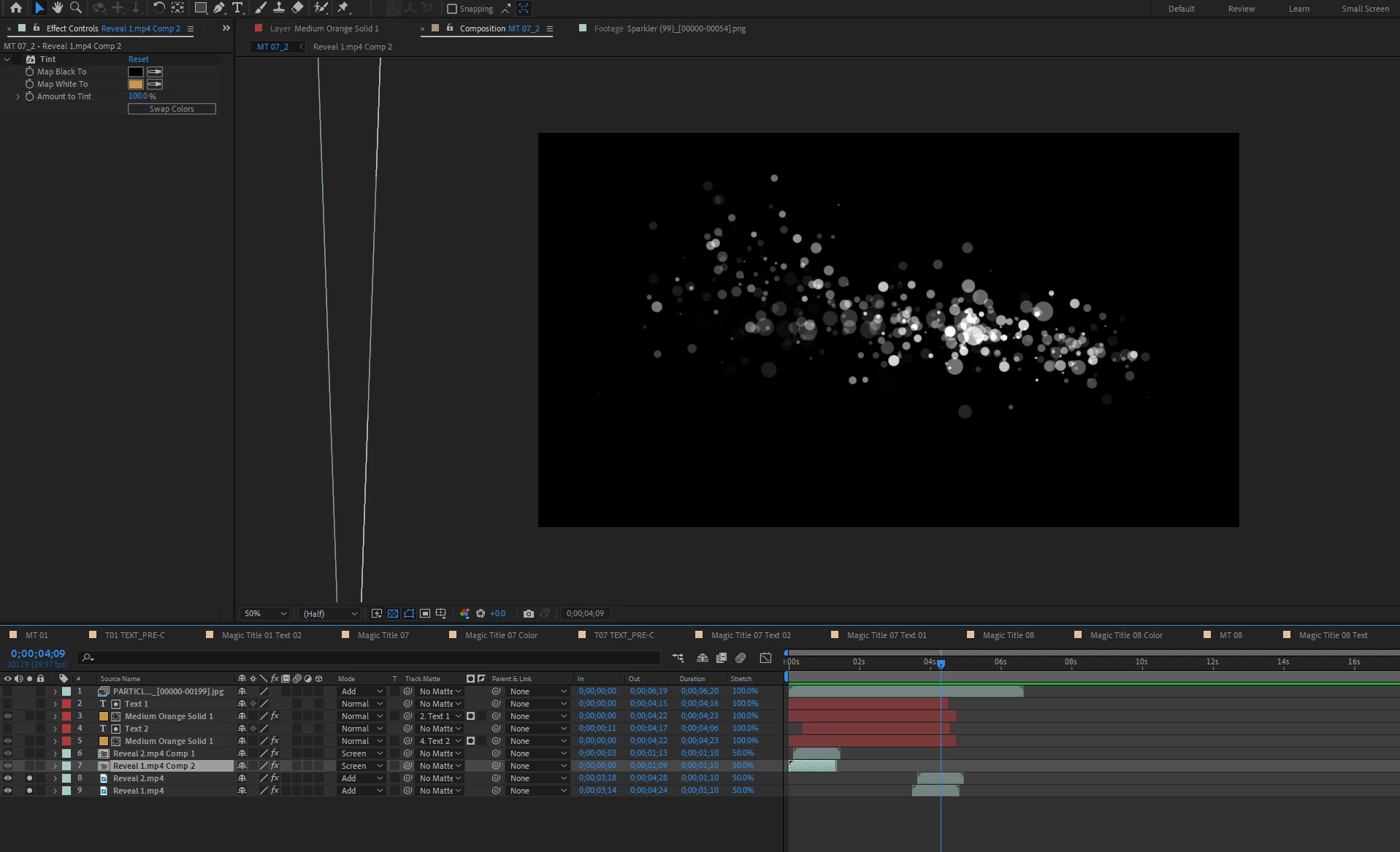
This topic has been closed for replies.

2 replies

Mylenium
Legend
January 10, 2023

Agree with Rick. There appears to be no layer underneath to actually blend with, so this method won't work. The comp background doesn't count since it's treated differently. Using a Shift Channels effect to convert the luminance to transparency would be the quickest way to resolve this.


Mylenium 

ShiveringCactus
Community Expert
Community Expert
January 10, 2023

If you're not sure how to use Shift Channels for the best results, if you search Effects & Presets for "Unmult" you'll find a preset there which should do this for you.


Alternatively, you could use a Luma Track Matte pointed at a copy of the stock footage.

Community Expert
January 10, 2023

Add, and Screen do not produce transparency; they only blend the pixels on the layer with values higher than zero with the pixels on the layers below. You need a layer below your stock footage before blend modes will do anything. Layers 8 and 9 are both set to add. There is nothing below them, so there are no pixels to blend with. I assume from what I see in the screenshot that both layers are stock footage of particles. If you turn off layer 8, the image will change because the pixels with a greater value than 1 on layer 8 are blended with the pixels in layer 9. Put a dark red solid below layer 9; you should see white particles on a red background. I don't think there is anything wrong.


If you want transparency, you need to create a procedural matte. You might try Set Channels and set the Alpha to use Luminance. You might need to apply a Curves effect above the Set Channels to the layer to increase the contrast of the layer to get the transparency to work the way you want it to work.

Participant
March 25, 2024

Thank you so much, Rick! This really helped me a lot.