
KlausKi
Inspiring
September 24, 2024
Question

Request for documentation: Timeline elements

  • September 24, 2024
  • 2 replies
  • 360 views

With my current knowledge, when I'm dragging a clip's ins and outs in the timeline, strange, unexpected things happen. This way I'm not able to work with After Effects in a productive way.


I have been googling back and forth for this. Still, I was not able to find a thorough, yet concise, documentation on each of a timeline's elements.


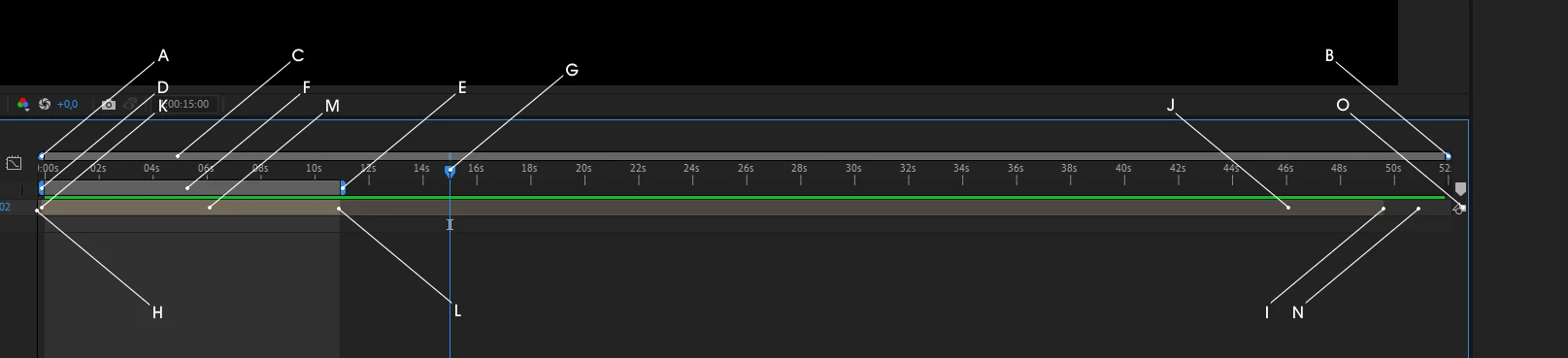
I know this is a big bunch to ask for, but can someone please fill-in the following table (perhaps this information could later be added to https://helpx.adobe.com/after-effects/…)


 DescriptionWhat happens when dragged/moved
A  
B  
C  
D  
E  
F  
G  
H  
I  
J  
K  
L  
M  
N  
O  


This topic has been closed for replies.

2 replies

thepixelsmith
Community Expert
Community Expert
October 1, 2024

A: Time Navigator Start

B: Time Navigator End

C: Time Navigator

Uses: Pull the Start/End towards each other and they magnify the Timeline Panel. Drag the entire bar to scroll through the timeline.


😧 Work Area Start

E: Work Area End

F: Work Area Bar

Uses: The work area affects the part of your timeline that previews and exports


G: Current Time Indicator (Also called the playhead)

Uses: It's what moves when you preview. Whatever frame it is on is what you are currently viewing in your Comp panel. Keyframes are created at it's positino when animating a property.


H: The dividing line between the two sides of the Timeline.


I&J: Show the max duration of the layer

K: Layer In Point

L: Layer Out Point

M: Layer

These all Show you the layer's current duration (the space between the In & Out ponts) and it's possible total duration. The difference is casued when you shorten a layer by changing it's in and out points.


N: Just looks like some empty space on the Timeline, the area that exits beyond your last layer.

O: Reveal Comp Button.

Use: When you have multiple comps and the comp window is not automatically switching this button brings that comps forward and switches to it.


KlausKi
KlausKiAuthor
Inspiring
October 9, 2024

Thanks to much, guys, for this utterly valuable list!!


I'm going to bookmark this page for now and see if any more questions will arise. Hence, at this time I will not tag one of your splendid answers as "correct answer" for this thread to not get locked.

Ishan Y
Inspiring
September 30, 2024

Hi!

I can't name them all, but I'll try my best to answer your questions. Also, could you share more details on the issue you described in the post's first paragraph? 


D & E are the start and end of the Work Area (M on your image), similar to the in- and out-points in Premiere Pro. The Work Area is what is exported as the final product from After Effects. The duration of the Composition outside the work area won't be exported. 


A & B show the magnification of the Timeline. You can adjust the magnification using the + and - keys.


G is the playhead or current time indicator, sometimes abbreviated as CTI.


K and H are the In and Out points of your Layer. You can set them using the Alt + [ and Alt + ] keys. J shows the portion of the Layer that is not in use. You won't see this with Object, Shape and Text Layers since their duration can be extended for any amount of time. 


I've missed a few, but these details should help you get going. If you have any questions, please leave a reply here.


Thanks,

Ishan

Please tag me (@) in your replies so that it notifies me and helps me respond promptly.