charcouch98
Participant
April 10, 2026
Answered

Resolution issue with screenrecording in AE

  • April 10, 2026
  • 1 reply
  • 23 views

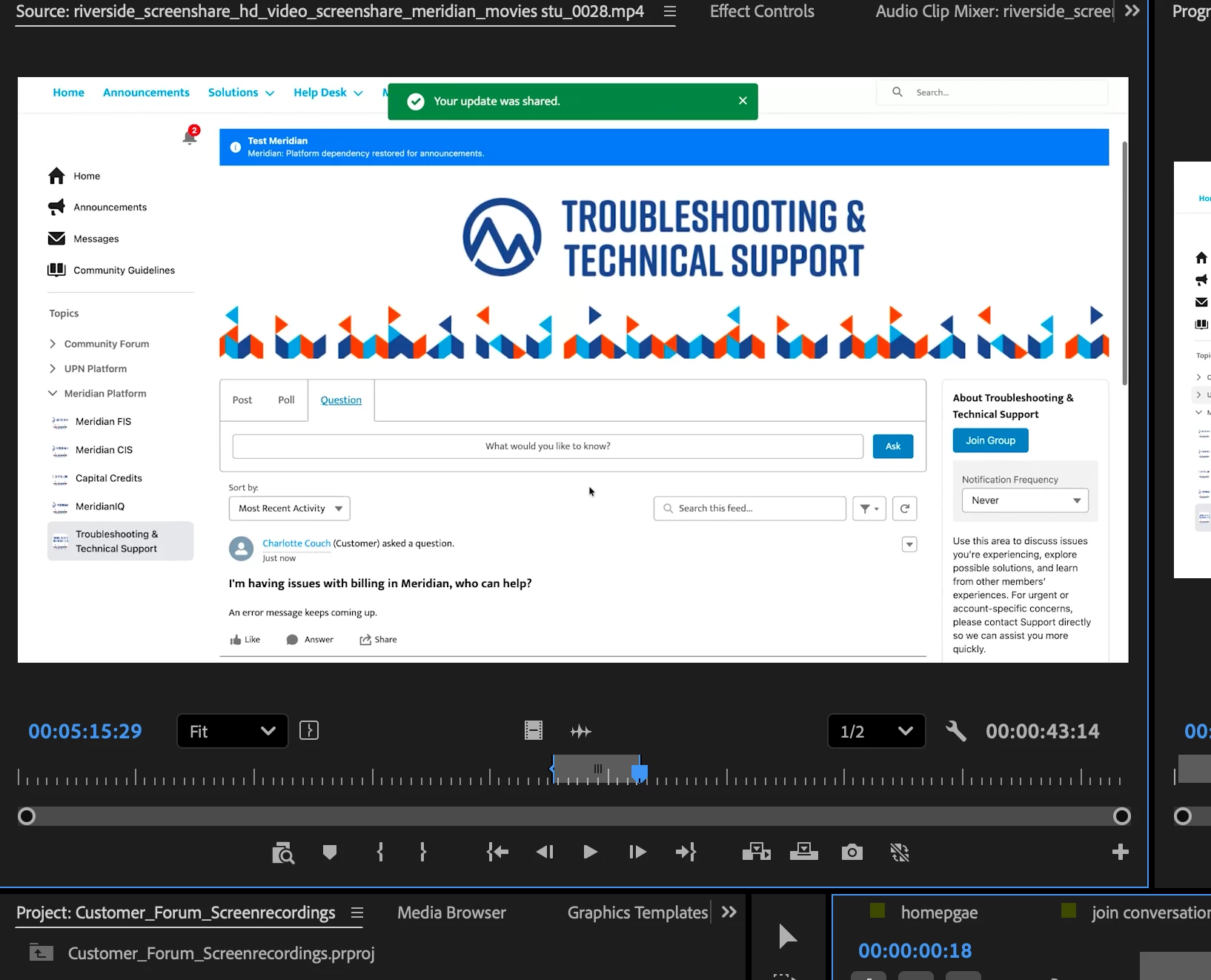
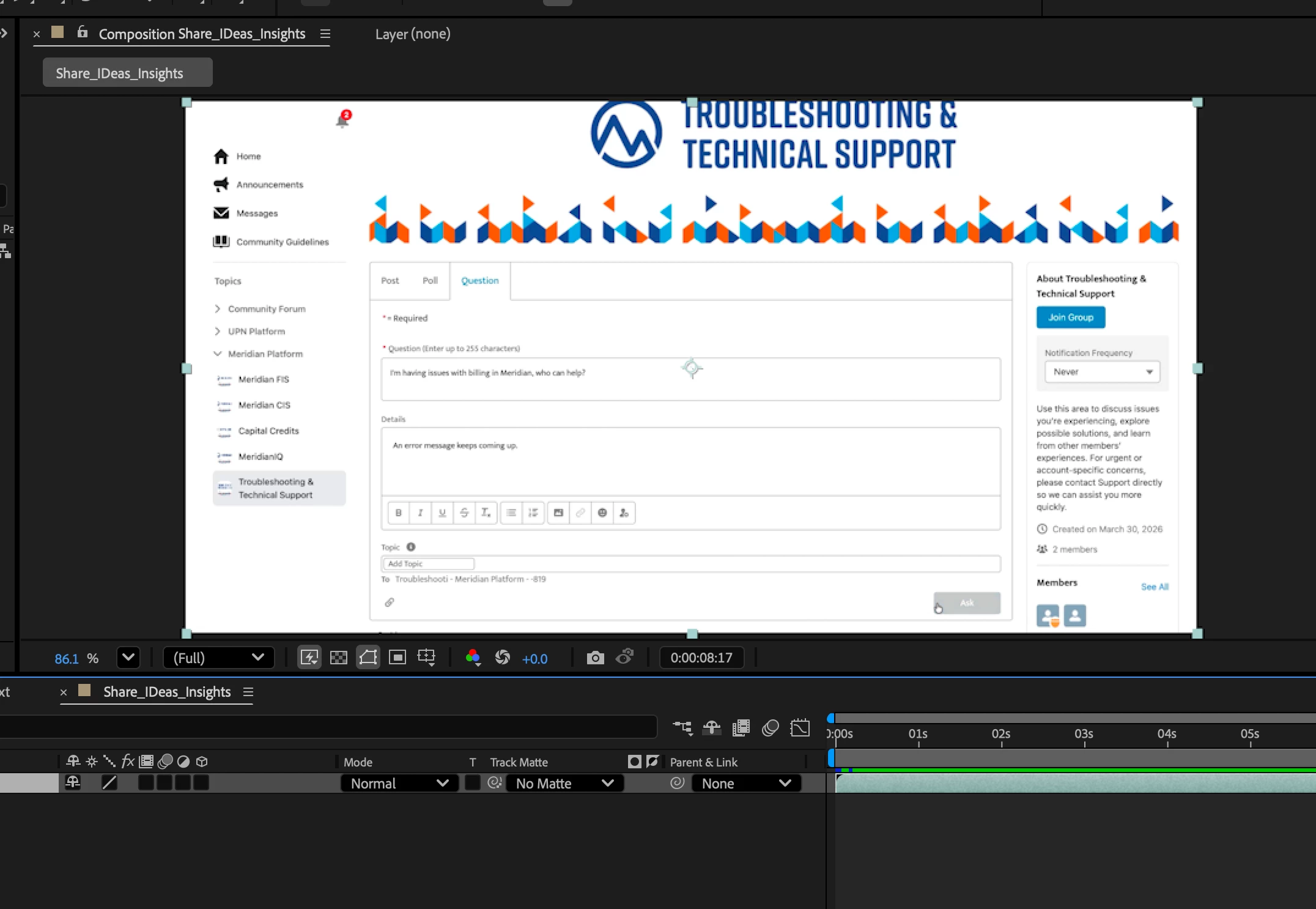
The screen recording that I’m exporting into After Effects, after exporting from Premiere is losing resolution - see attached images for reference. I’m exporting H.264, high bitrate, and making sure the frame rate is the same in the composition as well. The view is also currently set to fit, so that shouldn’t be the issue. Also tried creating a composition from the file in AE, but that didn’t help. Any ideas on what could be causing this?

    Correct answer Warren Heaton

    @charcouch98 

    A better CODEC than H264 for intermediate work (which is what you’re doing) is ProRes.  ProRes can be expected to be larger in file size than H264, but that’s why it’s good for editing.  To keep file sizes on the smaller side for ProRes, I’d go with ProRes 422 LT.

    Another approach is to send the clip(s) in Premiere directly to After Effects without exporting.  To do this, right-click a Clip or Clips in your Premiere Timeline and then choose “Replace with After Effects Composition”.  I usually save the resulting After Effect project in the same folder as the Premiere project with a descriptive filename. Any work done on the AFter Effects side shows in the Comp in the Timeline on the Premiere side.


    When back in Premiere, if it shows red in the Time Ruler above the Comp then be sure to select it and then choose Sequence > Render Selection.  This renders a Preview file that should play smoothly as long as green shows in the Time Ruler above the Comp.  If the render time is too slow, go into the Sequence Settings and reduce the frame size of the Sequence Video Previews.  You ay want to change this back as you go from doing your rough cut to your fine cut. 


    If working on a system with a lower amount of RAM (32GB or less), I would consider saving and quitting out of Premiere while working in After Effects - but gauge this based on the type of performance you’re getting while both applications are open.  When returning to Premiere, consider saving and quitting out of After Effects.


     - Warren

    1 reply

    Warren Heaton
    Community Expert
    Warren HeatonCommunity ExpertCorrect answer
    Community Expert
    April 10, 2026

    @charcouch98 

    A better CODEC than H264 for intermediate work (which is what you’re doing) is ProRes.  ProRes can be expected to be larger in file size than H264, but that’s why it’s good for editing.  To keep file sizes on the smaller side for ProRes, I’d go with ProRes 422 LT.

    Another approach is to send the clip(s) in Premiere directly to After Effects without exporting.  To do this, right-click a Clip or Clips in your Premiere Timeline and then choose “Replace with After Effects Composition”.  I usually save the resulting After Effect project in the same folder as the Premiere project with a descriptive filename. Any work done on the AFter Effects side shows in the Comp in the Timeline on the Premiere side.


    When back in Premiere, if it shows red in the Time Ruler above the Comp then be sure to select it and then choose Sequence > Render Selection.  This renders a Preview file that should play smoothly as long as green shows in the Time Ruler above the Comp.  If the render time is too slow, go into the Sequence Settings and reduce the frame size of the Sequence Video Previews.  You ay want to change this back as you go from doing your rough cut to your fine cut. 


    If working on a system with a lower amount of RAM (32GB or less), I would consider saving and quitting out of Premiere while working in After Effects - but gauge this based on the type of performance you’re getting while both applications are open.  When returning to Premiere, consider saving and quitting out of After Effects.


     - Warren

    charcouch98
    Participant
    April 10, 2026

    Thanks!