


Participating Frequently
October 13, 2026
Question

Same Path to follow

I want this object to follow same path it had before. By holding SHIFT key it is possible to have either vertical path or horizontal path. Is there any key to hold to follow same path it had before? file & video also attached.
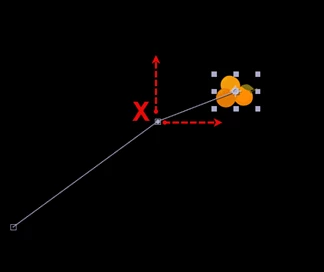
Same Path.aep


    3 replies

    Warren Heaton
    Community Expert
    Community Expert
    October 13, 2026

    Hi, ​@abstract_hands0688:

    If this was Illustrator, we could do what’s called a Line Extension.


    This is what comes to mind for After Effects:
    Duplicate the Layer and lock and hide the original so you have it for reference.  Enable Expressions for the Position property of the duplicate layer and add the following:

    loopOut("continue")

    Go to the time of the third Position keyframe of the original Layer.  Right click “Position” for the duplicate Layer and choose Keyframe Assistant > Convert Expression to Keyframes.  Remove the Expression.  Select and delete all of the keyframes except for the first Position keyframe and the Position keyframe at the Current Time.  Select the two Position keyframes and convert the Temporal Interpolation and the Spatial Interpolation to Linear.  Delete the original Layer.


    Translate
    Participating Frequently
    October 13, 2026

    Thanks for the reply. There are six objects like this, I want to show small jerk before it reach final point. In my view it is a complicated procedure to do so. 

    Translate
    Warren Heaton
    Community Expert
    Community Expert
    October 13, 2026

    You could manually set the third keyframe of the original layer based on the Position value of the duplicate layer that results from the Expression at the time of the third keyframe.

    So, duplicate your original Layer, then lock and hide the original.  Show the Position property for the duplicate by pressing “p”, option-click, Mac or alt-click, Windows the Position Time-vary Stopwatch and add the loopOut(“continue”) Expression.  Go to the third keyframe of the original Layer and change the x and y coordinates to match the duplicate’s Position coordinates appear in red at that time.  Or create keyframes from the Expression and copy and paste the resulting keyframe from the duplicate to the original. 

    Once that’s set, delete the duplicate.  Then for the “jerk” motion, do something that changes the temporal keyframe interpolation of the 2nd keyframe (nudge it to the right in the Timeline, change it to Hold, switch to the Graph Editor and change the value or speed).


    Translate