
Inspiring
April 11, 2023
Question

scale & position expression - macOS dock effect

  • April 11, 2023
  • 3 replies
  • 1302 views

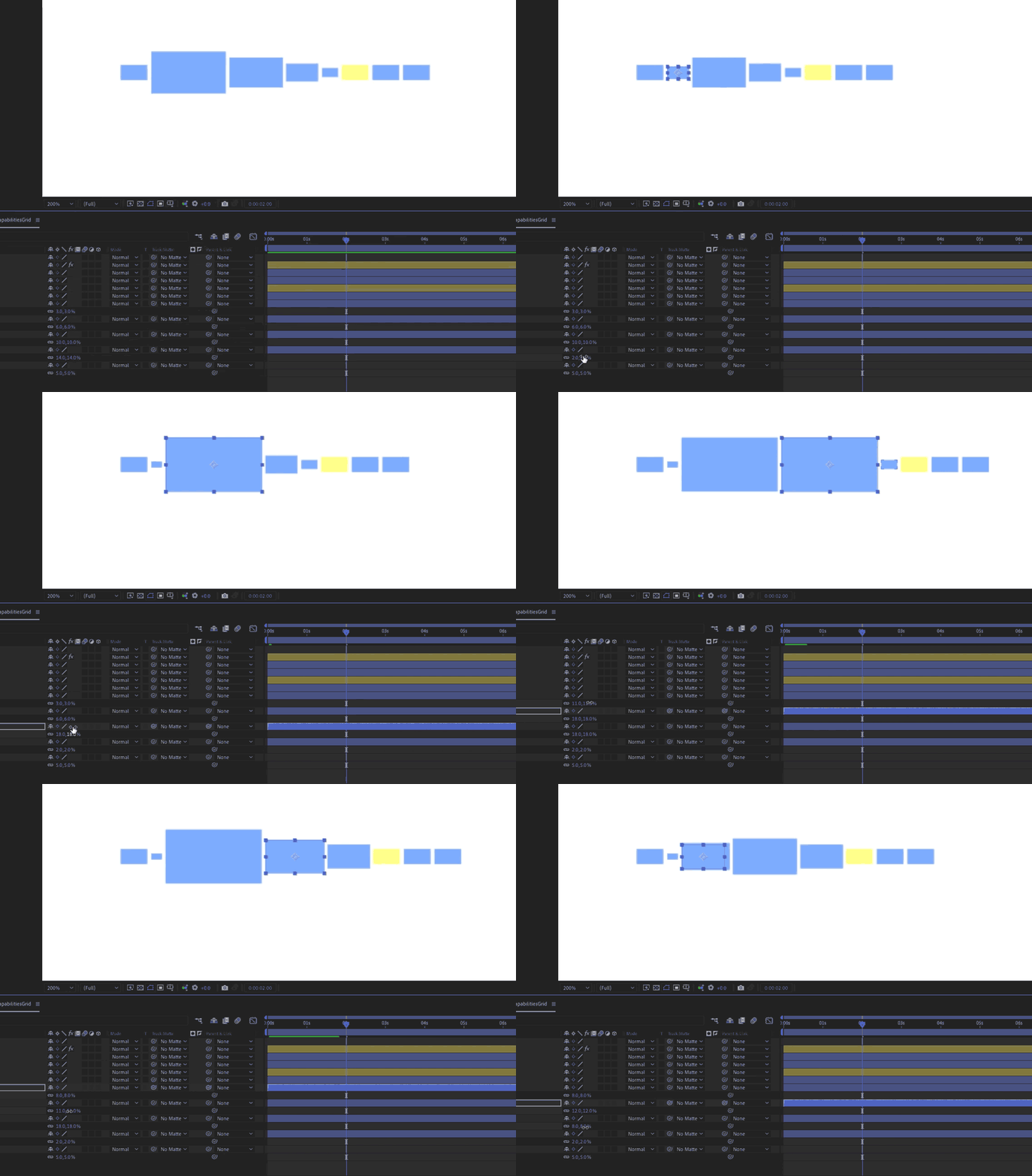
I'm using some expressions to create a similar effect to the macOS dock. When I independently scale the layers they adjust their position automatically. 
 

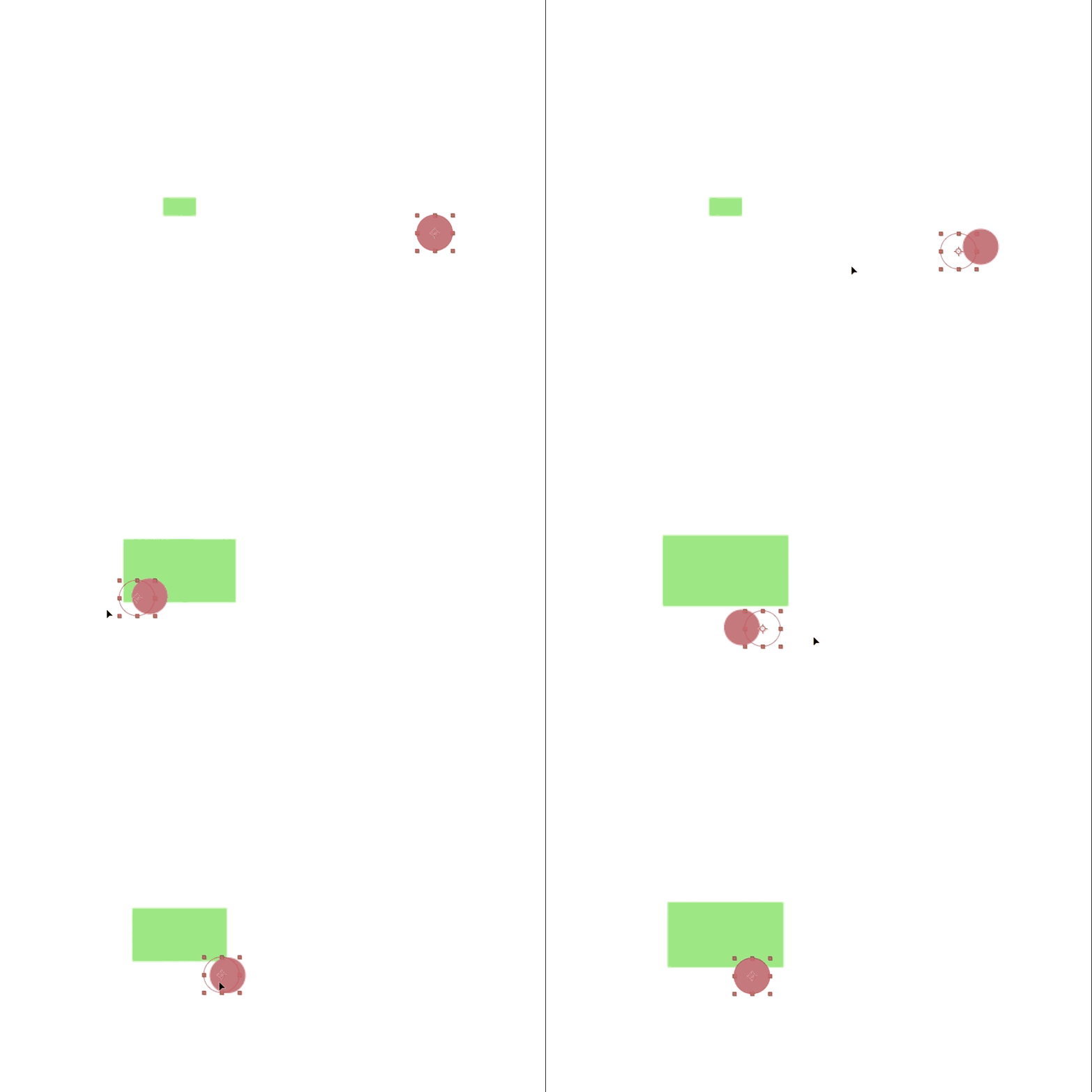
I want to add this 'cursor' when it's near is going to scale, and needs to change its position as well
 

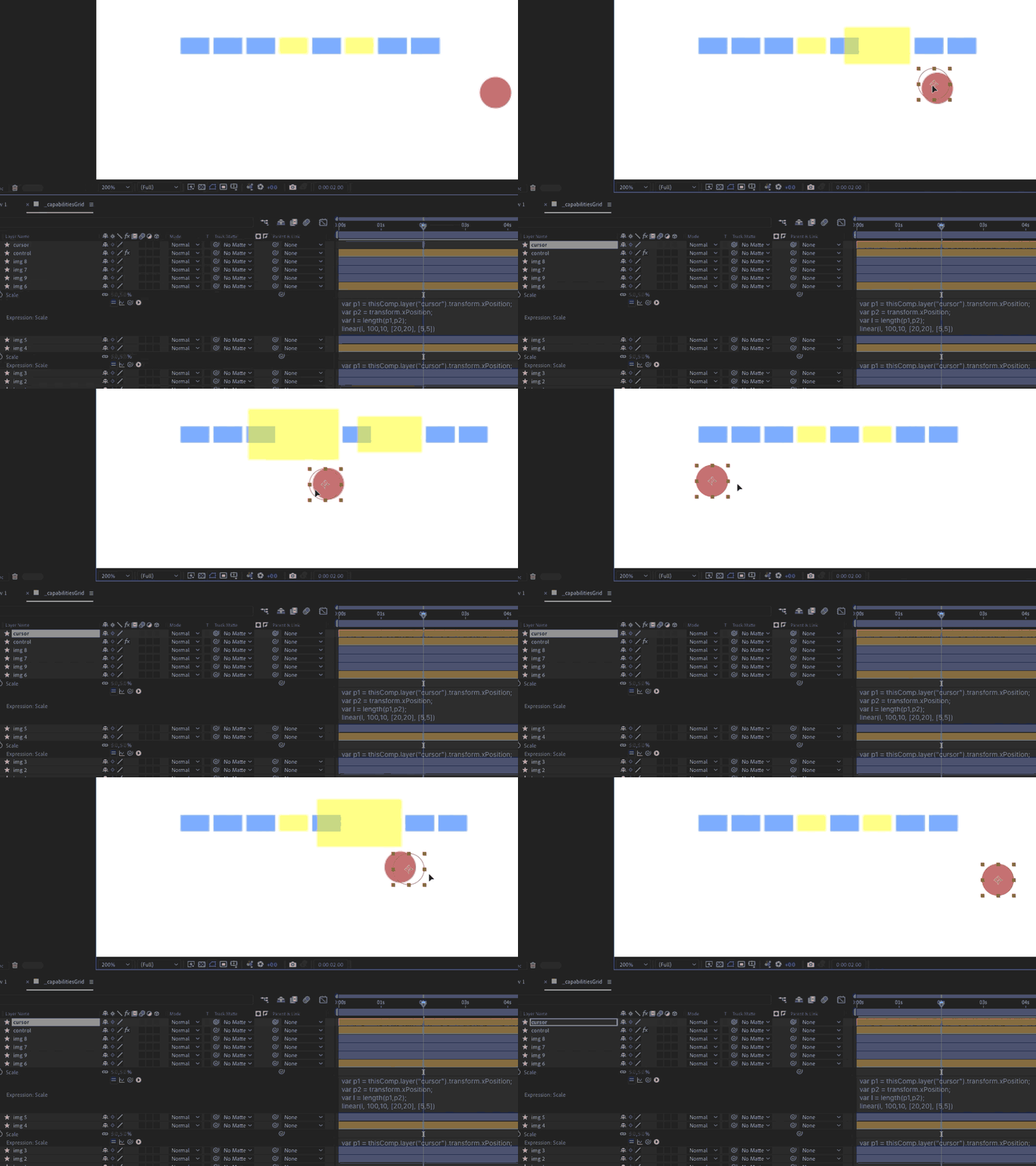
But when I activate the expression doesn't change
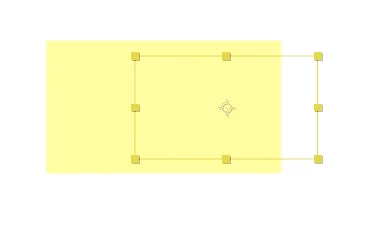
it also offsets the shape a bit


This topic has been closed for replies.

3 replies

Community Expert
April 12, 2023

I think I have solved this for you. You will need a Null as a Null Controller layer, four Layer Control Sliders, A Cursor layer (I make an arrow shape layer with the anchor point at the tip of the arrow, and standard shape layers with one rectangle to keep it simple, or regular layers (footage, solids, images) or text layers and the following expressions. Here's the explanations.


Start by setting the layer Anchor Point X value to zero or use this expression for Anchor Point:

[0, height/2]

 If you are using a shape layer rectangle, and the rectangle is normalized (Rectangle1/Transform Rectangle 1/Position = 0, 0] so it is in the center of the layer, you add this expression to the Shape Layer's anchor point:

x = - content("Rectangle 1").content("Rectangle Path 1").size[0]/2;
y = 0;
[x, y]

Then you add a bunch of controllers to a Conntroller Null layer and add this expression to every layer's scale:

ls = thisComp.layer("Controller Null").effect("Layeer Size")("Slider");
sG = thisComp.layer("Controller Null").effect("Grow Ratio")("Slider")/100;
prox = thisComp.layer("Controller Null").effect("Proximity")("Slider");
cP = thisComp.layer("Cursor").position;
box = sourceRectAtTime();
w = box.width;
h = box.height;
g = sG;
cP = thisComp.layer("Cursor").position;
t = length(cP + [- w, 0], position);
x = thisComp.width / w * ls;
yR = thisComp.height / h;
t = length(cP + [- 200, 0], position);
ofst = ease(t, 0, prox, x * sG, 0);

[x + ofst, yR * ls]

 The sliders are listed, and the expression will give you a bunch of layers that are the same ratio as the comp and a percentage of the comp size


Add this expression to Position every layer below the first layer in the stack, and every new layer will line up to the left of the top layer in the stack and be centered. 

ref = thisComp.layer(index-1);
refP = ref.position;
refS = ref.scale * .01;
refBox = ref.sourceRectAtTime();
ls = thisComp.layer("Controller Null").effect("Layeer Size")("Slider");
sG = thisComp.layer("Controller Null").effect("Grow Ratio")("Slider");
prox = thisComp.layer("Controller Null").effect("Proximity")("Slider");
pad = thisComp.layer("Controller Null").effect("Pad")("Slider");
cP = thisComp.layer("Cursor").position;box = sourceRectAtTime();
t = length(position, cP);
ofst = ease(t, 0, prox, sG, 0);
w = box.width;
h = box.height;
xR = thisComp.width / w;
yR = thisComp.height / h;

[refP[0] + ((refBox.width + ofst) * refS[0]) + pad, refP[1]]

The expression will also work with Left Justified Text layers. I could add some more code to take care of center and right justified text.


Here's the result:

I need a little more work on the text layers to get the growth consistent, but if you had all text layers, everything should work. 


You could modify the scale expression to use two sliders for height and width ratios or just take the layer size if you wanted to simplify things. 


This should get you started.


Mylenium
Legend
April 13, 2023

Doesn't really solve the problem for the non-sequential change illustrated in the original images. if that's required you can't avoid using a loop.


Mylenium

Mylenium
Legend
April 12, 2023

You cannot simply use linear equations. of course this will never work because neither layer ever knows that there is more than one other layer. You have to pack the stuff into a for() loop and iterate through all layers every time to see what their actual positions and scales are.


Mylenium

Mylenium
Legend
April 11, 2023

You need to provide the actual code so people can tell you what to change or add. Those screenshots and partially visible expressions don't tell us everything and are kinda useless.


Mylenium 

Inspiring
April 11, 2023

yeah you're right, here is the code I'm using


This is the expression for placing the layer beside the previous layer, adding a spacing between them

var spaceBetween = thisComp.layer("control").effect("padding")("Slider");

//previousLayerValues
var previousLayerHalfWidth = thisComp.layer(thisLayer, 1).sourceRectAtTime().width / 2;
var previousLayerScale =  thisComp.layer(thisLayer, 1).transform.scale[0] / 100;
var previousLayerPosition = thisComp.layer(thisLayer, 1).transform.xPosition.valueAtTime(time);


//thisLayerValues
var thisLayerHalfWidth = thisLayer.sourceRectAtTime().width / 2;
var thisLayerScale = transform.scale[0] / 100;
var thisLayerFinalScale = thisLayerHalfWidth * thisLayerScale;


previousLayerPosition + spaceBetween + (Math.round(previousLayerHalfWidth*previousLayerScale)) + thisLayerFinalScale


This is the expression I'm using to scale depending on the 'cursor' position


var position1 = thisComp.layer("cursor").transform.xPosition;
var position2 = transform.xPosition;
var theLenght = length(position1,position2);
linear(theLenght, 100,10, [20,20], [5,5])


Community Expert
April 11, 2023

I don't have time to write the expressions for you now but the workflow involves using sourctRectAtTime and multiply the size by the scale change and use that to adjust the position by sliding the shape layer (or individual shape if all of your rectangles are on the same shape layer when the cursor layer gets close.


The spacing for all layers would be controlled by referring to the first layer in the chain and using sratTime to offset each layer to the right. As long as you reference the other layer's scale, everything should stay lined up. 


If I get some time this evening, I'll try and post the solution. If you share your problem project file, it will be a lot easier for me to dig into your code and solve the problem. You'll basically need to throw a multiply by .01 using the X scale value to make the position react to the scale changes and control the way the layers move by shifting the shape layer rectangle/transform rectangle/Anchor point to the left edge of the rectangle. I hope that makes a little sense.