Inspiring
June 28, 2023
Answered

Scaling brush size within a pre-comp

  • June 28, 2023
  • 3 replies
  • 691 views

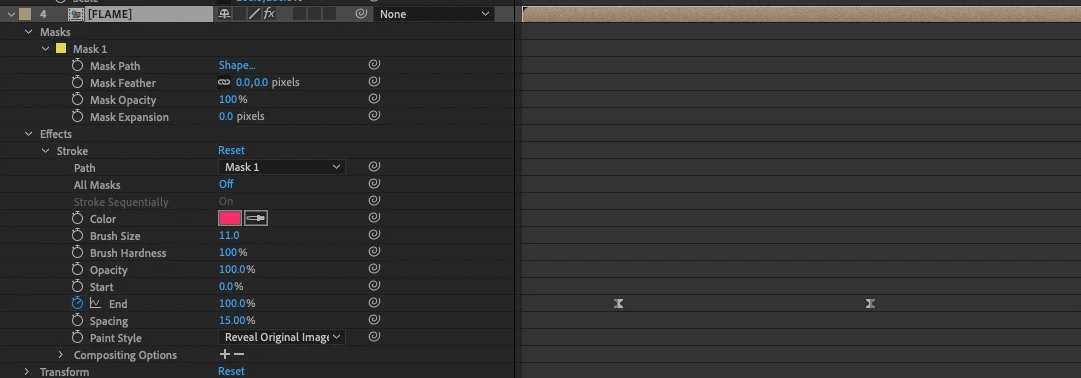
I'm creating a logo animation where the below graphic draws-in with the 'end' property of a 'Generate / Stroke' effect.


This comp sits within my main comp, but when I scale up the logo animation comp, the brush size doesn't scale. Meaning the 'Reveal original image' looks really thin.


I think this is because I originally had the 'collapse transformations' setting turned on, so I tried disabling it and now the stroke scales properly.


But now the problem is that the graphic gets really pixellated when I scale it up?

 

This topic has been closed for replies.
Correct answer Ko.Maruyama

Instead of the effect ("stroke"), have you tried using a Shape Layer instead? I think you'll find better clarity and more options if you're just using length animation (Trim: Shape Layers).

3 replies

Participant
December 31, 2023

Brush size increase 

Ko.Maruyama
Community Expert
Ko.MaruyamaCommunity ExpertCorrect answer
Community Expert
June 28, 2023

Instead of the effect ("stroke"), have you tried using a Shape Layer instead? I think you'll find better clarity and more options if you're just using length animation (Trim: Shape Layers).

mttplbkpAuthor
Inspiring
June 30, 2023

Thank you! I've just tried it using a track matte and animating 'trim paths' and I can now scale it properly even when using 'collapse transformations'

Ishan Y
Inspiring
June 28, 2023

Hey mttplbkp,

An alternative will be to open the composition, go to Composition settings, increase width and height, and increase the scale of your layer. You can then reduce the scale of the "Flame" composition so it doesn't look pixelated. Hope this helps.


Thanks,

Ishan