Inspiring
August 15, 2020
Answered

Shape layer manipulation adding points and deleting

  • August 15, 2020
  • 3 replies
  • 9044 views

Hi Forum.


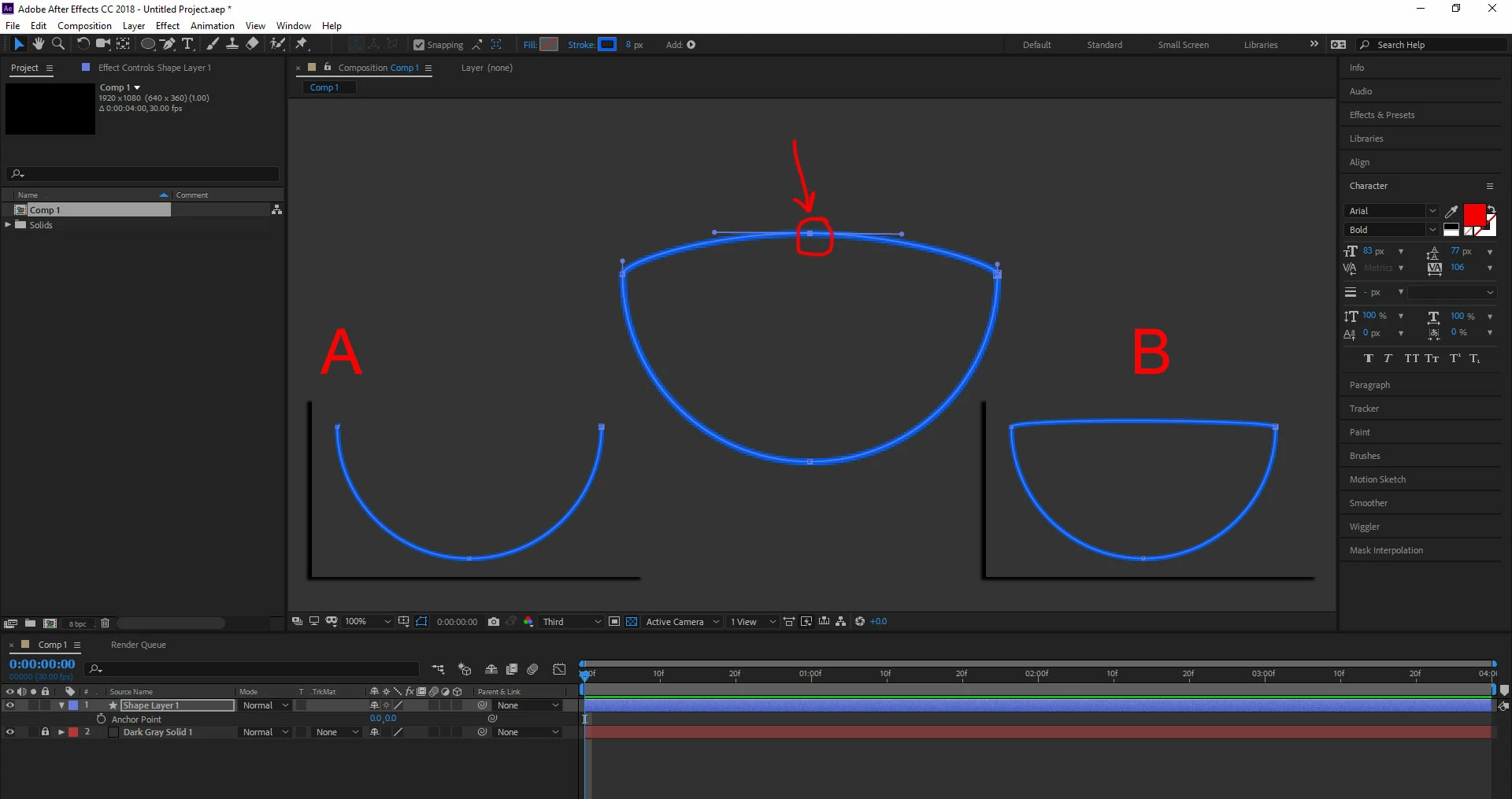
I'm adding an ellipse shape, and adding some points to the shape. But when I delete the points on the shape, rather than the shape splitting like it would in Illustrator its resulting in making a line across the shape still connecting the ellipse. I'm trying to achieve result A but I am getting result B as shown in this example.


Thank you.


Correct answer Rick Gerard

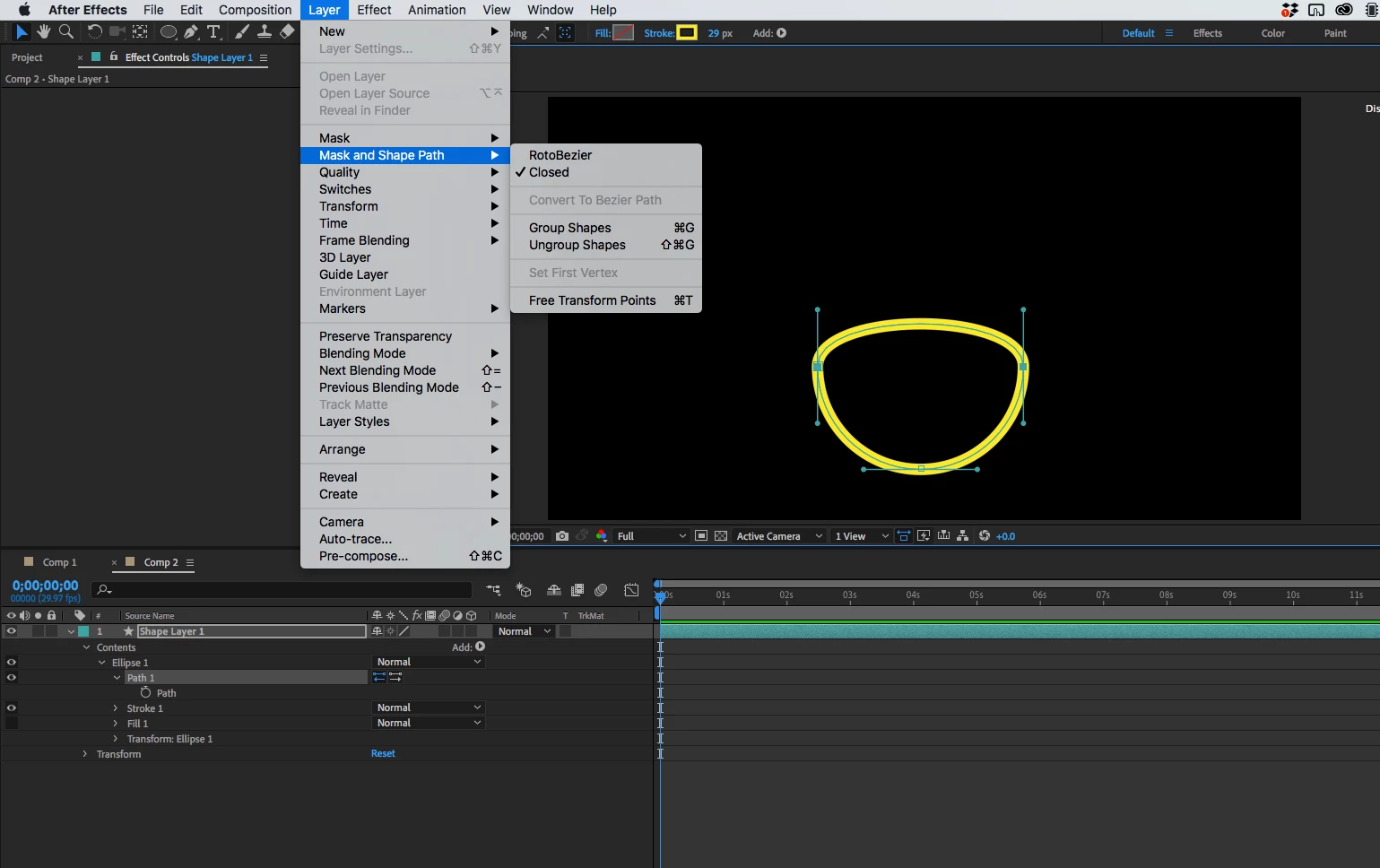
If you want to open a bezier path on a shape layer or as a mask select the path in the layer first. This will let you use the selection tool (v) to select individual points, bezier handles, or draw a marquis around a group of points. Select the point you want to delete, then select the two points that are between the path you want to open, go the Layer/Mask and Shape Path/ menu and click on Open to break the connection. Using trim paths can put a break in the stroke, but it does not change the path.

One more note: If you are animating paths is is almost always a bad idea to reduce the number of points on a path. If you need to do that then set your first keyframe with the fewest number of points, then add them so you are working backward. 

3 replies

Inspiring
October 22, 2025

Really late to this, but here is the real answer.


You have Illustrator.


Create the circle with the cuts where you want them in Illustrator. The size, thickness of line, etc. is irrelevant.


All that matters is that you separate your circle where you want it.


Save the AI file.

Import into AE.

Drop into your timeline.

Select the layer, go to Layers in the top menu, select Create and create shapes from vector.


You have the exact half circle shape you wanted as a shape, no rigamarole, no screwing around with masks, blah blah.


If you are creating multiple shapes to import, make sure you place them all on separate layers in your AI file and name the layers.


That way, you can import them separately.

Rick GerardCommunity ExpertCorrect answer
Community Expert
August 15, 2020

If you want to open a bezier path on a shape layer or as a mask select the path in the layer first. This will let you use the selection tool (v) to select individual points, bezier handles, or draw a marquis around a group of points. Select the point you want to delete, then select the two points that are between the path you want to open, go the Layer/Mask and Shape Path/ menu and click on Open to break the connection. Using trim paths can put a break in the stroke, but it does not change the path.

One more note: If you are animating paths is is almost always a bad idea to reduce the number of points on a path. If you need to do that then set your first keyframe with the fewest number of points, then add them so you are working backward. 

Participating Frequently
November 29, 2024

I tried to do this but it's grayed out as "Closed"

imeilfx
Inspiring
August 15, 2020

That is how Shape layers work in AE. You are removing not a path between points but a point on a path - the path stays. If you need to do version A you just need to make two point path and don't join them, or if you f.eg. need your path to be closed (ver.b) and then make your path to open (like on ver. b) you kan make it in severa ways but simpest would be to use "Trim Path" from your path options (Add "Trim Path")


Inspiring
August 15, 2020

Ok I got it.


Thanks for your information. 


Kind regards.


imeilfx
Inspiring
August 15, 2020

You are welcome - if you have any more questions and ask and if we (as a community) will be able to we will help you on your AfterEffects journey 🙂