
Inspiring
June 20, 2018
Answered

Show only the stroke around a layer

  • June 20, 2018
  • 2 replies
  • 7399 views

I've searched all over the internet but couldn't find a proper solution.

I have an animated layer (more accurate - a composition with animation in it), and I want to only show the stroke around that layer while turning the fill to transparent.

The layer style "stroke" effect is almost perfect for the stroke, but it doesn't control the fill.

I know I can do that using the normal stroke effect, but I will have to auto-trace the layer for a lot of frames, which is a very heavy calculation.

Please help!

Thanks
This topic has been closed for replies.
Correct answer Warren Heaton

Hi guyman20:

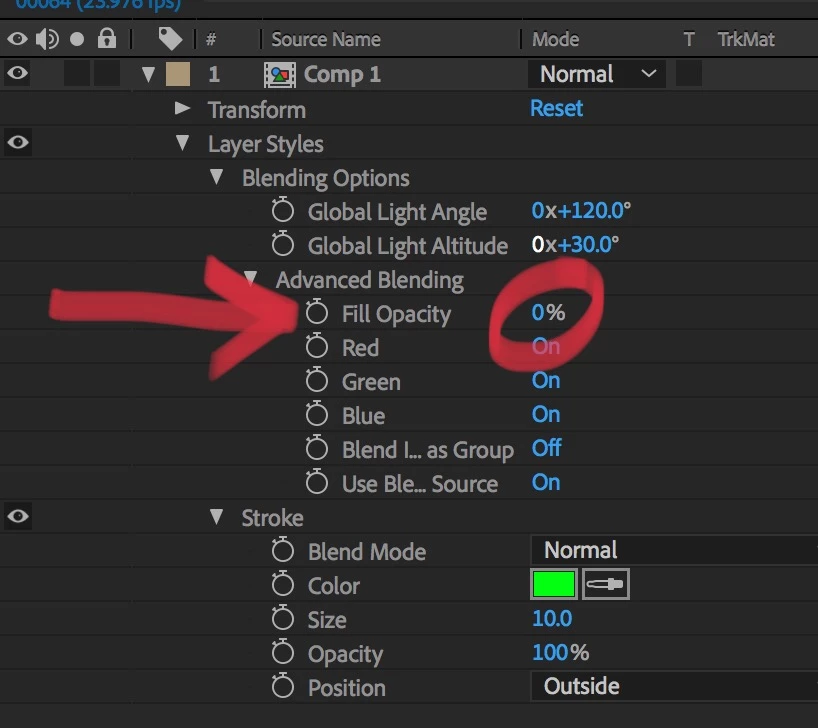
Change the Layer Styles Fill Opacity from 100% to 0% and you,re good to go.

Expand Layer Styles, then Blending Options, then Advanced Blending.  Fill Opacity is the first property in the Advanced Options list.

You can, of course, keyframe this value as needed.

Photoshop‘s Layer Styles has the same option (for what it’s worth).

-Warren

2 replies

Warren Heaton
Community Expert
Warren HeatonCommunity ExpertCorrect answer
Community Expert
June 20, 2018

Hi guyman20:

Change the Layer Styles Fill Opacity from 100% to 0% and you,re good to go.

Expand Layer Styles, then Blending Options, then Advanced Blending.  Fill Opacity is the first property in the Advanced Options list.

You can, of course, keyframe this value as needed.

Photoshop‘s Layer Styles has the same option (for what it’s worth).

-Warren

Guym20Author
Inspiring
June 20, 2018

Thank you both!

And thanks Warren, I knew there's gotta be a straight-forward way of doing this

Thanks again

Mylenium
Legend
June 20, 2018

Duplicate the layer fill one with a color, apply a Simple choker to expand the border, use the original layer on top as an inverted matte. there are of course limits to this technique, but for reasonably normal stroke widths this wil lwork just fine.

Mylenium