trashcaneron
Inspiring
January 16, 2019
Answered

Slowing Down Keyframe Animation

  • January 16, 2019
  • 3 replies
  • 6075 views

I have a composition with keyframe animation with vector assets (I.e., no video). I want to slow everything down to 10% of the speed. Time-warping keyframes never works well (especially at this speed). I have nested comps within the main comp that ALSO have keyframes that need to be adjusted.

Is there a way to adjust all the timing to be 10% in the comp and nested pre-comps, while keeping keyframe association proper?

Maybe a script of some kind?

This topic has been closed for replies.
Correct answer Rick Gerard

If you pre-compose or nest your entire comp in a new one and apply Time Remapping the time that it takes for all of the animations to happen will change but you will not get blended frames or duplicate ones unless you have Preserve Frame rate when nested turned on. For example, Create a new composition 10 seconds long, draw an ellipse in the comp, animate the position of the ellipse from the left to the right side of the screen in 4 frames. Set the out point for the layer.

Pre-compose the layer moving all attributes then press Alt/Option + Ctrl/Cmnd + t to apply Time remapping to the comp, grab the Time Remapping keyframe at frame 5 and drag it to the end of the comp. Now check the animation. The layer moves smoothly across the screen instead of jumping to 4 different positions. That's all there is to it. It works in both directions. The only time you get duplicate or blended frames when using time remapping is when you have footage in the timeline because there is no animation to stretch, there are only a specific number of frames that the metadata is telling AE to playback at a specified number of frames per second.

Observe:
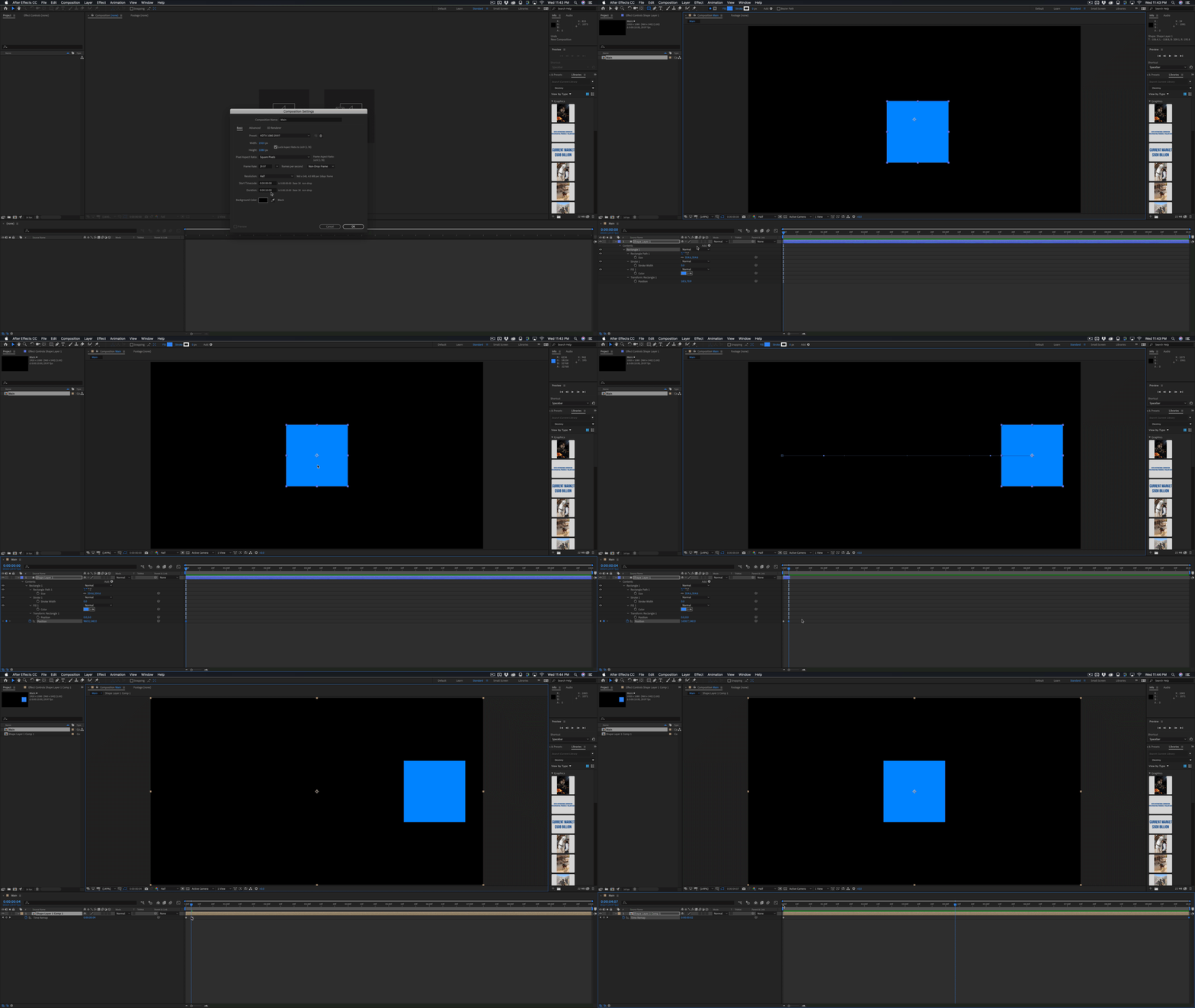
If you open up the nested comp and change the Advanced properties of the comp to preserve frame rate while nested you will get just 4 positions. With that turned off, you have complete freedom to manipulate the time of your comp without restrictions. Motion blur even responds accurately.


3 replies

angie_taylor
Legend
January 17, 2019

You can select your key frames, open the graph editor and use the Free Transform box to adjust the timing of the key frames. This is a nice visual way as it gives you feedback as to whether the key frames are on frames or not. You can even get the keyframes to ”snap” to frames this way.

Rick GerardCommunity ExpertCorrect answer
Community Expert
January 17, 2019

If you pre-compose or nest your entire comp in a new one and apply Time Remapping the time that it takes for all of the animations to happen will change but you will not get blended frames or duplicate ones unless you have Preserve Frame rate when nested turned on. For example, Create a new composition 10 seconds long, draw an ellipse in the comp, animate the position of the ellipse from the left to the right side of the screen in 4 frames. Set the out point for the layer.

Pre-compose the layer moving all attributes then press Alt/Option + Ctrl/Cmnd + t to apply Time remapping to the comp, grab the Time Remapping keyframe at frame 5 and drag it to the end of the comp. Now check the animation. The layer moves smoothly across the screen instead of jumping to 4 different positions. That's all there is to it. It works in both directions. The only time you get duplicate or blended frames when using time remapping is when you have footage in the timeline because there is no animation to stretch, there are only a specific number of frames that the metadata is telling AE to playback at a specified number of frames per second.

Observe:

If you open up the nested comp and change the Advanced properties of the comp to preserve frame rate while nested you will get just 4 positions. With that turned off, you have complete freedom to manipulate the time of your comp without restrictions. Motion blur even responds accurately.

Roland Kahlenberg
Legend
January 17, 2019

There is no such thing as Time Warping Keyframes. I'm supposing you are talking about Time Stretching Keyframes - where you select a bunch of keyframes across one or more layers; hold down ALT and drag on either the first or last keyframe, among the many keyframes you selected. TIP - after dragging (with the ALT held down) you may add the SHIFT key to snap to pertinent points along the timeline.

So, if you've not tried Time Stretching KFs, you should and if it's not working for you, I'm with Andrew, there must be something else happening in your Timeline/properties that's impeding you - let us know more details.

Very Advanced After Effects Training | Adaptive & Responsive Toolkits | Intelligent Design Assets (IDAs) | MoGraph Design System DEV
Dave_LaRonde
Inspiring
January 16, 2019

Time Remapping.

trashcaneron
Inspiring
January 16, 2019

Yeah time remapping works but you end up with some strange artifacts. Banding etc.

Andrew Yoole
Inspiring
January 17, 2019

Can you post an example of the banding you refer to?

Unless you're time remapping frame-based footage, using time remapping of animated elements should generally work flawlessly.  I suspect there's something else time-based going on in your job that we don't know about?