Theux
Inspiring
July 2, 2018
Question

Solid layer changing color

  • July 2, 2018
  • 2 replies
  • 4929 views

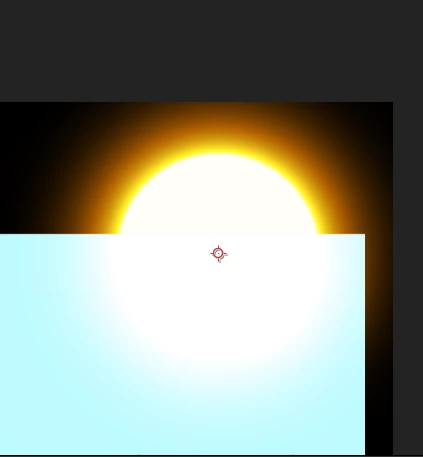
I am having a problem where a solid layer is changing color when I use the blending mode "Screen".

The solid layer is modified with the Saber plugin and all of the other layers are made with illustrator.

Is there a way to workaround this problem so that the "sun" keeps the orange color without turning white?

This topic has been closed for replies.

2 replies

Legend
July 2, 2018

So many people use "screen" to put light emission layers into compositions, but that's just wrong. It comes from kicking tires in Photoshop and guessing it looks like it's the one to use, or watching tutorials from someone who did the same.

The correct way to composite lighting components is to use linear color mode (enabled in After Effects through the project settings, and in Photoshop by switching to 32-bit) then blend your layers with LINEAR ADD.

Theux
TheuxAuthor
Inspiring
July 2, 2018

Thanks! Seems like you understand what I'm facing here.

Once again, excuse my inexperience. I am a total newbie to After Effects and I'm doing my best to learn.

When I chose the project settings I can't find the linear color mode. I only found one option where I could change the bits and then change the workspace. When trying some settings there, I could not find Linear Add either. What am I doing wrong? Can I change project settings in an already existing project or are some values locked?

Legend
July 2, 2018

To do it properly, use Project settings > Color Settings > Linearize Working Space (and when working with 'overbright' layers and light emitters switch to at least 16 bits per channel).

If a project is already ongoing and has synthetics (solids, text, etc) then switching to linear will break them. In that case, use 'Blend Colors Using 1.0 Gamma' instead, but it may not work with all effect and plugin types.

'ADD' is the first option in AE's blend mode group 3. In Photoshop it's specifically called 'LINEAR' in an attempt to explain what you need to use it with. AE assumes you know.

Before tying yourself in knots, read https://helpx.adobe.com/after-effects/using//color-management.html

Mylenium
Legend
July 2, 2018

Well, then don't use blending modes. You get what you asked for. The only way around it would be to pre-compose and use multiple duplicates of layers combined with effects like Calculations or Channel Combiner that can mimic blending behaviors without actually blending the entire layer. Generally speaking, though, most likely it realyl simply comes down that you are trying to do everything at once and are not structuring your work with pre-compositions etc., which rarely ever achieves the ultimate result.

Mylenium

Theux
TheuxAuthor
Inspiring
July 2, 2018

I get your point. But when following tutorials connected to the Saber plugin, the correct way is to use the blending mode and for them, it does not change their color.

I have just started using after effects and I have only used it for 6 hours in total and this is just me trying to experiment with the software Excuse my inexperience.

The whole project is composed on an iPad using Adobe Draw. I have then saved it as an .ai file on the computer and then I started a new project in after effects and imported the whole .ai project. I am animating different layers in the composition, will this be a problem if I precompose the whole project? Will this make all of the layers a single layer?