MahaB82A
Legend
August 21, 2022
Answered

Toggle Switches / Modes

  • August 21, 2022
  • 1 reply
  • 5838 views

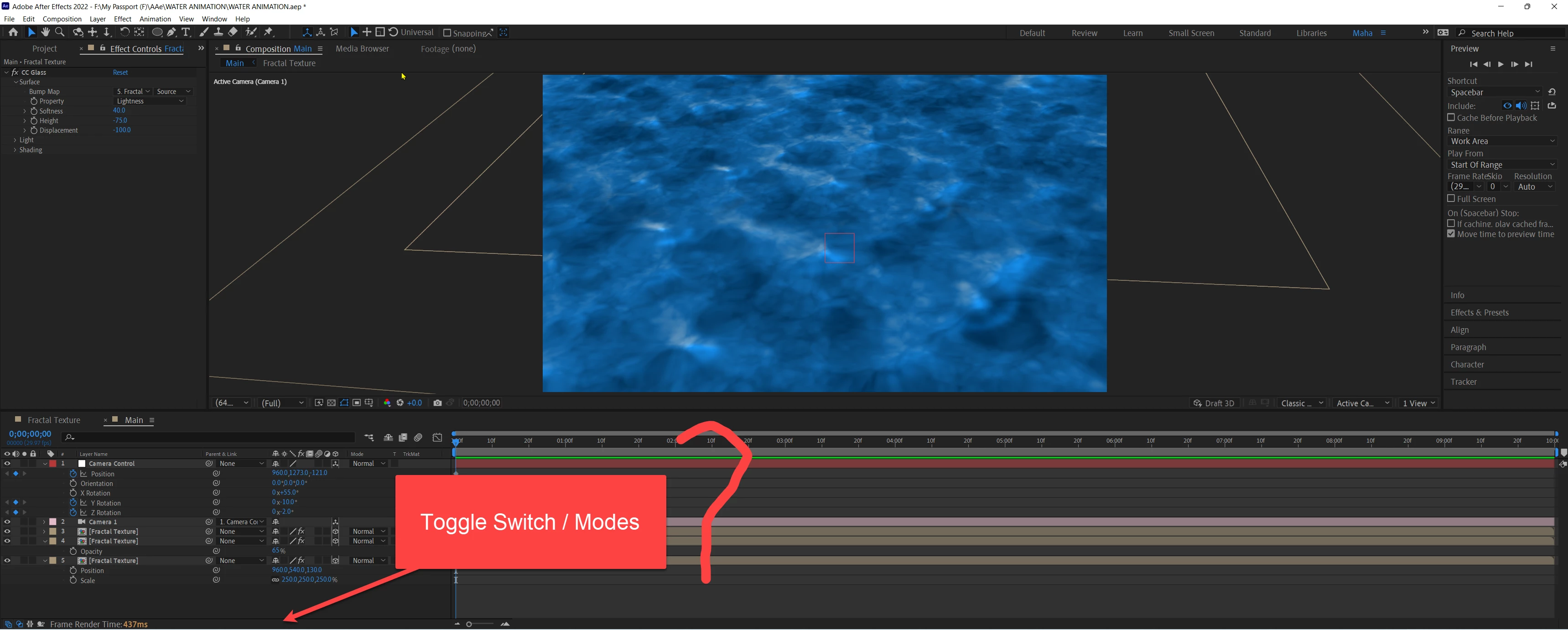
How to get Toggle Switches / Modes here? 


Correct answer Rick Gerard

Thanks

How to get Toggle Switches / Modes here? Video is attached. 


You have both the Switches and Modes columns turned on in the bottom left corner of the timeline. Turn one of them off. Their switches are the first two icons in the bottom left corner. One looks like three little squares stacked on top of each other. That is the Switches Column. Hover over it, and you'll see Expand or Collapse the Layer Switches Pane. Hover over the one with the circle and the square, and you will see Expand or Collapse the Transfer Pane. The Transfer Pane is the same as the Modes pane. Blending modes are also called transfer modes. I don't know why Adobe uses both names. If you have both panes open, there is no need to switch between them. You have a wide enough display that your workflow would probably be more efficient if you left both open. 

1 reply

P.M.B
Legend
August 21, 2022

I don't understand.  You have an arrow pointing at a spot as if there supposed to be something there.

The toggle switches for layer panel columns are over to the left of where you arrow is pointing.

To the left of where it says "frame render time".

You can add or hide additional columns by right clicking up at the top of the layer panel and navigating the "columns" fly out menu

~Gutterfish
MahaB82A
MahaB82AAuthor
Legend
August 21, 2022

It comes in a downloaded tutorial file.


Also it comes when I close my file. Video is attached.

Community Expert
August 21, 2022

You have to create a new composition before you see a timeline and the timeline columns. Your video shows closing a project but not creating a new composition in the empty project.