Participating Frequently
August 2, 2016
Answered

Track Motion works flawless, Null object on the otherhand is all over the place

  • August 2, 2016
  • 2 replies
  • 16167 views

I have a video that I am doing motion tracking for text. When I use the Track Motion feature, the Attach Point (tracker) is spot on and looks perfect. I then Apply it to a Null object, and when I look at the Null Object, it follows the path in general, but is off by a little bit on about 50% of the frames. Enough that when I tie the text to the null object, that it looks horrible and jumps around. There's no way that the null object is using the exact data from the motion tracker.

Why is it that the motion tracker looks perfect, and the null object is off most of the time??? Do I have the settings setup wrong somehow??? I believe I am using the default settings.

I have tried this literally 50 times.

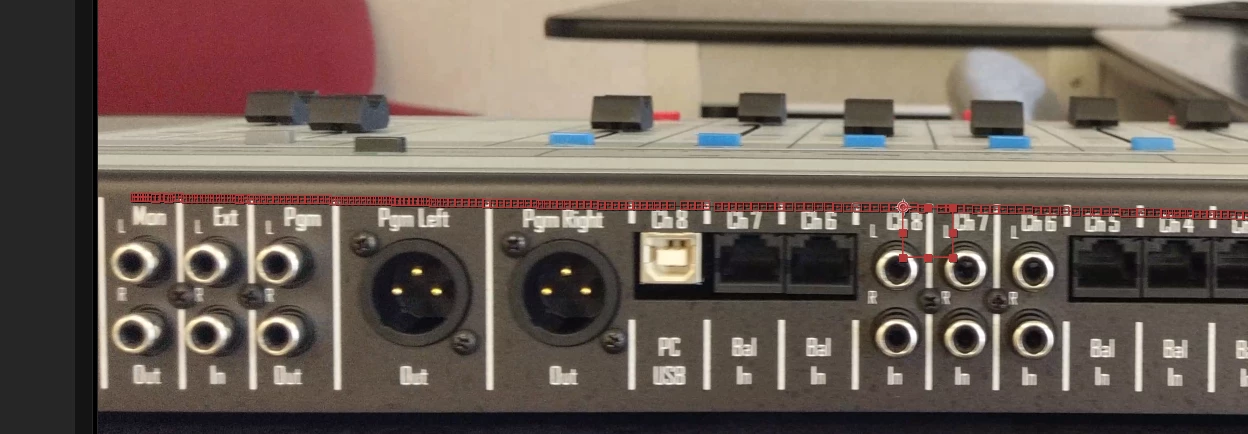
The top image shows the Tracker. It is dead on, and the Attach Point is in the exact spot every time.

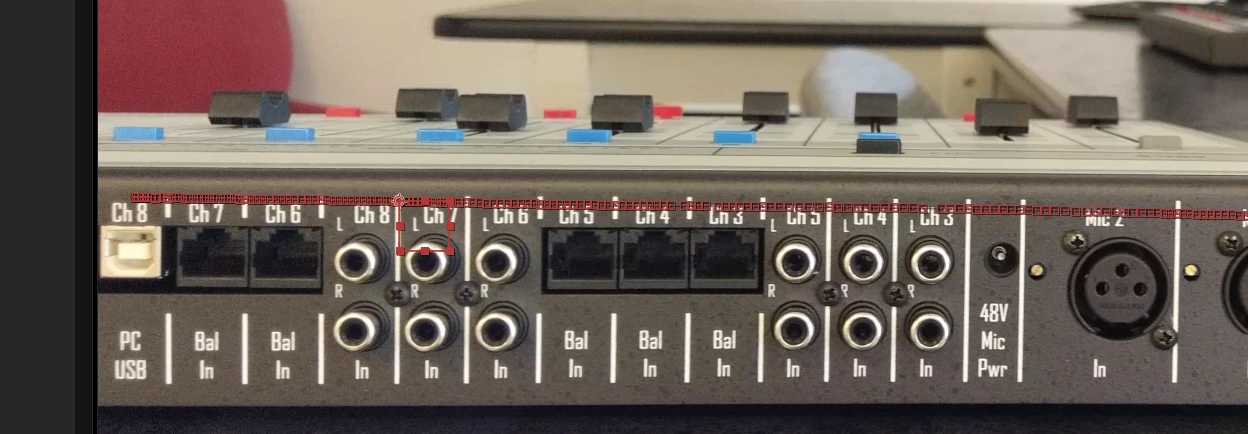
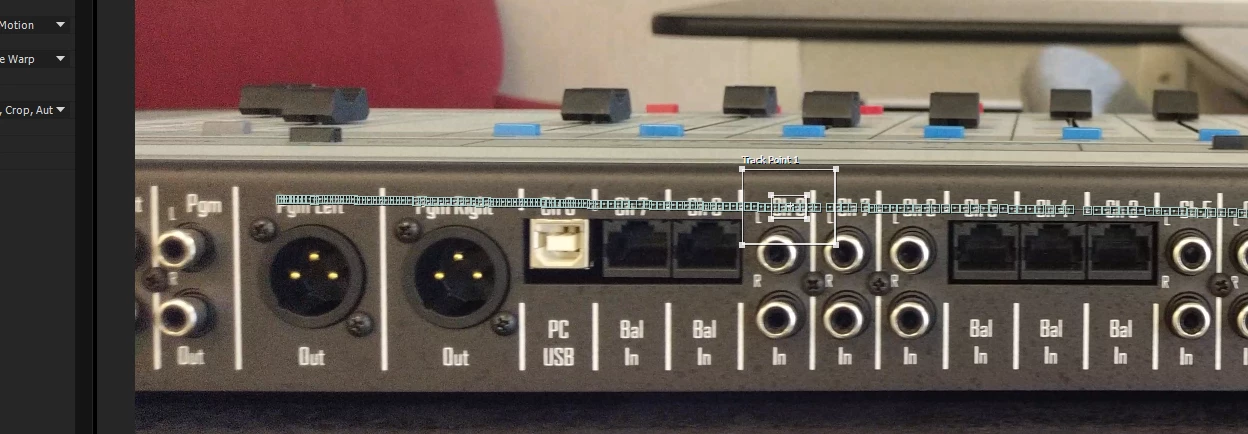
The second image shows the Null Object at one point in the clip, and then the last picture is the Null object at a different point in the video clip.

HELP! Thank you in advance for any suggestions.
This topic has been closed for replies.
Correct answer Roei Tzoref

Thank you for the help! So yes, I am using the warp stabilizer as well. Here's the steps I did:

1) Changed the frame rate using the Interpret footage.

2) Add the modified video to a comp.

3) Use the Warp Stabilizer to stabilize the footage.

4) Use the motion tracker.

5) Apply to a Null.

6) Create text and line and set them to the null

So is it the warp stabilizer that is screwing it all up?!? The tracker seems to follow the stabilized footage wrong, but if I am reading you right, it sounds like the tracker works based off the pre-stabilized footage?

You mention making the stabilized footage a pre-comp. I haven't done this before, how do you do that?

So if I am following you right, the steps really should be:

1) Changed the frame rate using the Interpret footage.

2) Add the modified video to a comp.

3) Use the Warp Stabilizer to stabilize the footage.

4) Make it into a pre-comp.

5) Use the motion tracker on the new pre-comp.

6) Apply to a Null.

7) Create text and line and set them to the null

Thank you again!


1) Changed the frame rate using the Interpret footage.

2) Add the modified video to a comp.

3) Use the Warp Stabilizer to stabilize the footage.

4) Make it into a pre-comp.

5) Use the motion tracker on the new pre-comp.

6) Apply to a Null.

7) Create text and line and set them to the null

YES! . think about it. it makes sense. WS effect is applied on your layer, Motion Tracking is using the information of the layer without the WS. unless you pre-comp and this essentially makes this a new stabilized footage to track to.
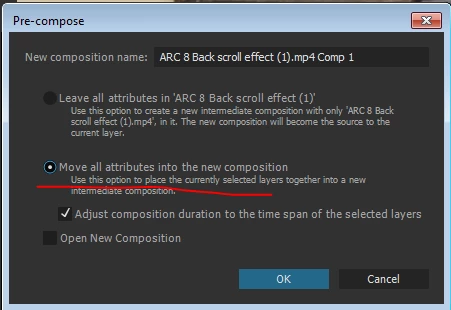
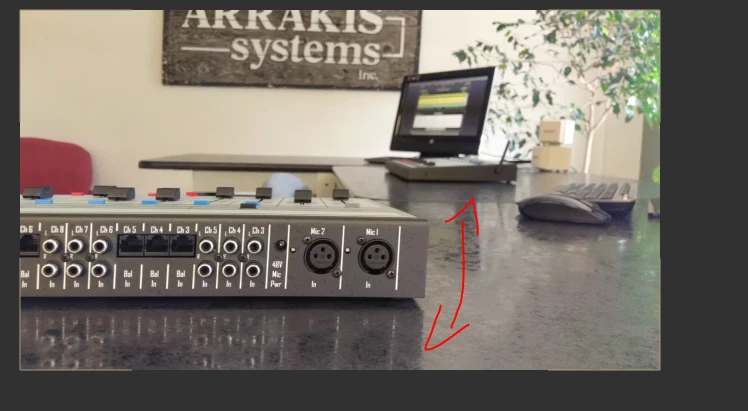
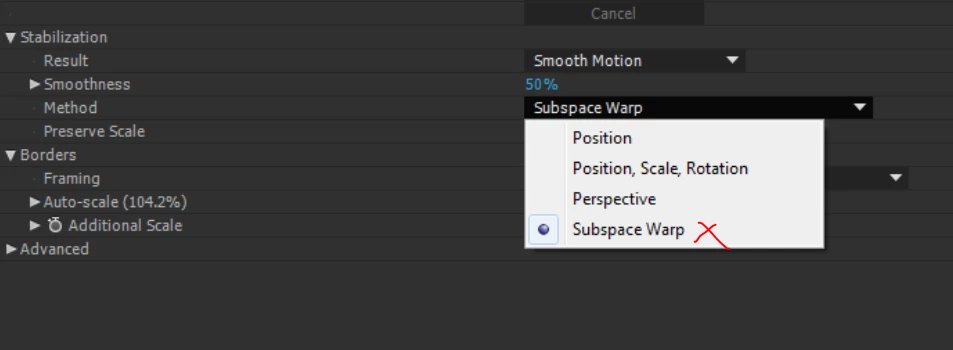
make sure you Move all Attributes

and about the warping -

seems like the subspace warp is making a mess of things. choose another method, NOT subspace warp

next time we see each other you have read all about tracking and stabilizing. Tracking and stabilization motion workflows in After Effects

2 replies

Community Expert
August 2, 2016

Are you new to motion tracking?  Keyframe data is keyframe data so as long as you have not scaled the layer you are tracking  and the frame rates match everything should be fine.

Close-up shots of your composition are really not very helpful. Press the U key twice to reveal all the keyframes on the layers in question and all of the modified properties.

Check the position of the Null against the attach point position. They should be exactly the same.

Looking at your tracking area I think that it is probably too small. Pick more detail. Expand the tracking area so that it includes two of the channel numbers and then position your attach point where you want it to center up.

Check the track and make sure it is perfect. You can adjust individual keyframes if you need to. Then set the target as the null and apply. As long as you have not scaled the layer you are tracking in the main comp everything should be just fine.

Another approach would be to stabilize position and rotation so the channel numbers do not move and then add  the text layer. If you name the footage layer "stabilized" then add a null you can apply this animation preset to the null and then parent the footage and the text layer to the null. This will put the motion onto the text lawyer and remove the motion stabilization from the footage.  That is probably the way I would've done the shot.

Dropbox - destabilize Rotation Scale.ffx

Roei Tzoref
Legend
August 2, 2016

it is never a good Idea to crop your screenshots. full screenshots with full view of project, composition and timeline window please and press UU while your at it

I would check a couple of things:

1. that your footage is at the same frame rate, resolution and aspect ratio as your composition.

2. check for yourself if the data is exact. null position = attach point.

Participating Frequently
August 3, 2016

Thanks for the advice! This is my first post, so I'll be sure to post entire screenshots next time.

You're probably on to something with your comment about the frame rate. My camera recorded at 29.372fps, which is just weird in my opinion. My composition is 30fps. I conformed the frame rate of the video using the interpret footage function and set the video to 30fps.

So I guess my follow up question is, will it in its conformed state, still work? Or do I need to encode it at 30fps first?

Thank you to all the quick responses! You guys rock!

Roei Tzoref
Legend
August 3, 2016
My composition is 30fps. I conformed the frame rate of the video using the interpret footage function and set the video to 30fps.

I am not sure about the term "conform" - you only interpreted the footage as 30fps so what will happen in your case is that Ae sets that many frames per second and adjusts the duration accordingly - 00:10:00 duration of 29.372 is 294 frames. at 30fps it's 00:09:24 duration. pretty close. anyways rendering the footage at 30fps will give you the same result in this case so no need to do that.

not sure if your footage and composition were not the same until now (or that this was the problem) if they are - try to track and tell us the results and let's see. if that doesn't work, show us clear screenshots and make it up to us maybe with a video capture showing your workflow if you can.

one last thing. see here

see how your tracker is squashed like that? I believe this means that the aspect ratio is not square - make sure that the aspect ratio of your composition matches your original footage.

and WELCOME TO THE AE FORUM! where the Ae geeks get to show how amazingly ingenious they are, on the expense of disoriented Ae newbies.