
vanessab27931865
Participant
December 19, 2019
Answered

Typing along a circular path

  • December 19, 2019
  • 2 replies
  • 2175 views

I am running into a problem. Here is what I did:

-Type text using text tool

-Click text layer to make it active

-Open ellipse tool and create circle

-Go to text path options and select the circle mask

-Reverse path (text inside of path)


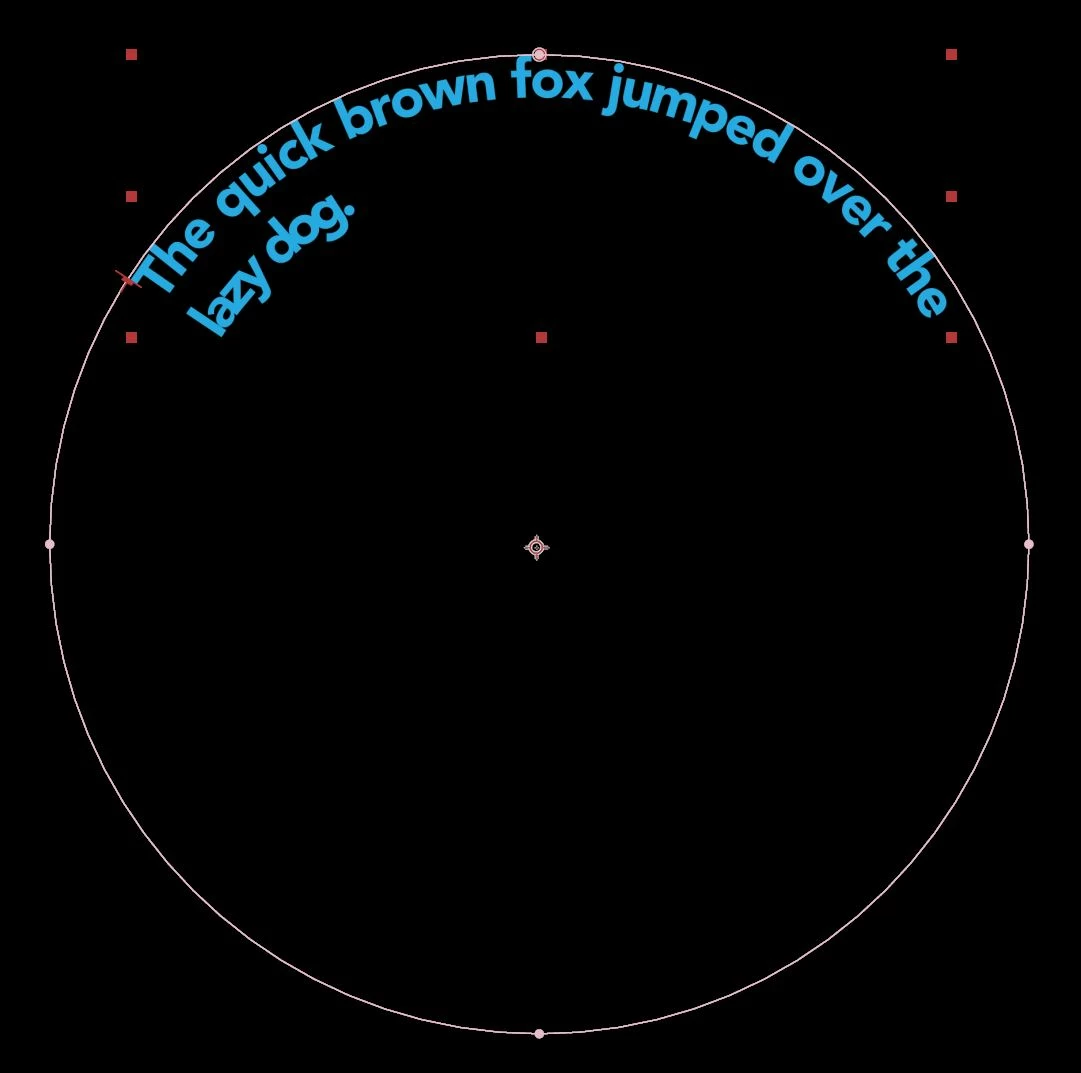
Now that my text is running inside of the circle path when I want to add more text or increase the size of my existing text it makes a new line instead of running along the circle! Any ideas on how to fix this?
This topic has been closed for replies.
Correct answer Mike_Abbott

There are two ways to use the text tool...


I suspect you dragged out a box with the type tool in order to create your text. This is called 'area type' - you put your text in a box that can be reflowed.

What you should have done is simply 'clicked and released' the mouse button with the text tool - then typed. This will give you 'point type'. Type that doesn't word wrap.


When you do have your type correctly set up you will be able to use the alignment marker that Mohammad pointed out to slide your text around your path to the starting position of your choice.


I hope this helps.


2 replies

Mike_Abbott
Mike_AbbottCorrect answer
Legend
December 19, 2019

There are two ways to use the text tool...


I suspect you dragged out a box with the type tool in order to create your text. This is called 'area type' - you put your text in a box that can be reflowed.

What you should have done is simply 'clicked and released' the mouse button with the text tool - then typed. This will give you 'point type'. Type that doesn't word wrap.


When you do have your type correctly set up you will be able to use the alignment marker that Mohammad pointed out to slide your text around your path to the starting position of your choice.


I hope this helps.


vanessab27931865
Participant
December 20, 2019

Thanks Mike, that was it. Quite simple actually! 

Mohammad.Harb
Community Expert
Community Expert
December 19, 2019

Point the mouse cursor over the little line as shown in the screenshot below, once the cursor is changed, click and drag .


vanessab27931865
Participant
December 20, 2019

Thanks for the help Mohammad