Participant
June 26, 2019
Answered

Using a slider controller to select specific values/numbers

  • June 26, 2019
  • 1 reply
  • 6497 views

Hi,

I'm having a bit of trouble figuring this one out. Hoping someone can help. I have a text layer with the animator "Character Value" being used. I'd like to attach a slider so that it toggles the character value to specific numbers. For example, using the slider, only these numbers "39, 45, 58, 61, 95, 96, 124, 168" will be appear or be input into the number field for "Character Value". Basically, with the slider, you can toggle and choose which value to use. I'd be very grateful if anyone can help. Thank you.

Francis

This topic has been closed for replies.
Correct answer Michael Bullo

Hi Francis,

I think I understand what you are trying to achieve and I have opted for a different solution. I've outlined what I did below but glossed over the why. If this doesn't work or you would like any of this explained further please let me know.

Michael

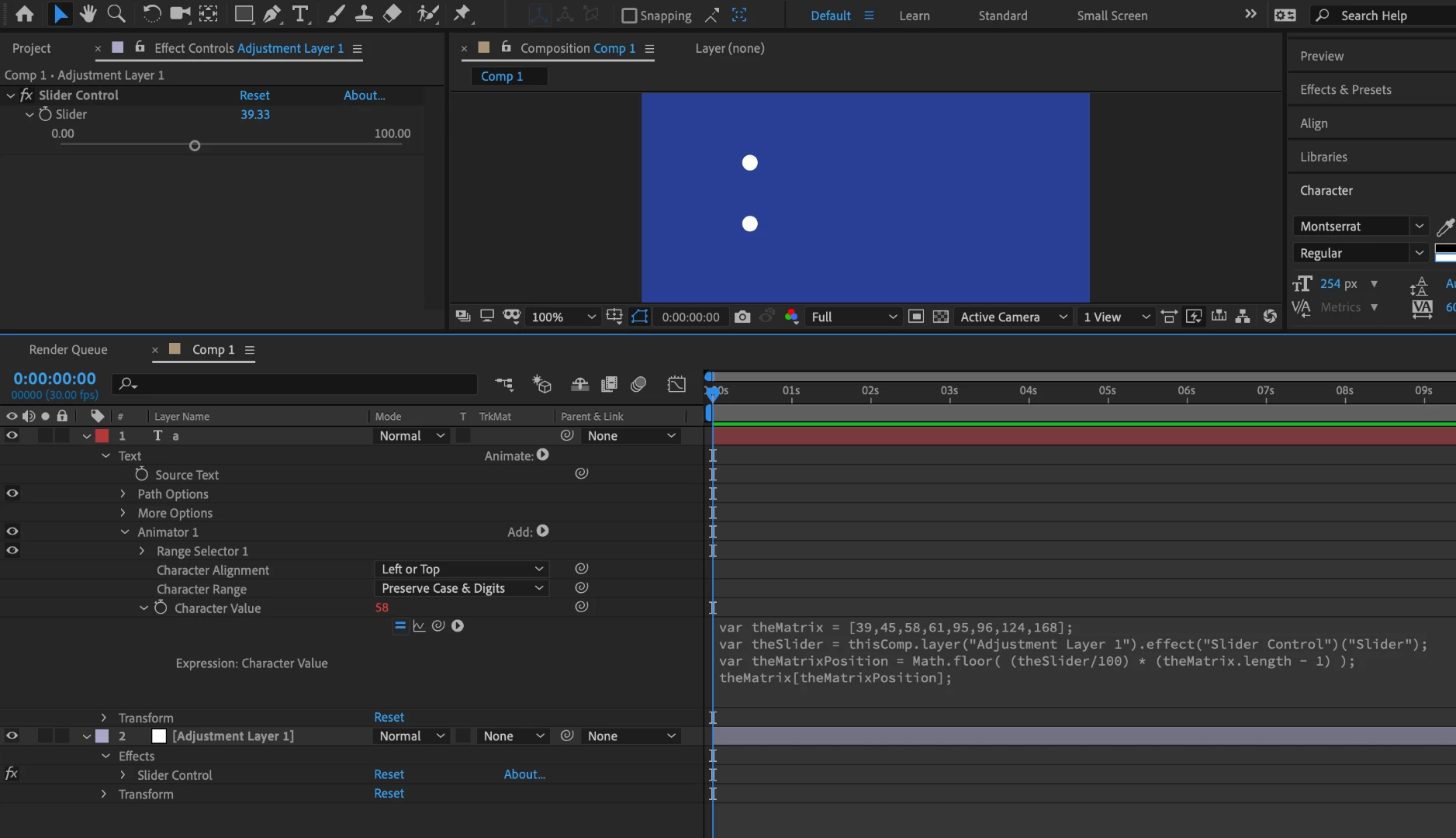
1. Create an Adjustment layer and add a Slider Control effect.

2. Create a text layer and input a single character.

3. To the text layer, from the Animate flyout menu add Character Value.

4. To the text layer, add an expression to the Character Value and paste the following code…

var theMatrix = [39,45,58,61,95,96,124,168];

var theSlider = thisComp.layer("Adjustment Layer 1").effect("Slider Control")("Slider");

var theMatrixPosition = Math.floor( (theSlider/100) * (theMatrix.length - 1) );

theMatrix[theMatrixPosition];

Dragging the Slider Control on the Adjustment layer will move through all of the values input into the variable called theMatrix. Be sure to keep the slider values between 0 and 100 (inclusive) or you will get an error.

1 reply

Michael Bullo
Community Expert
Michael BulloCommunity ExpertCorrect answer
Community Expert
June 26, 2019

Hi Francis,

I think I understand what you are trying to achieve and I have opted for a different solution. I've outlined what I did below but glossed over the why. If this doesn't work or you would like any of this explained further please let me know.

Michael

1. Create an Adjustment layer and add a Slider Control effect.

2. Create a text layer and input a single character.

3. To the text layer, from the Animate flyout menu add Character Value.

4. To the text layer, add an expression to the Character Value and paste the following code…

var theMatrix = [39,45,58,61,95,96,124,168];

var theSlider = thisComp.layer("Adjustment Layer 1").effect("Slider Control")("Slider");

var theMatrixPosition = Math.floor( (theSlider/100) * (theMatrix.length - 1) );

theMatrix[theMatrixPosition];

Dragging the Slider Control on the Adjustment layer will move through all of the values input into the variable called theMatrix. Be sure to keep the slider values between 0 and 100 (inclusive) or you will get an error.

francisohAuthor
Participant
June 26, 2019

That worked beautifully! Thank you.

Michael Bullo
Community Expert
Community Expert
June 26, 2019

Hey fantastic. Happy to help.