


Answered
Using audio to adjust the Y positioning of an object
Hello Everyone!
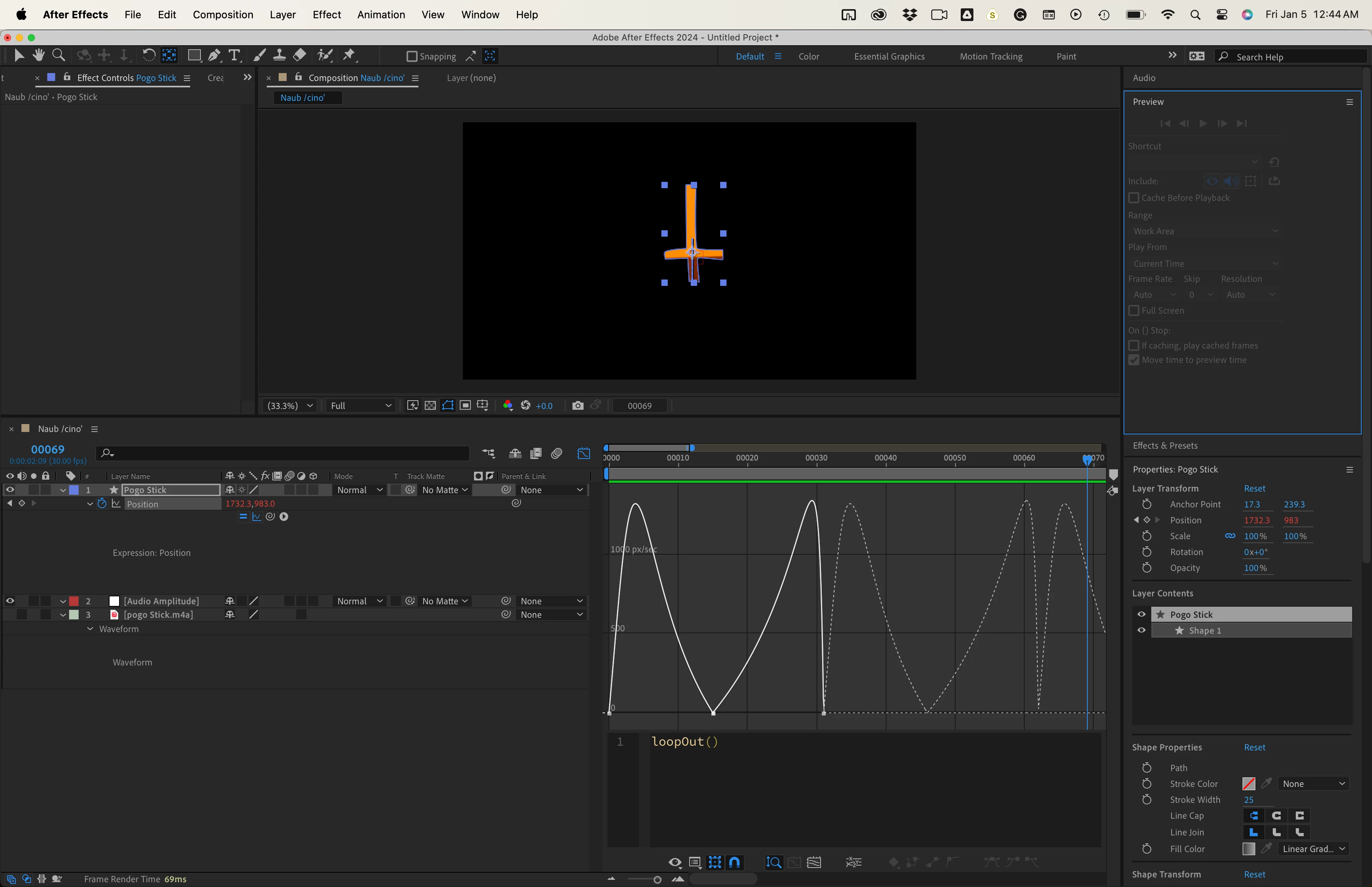
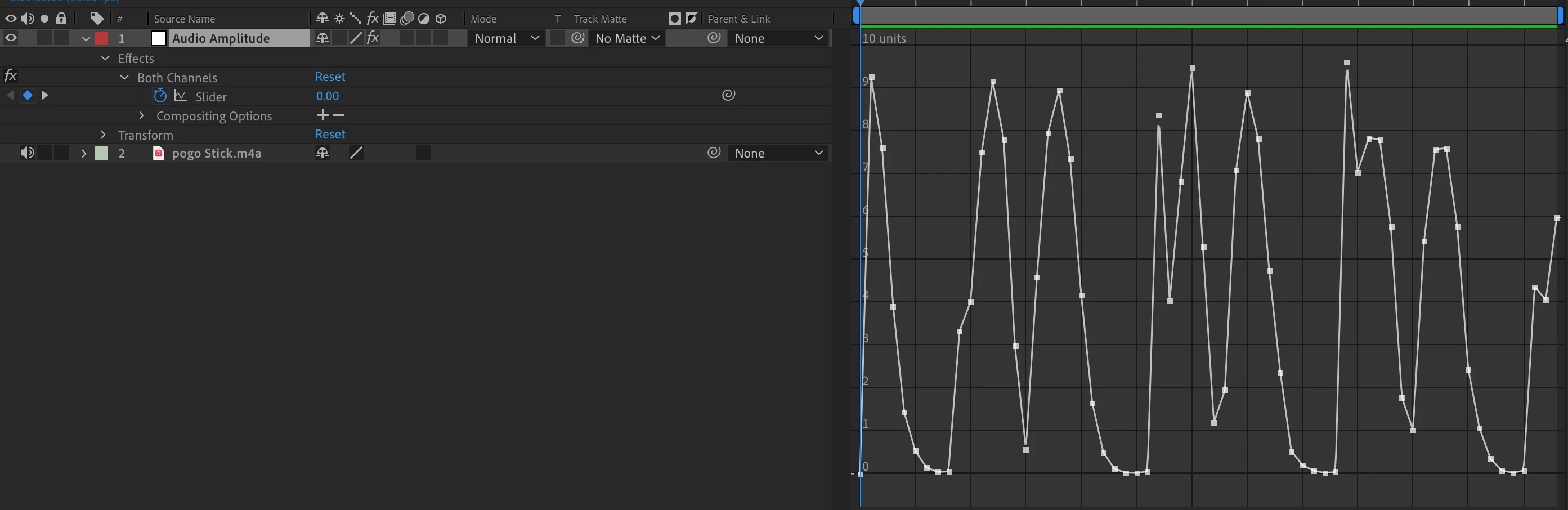
I am trying to create a basic animation in which a character on a pogo stick is bouncing up and down. To do this, I used audio from a real pogo stick and the keyframe assistant to generate a slider that could help influence the Y positioning.
Unfortunately, it moved my character completely off-screen and I realize that I need to create a custom expression to help center the object and let the audio slider influence the positioning. I have very little experience in creating expressions. There's more info available in this recording:
Video link just in case: https://youtu.be/q-7pPgxgvns
I'd welcome any insight!
 AdChoices