
Inspiring
February 19, 2018
Question

Using invisible layer for alpha

  • February 19, 2018
  • 4 replies
  • 3018 views

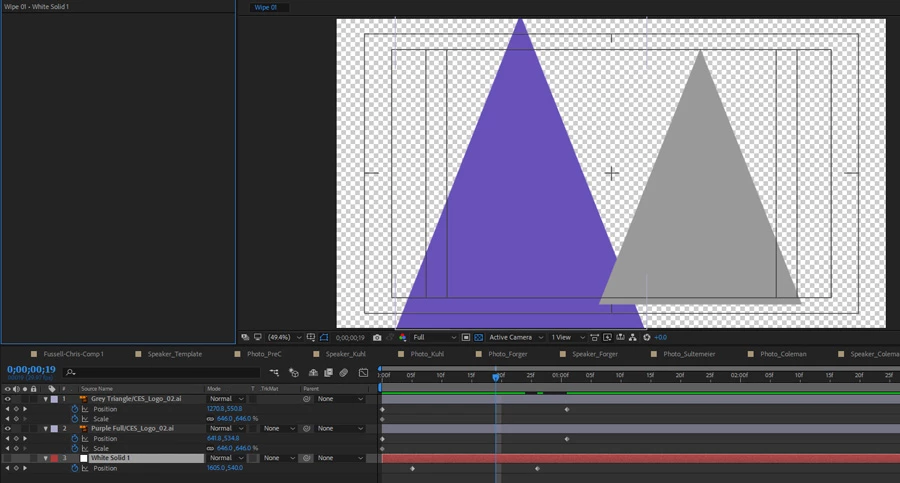
I'm trying to create a wipe in AE to use in Premiere. I created 2 shapes which move thru the frame. I created a solid to act as the alpha channel, but I can't remember how to have that layer effect only the alpha and not show in the composite. Here is the desired RGB out:
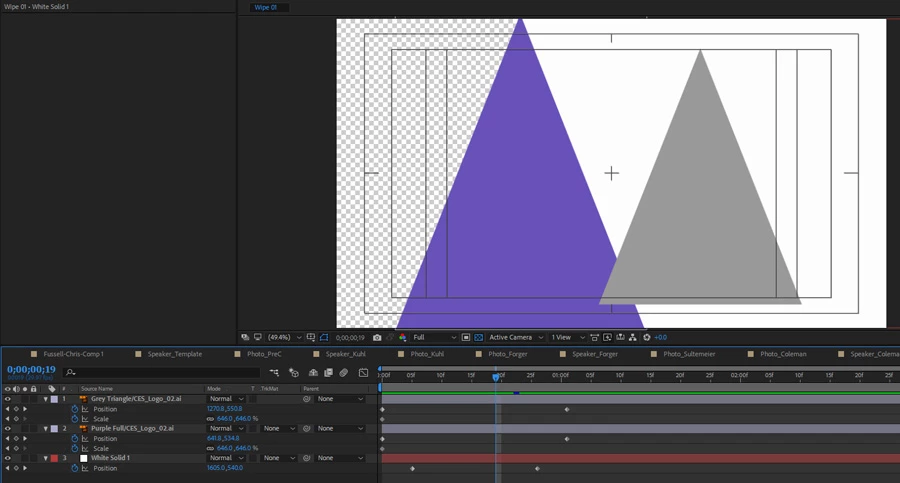
Here is the object I'm trying to create the alpha with showing white:
I know I can output 2 separate videos, but I am sure I've done this before and combined them - i think.

    This topic has been closed for replies.

    4 replies

    P.M.B
    Legend
    February 19, 2018

    You're making this way more difficult than it needs to be.  Just create a standard linear wipe and have the triangles move with it so the apex of the tallest triangle moves with the edge of the wipe.   You're over thinking it by a million miles 

    ~Gutterfish
    brian704
    Inspiring
    February 19, 2018

    I answered this already - the wipe and the objects do not line up.

    P.M.B
    Legend
    February 19, 2018

    ~Gutterfish
    Roland Kahlenberg
    Legend
    February 19, 2018

    You should do BOTH steps of the transition in a single app. This way, you will be able to sync both steps of the single transition.

    I have no idea why you've suddenly decided to do each step in a different software - this just makes a simple matter difficult.

    So, decide if you want to do this in PPro or AE. Then do it. Hopefully there are no further issues. Do let us know of your results.

    HTH

    Very Advanced After Effects Training | Adaptive & Responsive Toolkits | Intelligent Design Assets (IDAs) | MoGraph Design System DEV
    brian704
    Inspiring
    February 19, 2018

    That's what I'm trying to do - both in the same app - AE - in a single file. The issue arises in trying to create the single file. As I stated in the OP, I know I can create 2 files, it just seems that there should be a way to create a single file. I'm making a number of these. Also much easier to manage a single file in Premiere, and less time consuming.

    Roland Kahlenberg
    Legend
    February 19, 2018

    Perhaps we're visualizing your intended effect differently. I'm not seeing how this can be done with a single render going from AE to PPro. I've also suggested using PPro, from start to finish since this will, even, preclude having to render a single file.

    Good Luck.

    Very Advanced After Effects Training | Adaptive & Responsive Toolkits | Intelligent Design Assets (IDAs) | MoGraph Design System DEV
    Community Expert
    February 19, 2018

    What you are looking for is Track Matte. The top screenshot has an Alpha Channel that will work in Premiere Pro. I am exactly sure what you are trying to accomplish. If you use the white solid as a track matte it needs to be above the layer you want to mask and it is going to cut a square hole in that layer. When you are talking about a wipe in Premiere Pro you can create an overlay, you can use the comp through Dynamic Link and use that as a matte source for a layer in Premiere but you'll need to do some layering. You are going to have to give me a more detailed explanation so I can figure out what this transition is supposed to look like.

    brian704
    Inspiring
    February 19, 2018

    The Purple triangle moves from left to right. As it moves it will reveal the "B" layer behind it.

    The problem is that the white alpha channel object can't be part of the RGB render, only the alpha. I guess I could do it in Fusion easily enough, but it is handy to be able to preview things in Premiere without having to render.

    Roland Kahlenberg
    Legend
    February 19, 2018

    What you want is a two-step transition -

    1) first step is to commit to a wipe for the Video layer.

    2) Then on top of that, you place the purple triangle

    What you're doing will work - timing both steps in AE. You just need to ensure that you render the two steps into their respective movies, for use in PPro.

    I've already laid down the steps you need to do in PPro. Rick has also suggested an alternative way to get the Wipe effect done by using the Track Matte feature. My technique actually requires just a still image since I've suggested that you use the Video Effects>Transitions>Gradient Wipe effect. Just ensure that for the Gradient Wipe method, you create a left-to-right greyscale gradient in AE.

    Alternatively, you could create everything in PPro as this doesn't look necessarily an AE-specific task - it all depends on how comfortable you are in PPro.

    HTH

    Very Advanced After Effects Training | Adaptive & Responsive Toolkits | Intelligent Design Assets (IDAs) | MoGraph Design System DEV
    Roland Kahlenberg
    Legend
    February 19, 2018

    I think you need to export two different movies; both with Alpha Channels. What you have looks good - from here, render out the Solid on its own - I would use a grayscale image with 127 as values for each of the RGB Channels - not totally required but these values, I believe will allow you to have better control over in PPro.

    Then render the two triangles as a single movie, within an Alpha Channel. You'll then need to apply the first movie as a Gradient Wipe - ensure that you use the Video Effects>Transition>Gradient Wipe. You will have to select the appropriate Video Track as your Gradient Layer. Once this is done, overlay the triangle movie on a track above.

    HTH

    Very Advanced After Effects Training | Adaptive & Responsive Toolkits | Intelligent Design Assets (IDAs) | MoGraph Design System DEV