Niall Crowe
Participating Frequently
October 11, 2021
Question

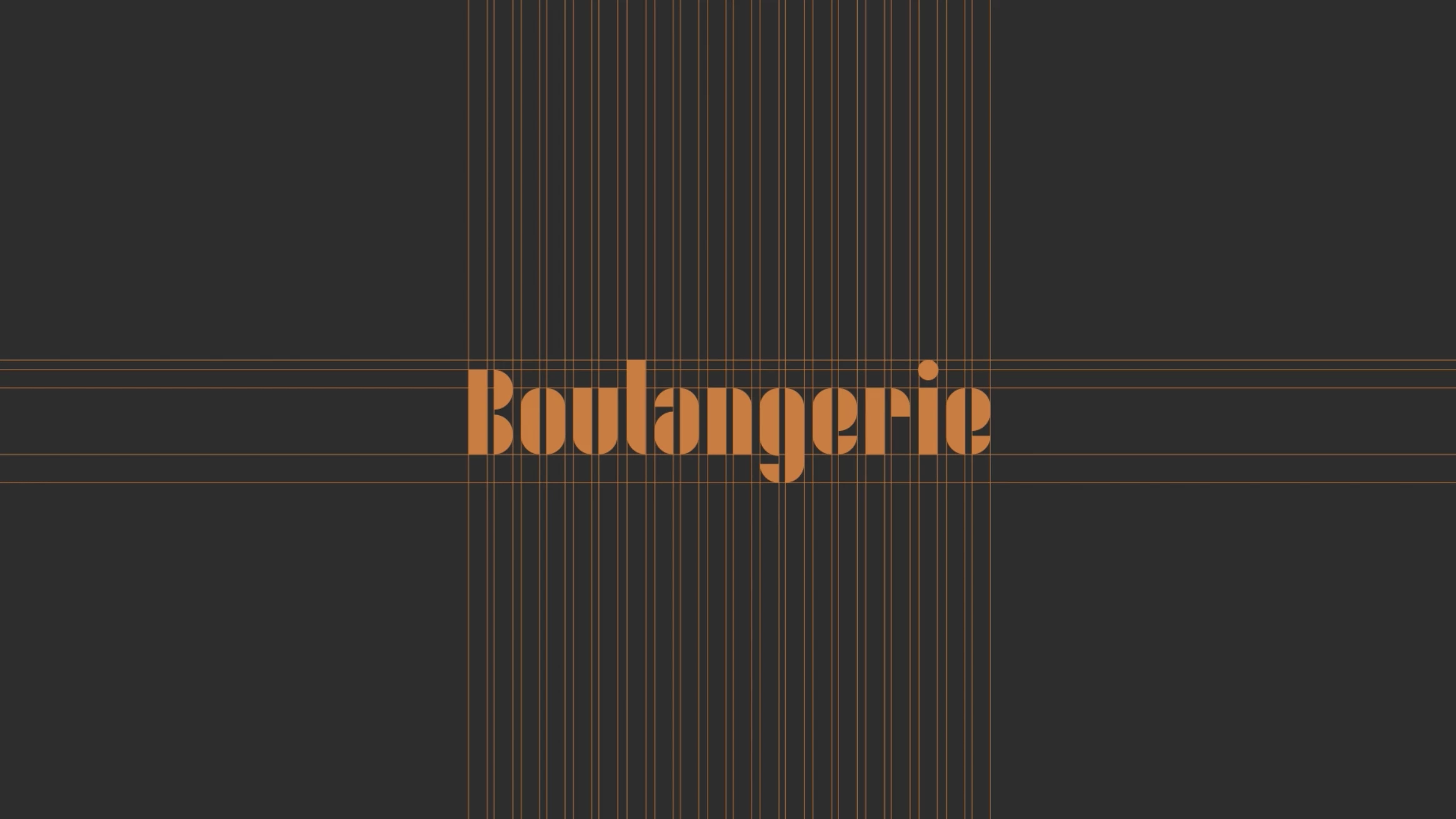
Video Quality and export is not great.

  • October 11, 2021
  • 1 reply
  • 178 views

I am importing text from illustrator and I click the icon in After effects to make it less pixelated, which helps but it is still not 100% clear. When I export the video as H264/MP4 it is not great. Photo for reference. It is 1080x1920, can someone advise on how I improve the quaslity or make the text more sharp please? I work off a MacBook Air.
This topic has been closed for replies.

1 reply

Community Expert
October 11, 2021

Your horizontal and vertical lines appear to be 1 pixel (one point) wide. Unless they are perfectly aligned with the pixel grid, they are going to soften because of antialiasing and the color is going to shift because MP4 video (world standard for sharing) compresses color in blocks of 4 pixels. It is insanely difficult to get accurate color on lines that are only 1 pixel thick. Lining up on the pixel grid is possible if you turn on Pixel Preview and Snap to Pixel in Illustrator and then carefully create the original artwork. You must check the work at 400% or better zoom with pixel preview turned on to make sure your edges line up with the pixel grid.


The same thing goes for your text. The horizontal and vertical edges should line up perfectly with the pixel grid. You have to check the AE comp at 400% or better Magnification Ratio and/or check the Illustrator file. It is also better for color compression if the horizontal and vertical edges of solid patches of color end up on odd numbers of pixel rows or columns. This is because of color compression.


A good workaround, that may work for your artwork is to make all of the thin lines 2 points in Illustrator and snap them to the pixel and check the artwork in Illustrator to make sure it doesn't fall apart when you zoom in with Pixel Preview turned on. You could also go the extra mile and make sure that the left and top edge of each horizontal and vertical line falls on the odd-numbered pixel. 


Your text layer can also be helped by adding a tiny bit of Bevil and Emboss layer styles or Bevil Alpha to put some detail on the edges. Just a tiny bit would help give some detail to the design that it just isn't going to have without some kind of edge enhancement. 


One more thing; I am fairly confident that you have Continuously Rasterize turned on and that you are not trying to customize the render settings without a very good understanding of video standards, compression standards, and streaming service recommendations for video. Just poking around in the render settings and sending YouTube, Vimeo, or anybody else that is streaming video a file that does not meet their recommended settings will always give you a lower quality product than you would get using their guidelines. The Adobe Media Encoder is up to date with its presets for all of the standard services so use them.

Niall Crowe
Participating Frequently
October 11, 2021

Hi Rick, thanks for this thorough answer. I'm using this video on Behance, off the top of your head, do you know what preset this is? Essentially, I want to create a similar design to the one in this; https://www.behance.net/gallery/113907561/Salut-bakery-branding-and-packaging 

although I think it may be a GIF file since it loops.

Community Expert
October 12, 2021

That is a GIF. There are only 256 possible different colors available in a GIF and every horizontal and vertical line in that sample is perfectly aligned with the pixel grid. You can expect the same kind of quality if you properly prepare the artwork and manage the colors. It's all in preparation. 


A video may look a little softer than the GIF if it is rendered to a distribution format because there are more colors available, color compression will always be in blocks of at least 4 pixels, and details will be antialiased unless they fall precisely on the pixel grid. That is always a limitation for images based on pixels. 


If you want the same kind of look with your artwork you must use Snap to Pixel in Illustrator and turn on Pixel Preview to check your artwork before you bring anything into After Effects. That artwork must also be arranged in its "hero" position so that you do not have to scale or move the layers in After Effects to create the composition you want.


This is how you setup and check your work in Illustrator. All strokes are 1 point (1 pixel). The colors are close to yours.

Setup:

Checking at 400%:

Checking at 800% to see the actual pixel grid.

I hope this helps.