Participant
May 26, 2025 3:57 AM UTC
Answered

Want to show camera movement for screen recordning

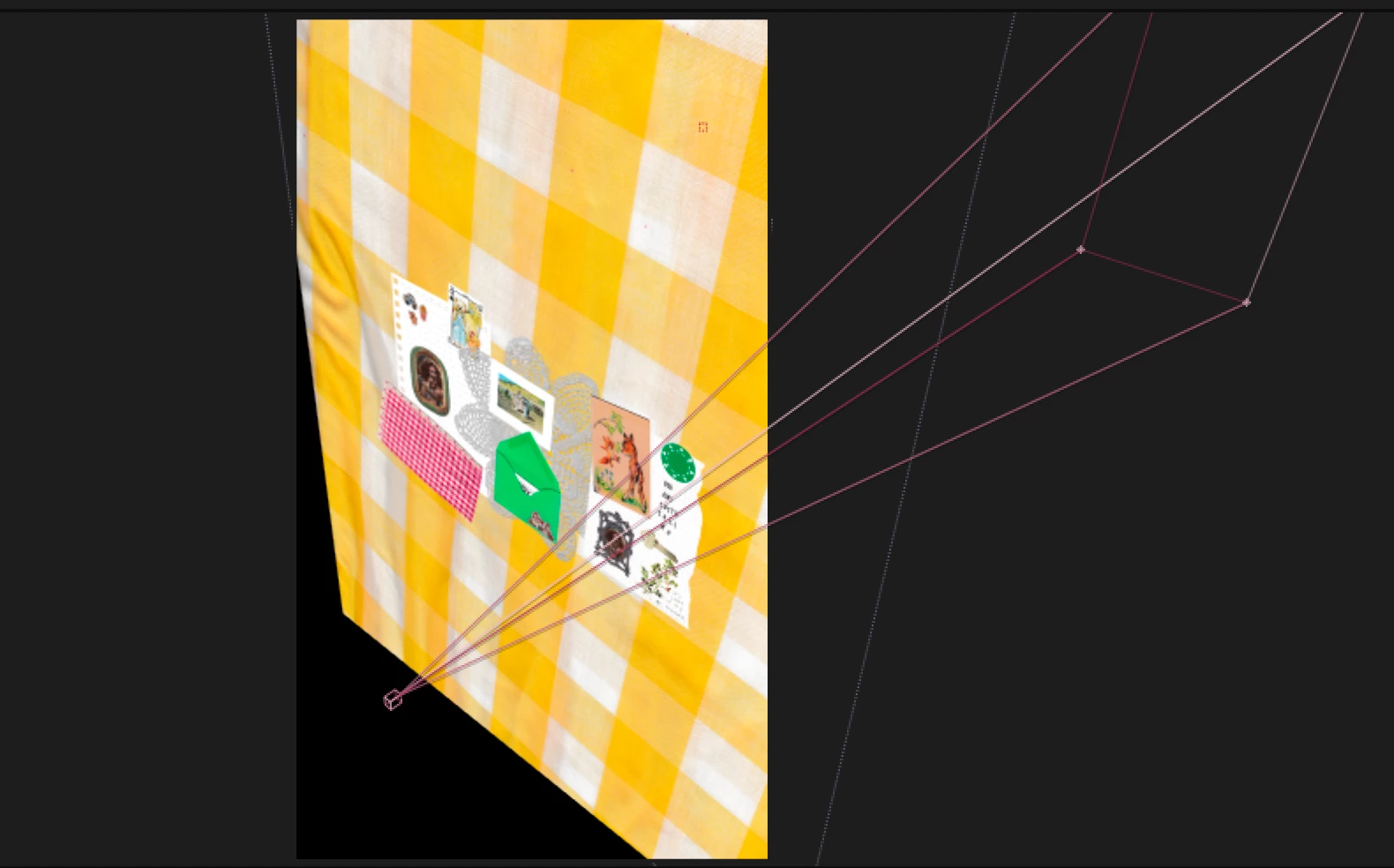
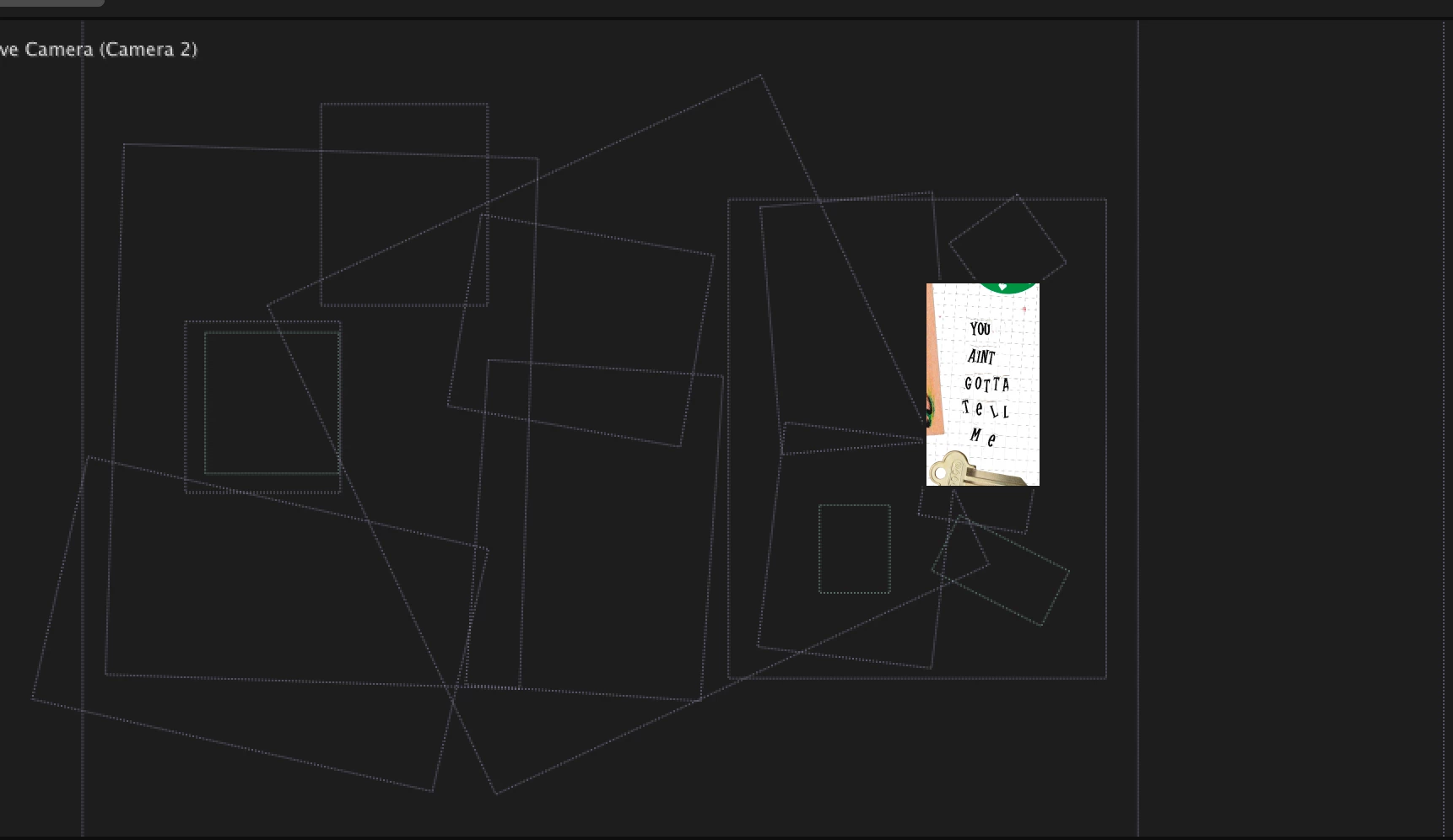
Hey!  I'm making a behind-the-scenes process video and i want to screen record how my camera looks moving around my composition. Is there a way to make the camera show when I play? this view that I showed in the screenshots disappear when I press play. 


Thanks!

tate_1038Correct answer
Participating Frequently
May 28, 2025 10:49 AM UTC

It's important to know that camera paths and overlays are usually hidden during playback to improve performance. This is why the view you see when you're paused disappears once you hit play. To fix this, go to the Preview panel and make sure the option Include Overlays and Layer Controls is checked. This will allow the camera path and 3D layer guides to stay visible even when the animation is playing, making it easier to capture using screen recording software.

To actually record this view, use a screen recording tool like OBS Studio, Camtasia, or your device’s built-in screen recorder. These tools will capture exactly what you see in the Composition panel, including the visible camera movements and overlays if enabled. If you want to go further, you can even create a separate composition that visualizes the camera path using a 3D null object or shape layer. This makes it easier to show the camera's path in a clean, intentional way. Alternatively, there are third-party scripts and plugins available that help visualize and animate camera movement more clearly for behind-the-scenes purposes.


5 replies

tate_1038Correct answer
Participating Frequently
May 28, 2025 10:49 AM UTC

It's important to know that camera paths and overlays are usually hidden during playback to improve performance. This is why the view you see when you're paused disappears once you hit play. To fix this, go to the Preview panel and make sure the option Include Overlays and Layer Controls is checked. This will allow the camera path and 3D layer guides to stay visible even when the animation is playing, making it easier to capture using screen recording software.

To actually record this view, use a screen recording tool like OBS Studio, Camtasia, or your device’s built-in screen recorder. These tools will capture exactly what you see in the Composition panel, including the visible camera movements and overlays if enabled. If you want to go further, you can even create a separate composition that visualizes the camera path using a 3D null object or shape layer. This makes it easier to show the camera's path in a clean, intentional way. Alternatively, there are third-party scripts and plugins available that help visualize and animate camera movement more clearly for behind-the-scenes purposes.

Translate
ShiveringCactus
Community Expert
Community Expert
May 28, 2025 12:35 PM UTC

That's an interesting tip @tate_1038 - regarding a separate composition.  I'm not following the workflow though.  Can you explain more?

Translate
ShiveringCactus
Community Expert
Community Expert
May 26, 2025 9:53 AM UTC

I can't think of a way - other than scrubbing the timeline while screenrecording.

I suppose you could use shape layers in 3D space and recreate the look of the camera.  I've done that before with limited success.

Translate
Participant
May 26, 2025 7:29 PM UTC

Thanks for your help!! I saw someone do it here: https://www.instagram.com/reel/DJcFQlxMrRy/?igsh=cW95YzJreDVxZmFj


I couldn't figure out how tthey do it, especially to be playing at the same time as their video 

Translate
ShiveringCactus
Community Expert
Community Expert
May 27, 2025 10:23 AM UTC

That's a useful link actually.  I was looking into recreating the camera in 3D layers like I suggested, but there's a lot more gimbals than just the camera on that video.   All I can think is that the creator manually scrubbed the timeline as smoothly as possible.

You could always post a comment on their clip and ask them how they did it?

Translate