Andres007
Participant
January 21, 2018
Answered

Washed out colors on After Effects when rendering - Using macOS High Sierra

  • January 21, 2018
  • 25 replies
  • 366436 views

I have found an issue that is driving me crazy when rendering any video in After Effects.

I am not sure if it is related to the last version of After Effects (I am using CC 2018), the last version of my Mac Book Pro, which is High Sierra, or both together. The truth is that is has never happened to me before.

When I render a video, no matter which format I choose it renders the video with washed out colours, or as if something had happened with the saturation of the picture.

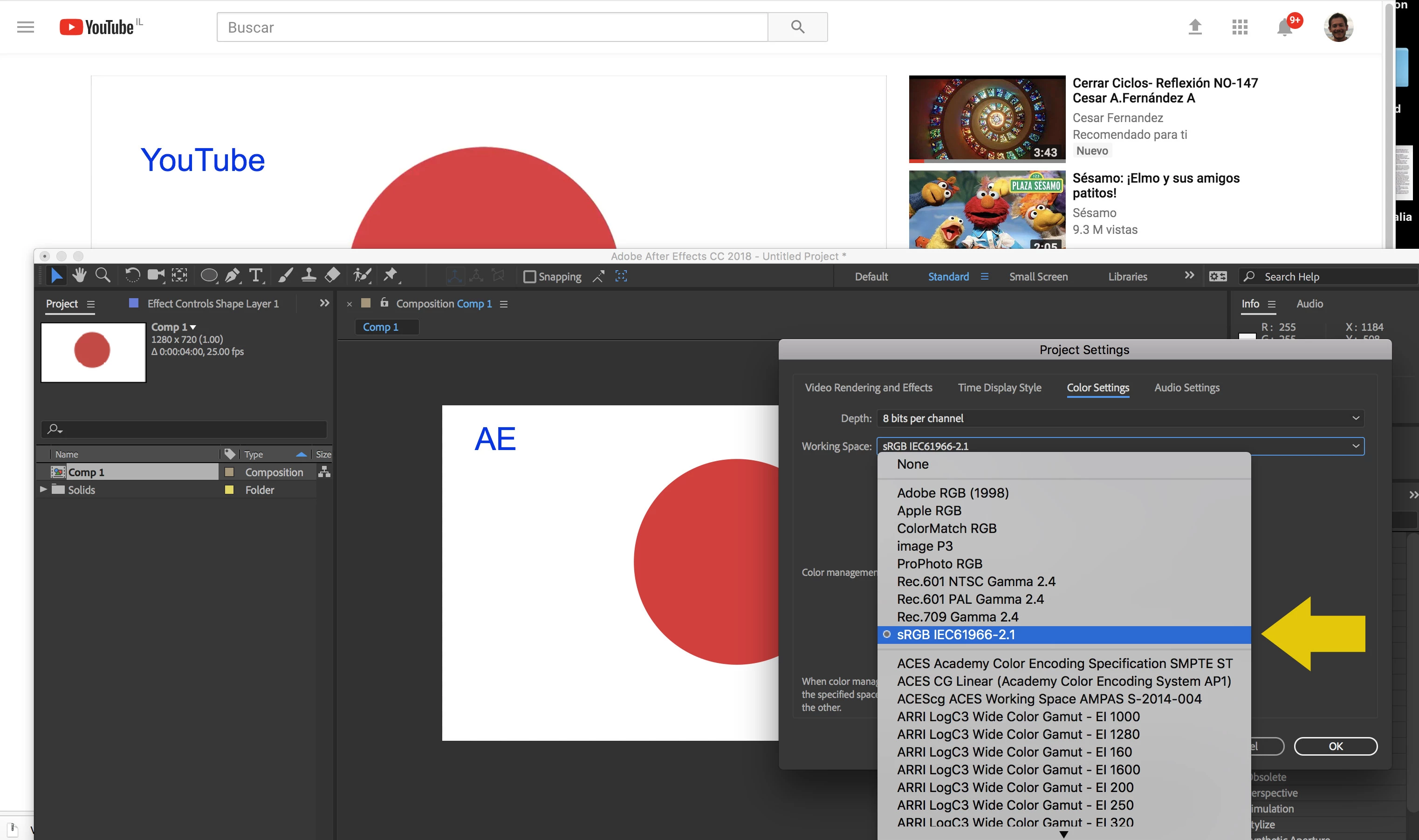
This is the original illustration inside After Effects :

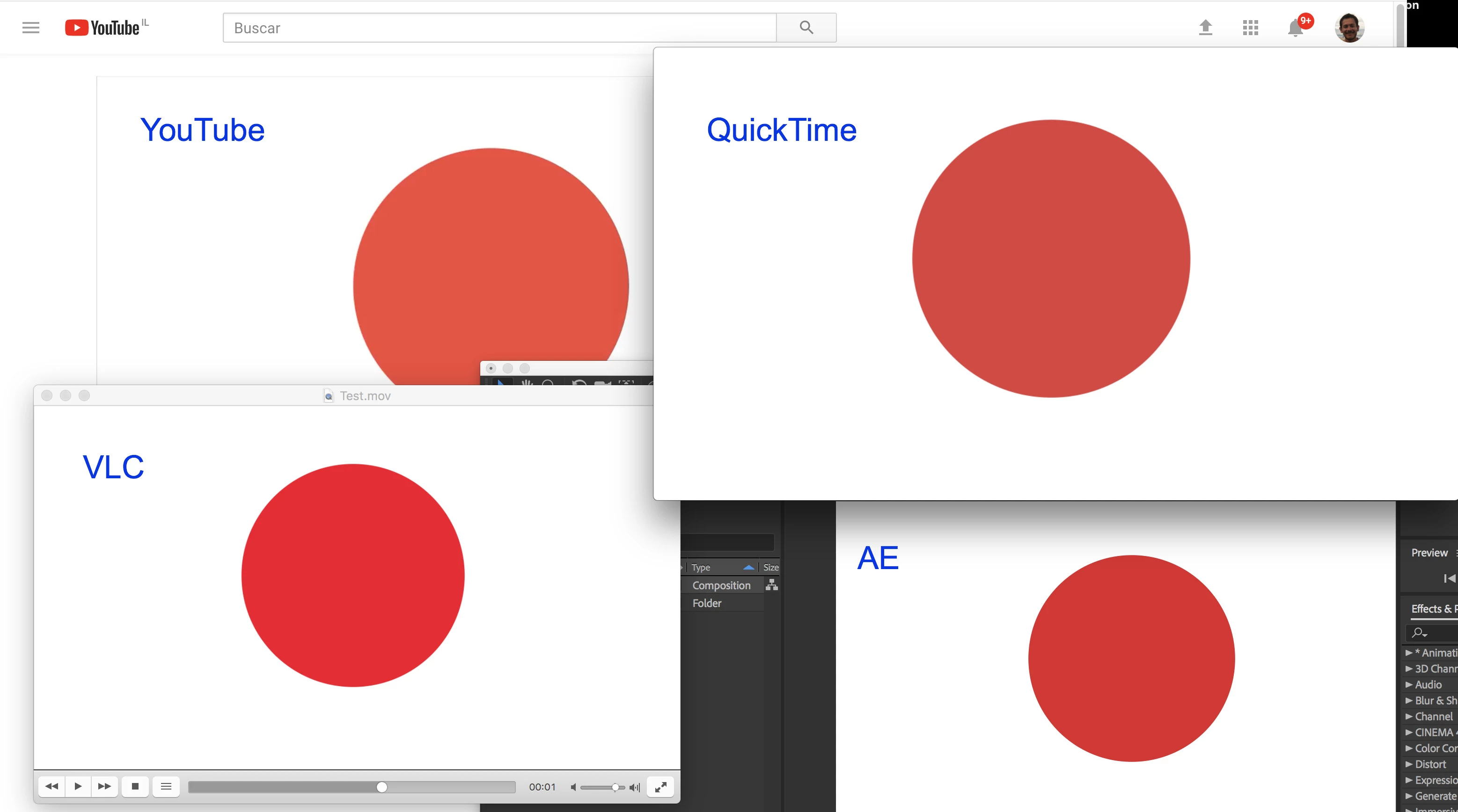
This is the results when I open the video on QuickTime (or importing the video to Photoshop in order to get the frames apart):

Note: thumbnails of Illustrator look the same on my desktop (washed out) + If I open the video in VLC colours are displayed correctly.

There must be something wrong with either CC or Mac.

If someone knows how to solve it, please let me know, I need to deliver a few projects and I haven't managed to find a solution,

Thanks,
Correct answer Andres007

After checking the issue I found out something that may be basic knowledge for experienced animators and designers in After Effects. For me is wasn't. And I also didn't find any forum where this issue was approached and explained using simple terms.

What I found is that colors may vary according to the video player as it is shown below (YouTube, QuickTime, VLC):

It is something I didn't notice when working on Windows, but now that I am working on Mac it is more noticeable to me as the screen is better.

The solution is to change the color configuration of the projects in AE, in a way you choose an option as similar as possible to the final device in which the video will be played. In my case, I make animated videos to be published in YouTube so the choice that seemed to be closer to the color I see in YouTube was this one:

It is important to notice that the colors vary when you render the video inside AE or when you use the Adobe Media Encoder with the YouTube default compression.

So my recommendation is to do your tests before you start a big project, this way you won't be disappointed later on when you render your video to discover colors are not what you expected.

25 replies

Known Participant
July 6, 2022

The issue is adobe. Every month they take your money and it would be nice for them to get off their cozy couches and do the work. This problem does not exist outside of Adobe. Resolve 17 is flawless!  That we have to put up with this is insane!

Aleem Hayat
Participant
May 15, 2022

Hi, 

Simple and easy solution to this, is just to select the "Adobe RGB (1998)" in "Working Space".

Participant
July 5, 2025

works for me!

Participant
April 25, 2021

I would like to add that when rendering, it is much better to render the video inside AE, and then compressing it in Adobe Media Encoder. Surprisingly the result is different than when you send the video to render in Adobe Media Encoder, straight from AE.

benaj46852896
Participant
April 28, 2021

I've tried your solution but it doesn't work for me 😕😕


Participant
January 28, 2021

I want to add, that maybe not colour picking the colours from photoshop or rendering out a jpg and colour picking in any way - use a hex code. that sorted out my colour render issue 

Known Participant
December 15, 2020

I want to add that the correct answer they have marked in here is not the correct answer.

Participating Frequently
December 18, 2020

Is there a solution to this yet? Our client is super picky about his brand colors and he has all the right to be...


Since a week or two we have the same issue with multiple videos from clients complaining about not exactly matching their brand colors even we have them nailed down exactly off course!


wierdly the aftereffects / mac version puts out other colorvalues than ae/pc... our hypotese is that it has to do with the graphicscard doing the hardwareencoding. When we set the codec to software encoding the problem was not as noticeable.


Known Participant
December 18, 2020

So here is what I've worked out. Any playback of the ProRes or MP4 files inside of QuickTime, Safari, or even the iOS Vimeo app displays the washed out colors. If I view the ProRes or MP4 files using VLC or using Vimeo on Firefox... they look correct. So this is definitely a MacOS issue. I wish Adobe would come in and give us a direct answer on this topic as it seems weird that they haven't given direction on this huge issue.

Known Participant
December 15, 2020

Same exact problem persists in current release of After Effects. If I render out a project it's washed out if I view it in QuickTime Player (QuickTime Player 7 or current QuickTime Player). However, if I open the ProRes file in VLC it looks correct. Converting the ProRes to an MP4, regardless of conversion software used, the problem persists. If I upload the converted MP4 to Vimeo and view it on Safari, it looks washed out. If I view the same video on FireFox 84, it looks correct.

Oh!.. I also checked out the video on Vimeo with my iPhone 12 Pro Max using their app, and it looks washed out on my iPhone as well.

This has to be a Apple display issue. What's weird is that movie trailers, etc. don't seem to suffer from this problem. Only content I create in Adobe apps.

I should note that I'm running After Effects 2020 (17.5.1) using MacOS 10.13.6
My monitor is calibrated with Spyder5 and DisplayCAL.

Has anyone talked to any of the engineers at Adobe on this issue?

dorian8716644667
Participant
August 12, 2021

I think this is the solution:


Go to: File/Project Settings, then go to Colors and choose "none" at Working space.


Participant
August 12, 2021

This is a good solution and you need to change it to "none" before renderening.

But while working on AE, I strongly recommend to set it to sRGBIE.... etc, in order to see the colours as they will appear later on after rendering (which is a bit washed out). 

Participant
June 29, 2020

Still having this issue. It shouldn't have anything to do with my monitor calibration since everything is viewed on one monitor and appears consistently washed out in every channel it's intended to be presented (YT and IG mostly). I've played with interpretting/project color management/profiles... everything and my video still renders significantly washed out. Is it possible to export a video from AE and have the colors appear as they do in my timelines? What is the point of trying to use a brands Hex codes if the color ends up desaturated in the end? (btw the LUT everyone uses kind of works on footage, but when it comes to graphics with specific color swatches, it does not fix the washing out).


I (and my client) are looking for perfection here!

Participant
August 14, 2020

Not perfect, but this method helped me get the best results.

Participant
May 15, 2020

Hi there! have the same issue. I think I found the answer in this link


https://vitrolite.wordpress.com/2010/12/31/quicktime_gamma_bug/

Participating Frequently
November 15, 2019

Andres007's recomendation is good but for me, I have calibrated the monitor with a Xrite i1Display Pro however if you don't have a calibrated display chances are you can set it to sRGB or Adobe 1998. I would make those settings match between moniter and Project Settings. 

Participating Frequently
August 8, 2019

Same problem as mentioned by people before. Changing the working space to AdobeRGB or sRGB is not really a fix.