Inspiring
May 8, 2022
Question

Why does add camera change geometry?
  • May 8, 2022
  • 1 reply
  • 324 views

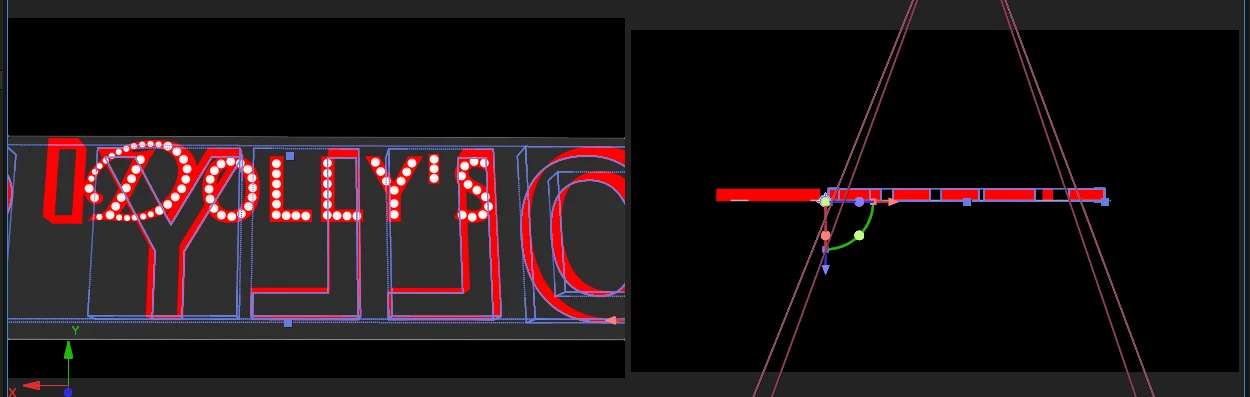
Before I add a camera

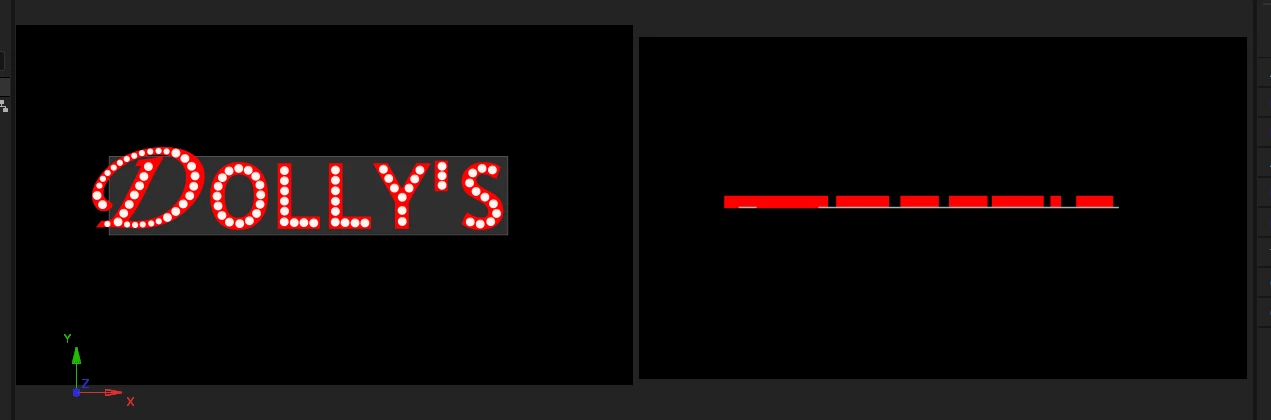
 After I add camera


I am trying to add and move a camera through a 3d scene. I would rotate my item but I cant get all the parts to move together.

I have built a 3D sign for a cafe ad banner but I am having trouble getting a 3D view.  When I click Add Camera much of my geometry is moved, flipped, and scaled.

How do I make a camera act as a camera and has no effect on the geometry in my scene?  I just need a camera that I can animate it's location then transfer to Pr from.

 

This topic has been closed for replies.

1 reply

Community Expert
May 9, 2022

Perspective is controlled by camera position, and framing (angle of view) is controlled by focal length. It is the same for the After Effects camera and a real camera. 


When you create a new camera in After Effects, the narrower the angle of view, the farther the camera is away from the comp center. As a camera moves farther from the comp center, the parallax diminishes. Add a camera with an angle of view of 1º, and you will approach an isometric view. Add a new camera and set the angle of view to 120º, and it will be very close to the comp center. Rotate a square layer 45º in Y, and you will see a lot of distortion. 


You can also change the default camera position, even though there are no parameters for the default (no camera in the comp) camera. I think this was a regrettable decision by the developers. If you have changed the orientation of the default camera using (the C key) the 3D cursor in the bottom left corner of the Composition panel will show the new orientation. Add a new camera, and the cursor will reset to the default orientation until you move the camera. You have the option of right-clicking in the Composition panel and selecting Switch 3D View/Reset.


I hope this helps you figure out what is going on. Personally, if I am going to have any 3D layers in a comp, I always Add a camera before creating any 3D layers. 


Inspiring
May 9, 2022

I am still wondering why viewing through a different camera would reverse an item and why id would compleatly separate two items that are touching each other.

I shoot photagraphy and have been working woth video cameras for over 2 decades and cameras in real life do not change the phisics of the world.

Does Adobe have a camera that acts like a real world camera?  Or is there a way to connect my geometry so that they all move together as one?

Community Expert
May 10, 2022

Open up multiple views, and you should be able to see the Default camera and the new camera. I'm guessing that if you do that, you will see why one of the layers has flipped. It could be caused by a gimbal lock with the Default camera. 


If you reset the default camera, I would guess that the layer would show as reversed. I don't have any idea what is going on with your layer position or transform properties. I don't know if you have Auto Orient to camera turned on. The problem is the new camera and the default camera are not in the same position.