

Phi.Def
Inspiring
July 19, 2019
Answered

Why not frame blend ALL layers?

  • July 19, 2019
  • 2 replies
  • 3499 views

I'm working on a music video composition that I imported from Premiere. It has lots of quick edits, and about 10% of the shots are time-stretched. Unfortunately, the import from Premiere doesn't keep the frame blending on the the time-stretched layers and I can't tell by looking at the comp which layers are time-stretched and which are not. That means I'd have to click on each one of the thousand layers and go into the time dialogue to figure it out. That would take forever.

I thought a good solution would be to turn on frame blending for all the layers, but the Adobe help site says,

"Don’t apply frame blending unless the video of a layer has been re-timed—that is, the video is playing at a different frame rate than the frame rate of the source video."

Why is that? And does anyone have any suggestions on what to do here?

Thanks!
This topic has been closed for replies.
Correct answer Roei Tzoref

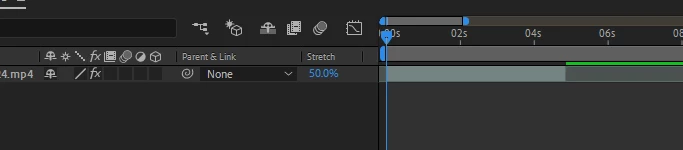
reveal the "stretch" column and you will see all the clips that were stretched if the percentage is other than 100%

having frame blend on layers that don't need it may introduce ghosting on the edges. hey, in most cases that's what it does! that's why in most cases it's not good enough. I have only found frame blending useful when I ramp up the speed of the clip. and even then - it's really for avisual effect kind of thing.

2 replies

Community Expert
July 19, 2019

Phi.Def  wrote

... That means I'd have to click on each one of the thousand layers and go into the time dialogue to figure it out. That would take forever.

What in the world are you doing with a thousand layers in an AE comp? If a frame does not need some kind of effect you cannot produce in your NLE then it does not need to be in After Effects. Make sure you are spending your time in After Effects working only on the shots that you need to work on.

If I had a bunch of fast cuts and time-stretched video in a Premiere Pro sequence and I needed to apply some kind of effect to the entire sequence that I could not do in PPro, I would render that sequence of shots to a suitable visually lossless production format and just bring that rendered shot into AE for further processing. Working on a sequence in After Effects that is longer than just a few seconds can easily turn into a nightmare.

If you could explain exactly what you are doing to the shots or sequences you are bringing into After Effects maybe we could help you streamline your workflow. The last project I did had a little more than 20 shots that had to be processed in After Effects, the longest comp was 4 seconds, the shortest was 9 frames.

Phi.Def
Phi.DefAuthor
Inspiring
July 19, 2019

I'm mainly doing noise reduction and a beat reactor across the entire music video. I haven't had any problems with this workflow aside from the question above (which Roei provided a great answer for), but I'd love to hear your suggestion on how to do this more efficiently.

Community Expert
July 19, 2019

I think if you render your PPro project and add the noise reduction (which PPro does very well by the way even using an adjustment layer) then put the rendered visually lossless movie in AE and added your beat reactor (visualizer) you would save a bunch of render time and the project would be way more stable.

Roei Tzoref
Roei TzorefCorrect answer
Legend
July 19, 2019

reveal the "stretch" column and you will see all the clips that were stretched if the percentage is other than 100%

having frame blend on layers that don't need it may introduce ghosting on the edges. hey, in most cases that's what it does! that's why in most cases it's not good enough. I have only found frame blending useful when I ramp up the speed of the clip. and even then - it's really for avisual effect kind of thing.

Phi.Def
Phi.DefAuthor
Inspiring
July 19, 2019

Thanks! That's exactly what I needed!