Participant
June 22, 2020
Question

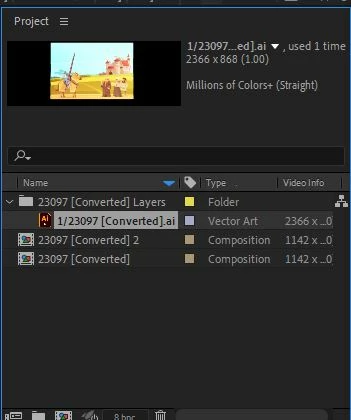
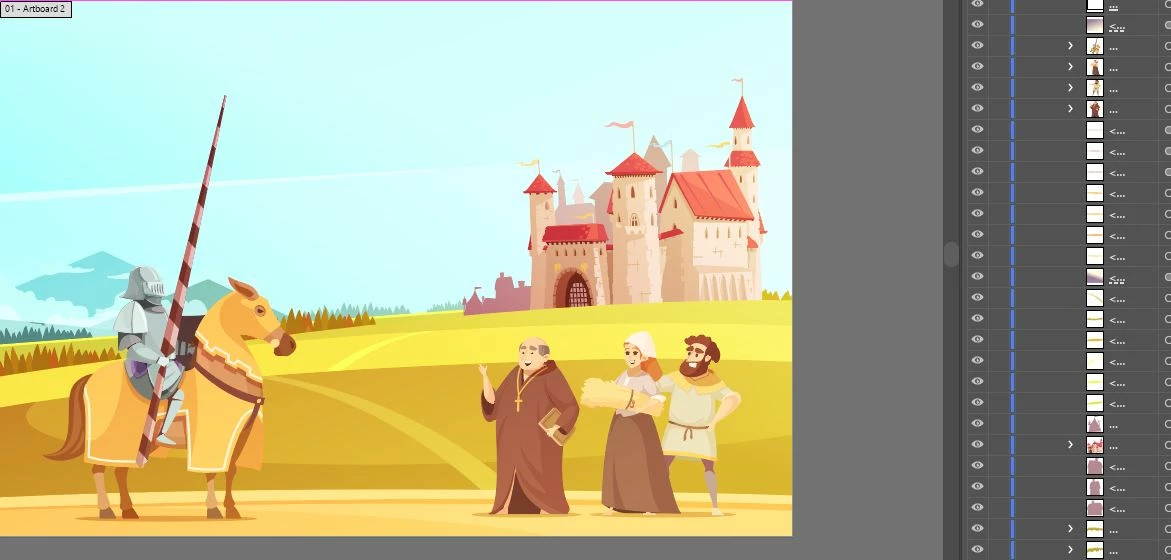
Why won't my AI layers show up in AE?
  • June 22, 2020
  • 3 replies
  • 712 views

I downloaded a vector file in AI and imported it to AE but the individual layers won't show up.  The solution is probably simple but I'm new to this and I'm trying so bear with me!  I was in touch with Adobe support for a while and they were no help so I figured I'd post here.  PS: I realize that I posted this in the wrong forum. My apologies.

    This topic has been closed for replies.

    3 replies

    Kyle Hamrick
    Community Expert
    Community Expert
    June 23, 2020

    In addition to what's already been posted, vector art that isn't built for animation often use techniques that are fine when something just needs to look right, but in our world, it also needs to be built right. There are some Ai tools that won't translate directly (though stock vectors will usually be baked down anyway). The biggest offender you'll encounter are clipping masks, which AE usually won't really understand properly. 

    Make a duplicate of your vector file (I usually add a suffix like "_AniPrep") and then work your way through restructuring it into the pieces you'll actually be animating. This way you'll have the original to refer back to, in case you mess something up.
    Work your way through the structure of the artwork, ungrouping and re-grouping elements as needed until things are formatted in a way that makes sense. I'd recommend trying to eliminate all clipping masks, if at all possible. If some are crucial, you could leave those as shapes within the Ai doc (on their own layer) and rebuild that matte structure in AE using the former clipping mask layer as a track matte.

    Let us know if you need more clarification on any of this. Good luck!

    Community Expert
    June 23, 2020

    As nishu_kush explained, your AI file has not been properly prepared for importing as a composition. Each element that you want to animate should be on a separate layer. You have objects and groups in your AI file. You should be able to deselect all objects in the AI file, then use the layer menu to Release to Layers - Sequence, then drag the embedded layers above the original first layer. 


    Here's a real quick explanation of how to do that with a bonus animation technique thrown in.

    nishu_kush
    Legend
    June 23, 2020

    Hi lavonef61151667,


    Thanks for reaching out.

    Please make sure that all the objects that you want to animate in After Effects are on a separate layer. Here's a YouTube video that will help: https://www.youtube.com/watch?v=yPha_s7W-0M&t=135s

    Let us know how it goes.


    Thanks,

    Nishu