



JohnColombo17100380
Community Manager
Community Manager
June 23, 2020
Question

Feature Focus: Roto Brush 2

  • June 23, 2020
  • 15 replies
  • 35009 views

Hello Beta Testers!

We are pleased to inform you that Roto Brush 2 is now available for beta testing in the 17.1.2x32 build of After Effects (Beta). This new propagation engine incorporates the technology behind Project Fast Mask from MAX 2018 to streamline rotoscoping/isolating a subject or object from a background.


The amazing notiansans from Learn How to Edit Stuff has created a great tutorial video for Roto Brush 2 in After Effects (Beta) showing the basic workflow as well as a comparison with original Roto Brush.


What We Need From You

We are looking primarily for feedback on how the new propagation engine is performing with real-world footage, though all feedback is welcome. Your testing efforts and input are highly appreciated.


If you are willing and able to share footage with the After Effects team where Roto Brush 2 is having difficulty isolating a subject when propagating, please follow these steps to submit the footage and project:

  1. In the Project panel, select the composition that contains the footage with Roto Brush applied.
  2. Go to File > Dependencies > Collect Files
  3. In the Collect Files dialog:
    • Set "Collect Source Files" to "For Selected Comps"
    • Enabled the "Reduce Project" checkbox
    • Click "Collect" and select a location to collect the project file and footage
  4. Zip up the folder containing the newly-collected project and footage.
  5. Add the .zip to your Creative Cloud storage ( or Dropbox, OneDrive, etc ) and email a link with a brief description of what you were experiencing to rotobeta@adobe.com. All footage submitted will be kept confidential and will not be shared with third-parties.

Getting Started with Roto Brush 2

The application of Roto Brush with the new propagation engine is largely the same as in previous After Effects versions:

  • Select the Roto Brush Tool in the toolbar ( Alt/Option + W ).
  • Double-click on an existing layer in the Composition panel. This will open up the layer in the Layer panel.

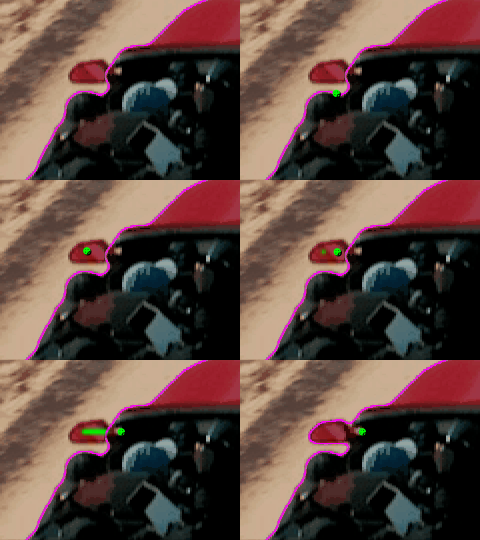
  • Paint a green foreground stroke on the subject, object, or region you are attempting to roto. Avoid painting across edges as this might confuse the selection. This creates a base frame ( visible as a blue highlight in the Time Ruler of the Layer panel. )

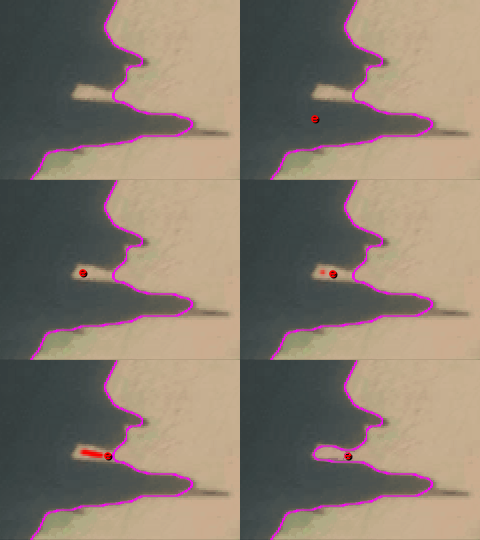
  • Refine the selection by painting additional foreground strokes, or paint background strokes by holding Alt/Option to remove portions of the selection.
    Foreground stroke, adding to selection:

    Background stroke, removing from selection:
  • Once you are happy with the selection on the base frame, press the Spacebar to start propagating the selection through the footage. This will trigger the propagation of the matte from the base frame to the new frame. You can also use Cmd/Ctrl + Left/Right arrows to propagate frame-by-frame either forward or backward, if you would like to go slower and evaluate the propagation more closely. This might be more ideal for footage which requires more correction strokes.

  • After you have propagated the matte through all of the video frames you need and you are happy with the result, you can freeze the propagation using the Freeze button at the bottom of the Layer panel. After freezing, you can still make adjustments to the matte itself in the Roto Brush effect without re-propagating. If you need to add or remove from a selection after freezing, you can unfreeze the propagation with the same button.


Correcting the Roto Brush matte:
As Roto Brush propagates the matte from frame to frame, the selection may start to include unwanted regions or "lose" portions of the original selection. To correct this, paint a background stroke ( holding Alt/Option ) on the first frame where the unwanted change occurs to remove unwanted regions, or paint a new foreground stroke to include anything that was missed. As with the base frame, avoid painting across the edge of the selection as much as possible.

Adjusting and Refining the final matte:
The result of the propagation can be further refined and improved via the controls in the "Roto Brush Matte" group in the Roto Brush effect, especially with the "Reduce Chatter" property. Additionally, the Refine Edge Tool can be used for highly-detailed edges like hair and further controlled in the "Refine Edge Matte" property group. There are also options that compensate for motion blur and decontaminating edge colors.

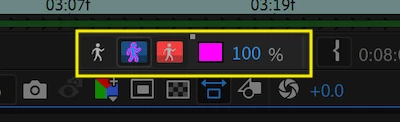
Use the toggles at the bottom of the Layer panel to view the matte results, or open the Composition panel to view the result in-context with other layers.


Toggles in Layer panel for viewing alpha, alpha boundary, and alpha overlay
Additional Resources

For more details on the Roto Brush workflow, below you'll find links to both Adobe documentation as well as tutorials from Roto Brush users.

Please note: Due to the enhancements in the new version, some of the tutorials may be outdated or encourage practices which may not yield the best results. For example, painting very close to an edge may result in a poor result if any pixels from the background are accidentally included in a selection.


Thanks very much for trying out After Effects (Beta) and Roto Brush 2!

This topic has been closed for replies.

15 replies

TheeRedEyedJedi
Participating Frequently
January 6, 2021

I'm having issues with this. The roto brush will only propagate half of the clip and then it just stops.


I realized the end of the clip needs some touching up but I can't even get to that part because it stops propagating around the halfway mark and all I see is a black screen. I try to go frame by frame but it doesn't even load anything besides the black screen after the halfway point.


How am I supposed to edit the mask if it won't even let me get to that point in the clip? It's only a 14 second clip as well, so it's really frustrating. I've tried for hours to see if it will continue propagating so I can access that part of the mask to no avail.


I have a decent computer but this is definitely eating up all my RAM, but what's the point of it doesn't even allow me to correct the mask?


If there are any fixes or there is anything I'm doing incorrectly, please let me know.

JohnColombo17100380
Community Manager
Community Manager
January 12, 2021
TheeRedEyedJedi
Participating Frequently
January 12, 2021
Thanks again!

I ended up cutting the clip in half then I re-rotobrushed the end that
needed touching up and it's working fine.

--

--

*Malcolm A. Maurice | Freelance Graphic & Web Designer, Writer,
Videographer & Editor* *|*

direct: 443.355.1291 | email: m.maurice331@gmail.com
PitcherGiffer
Inspiring
December 3, 2020

Something new (unrelated to my Roto2 propagation saga); I get this popup each time I open AE BETA. Started with the 17.6 update. When I click 'OK' it goes away and doesn't seem to have any impact on what I'm working on...?

James Landy
Community Manager
Community Manager
December 3, 2020

I'm keeping a record of your results when using RB2 and adding them to our internal database for potential feature enhancements and bug fixes. So, thanks for keeping us up to date.

Regarding the Ae warning on start up, that is a known issue and is harmless.  Should be fixed soon. 

PitcherGiffer
Inspiring
November 23, 2020

Starting to experience the repeated propagation again. Every time I move a frame forward when using the Rotobrush 2 tool, it wants to propagate all frames each time. If I make a mistake, and I have to correct something it propagates everything. I try to switch to the main compostion to see how its looking, it propagates. When I go to switch back to the clip I'm using the rotobrush on, it propagates again. I'm not finised with my project so I don't think the freezing method will work (and I don't want to have to do it each time I have to change something.

Its really annoying and a normal 15-20 minute project is already taking me over an hour because I can't move forward or go back to correct without it propagating all frames EVERY SINGLE TIME LOL!
This is the latest update that was pushed out. 

PitcherGiffer
Inspiring
November 23, 2020

I zoom in, it propagates. I zoom out, it propagates. I pull up another window, it propagates. I switch back to AE, it propagates.

You get the idea...

James Landy
Community Manager
Community Manager
November 24, 2020

Hey PitcherGiffer,

Sounds like you may have run into an issue we recently fixed with cache markings not drawing for propagated frames, possibly forcing a re-render.  More likely, Ae might be running out of memory when attempting to render a propagated frame.  In the latter case, try changing Ae Memory & Performance setting: check “Reduce cache size when system is low on memory”.  That might take care of the issue.  Regarding the cache markings, that fix was checked into a recent build of AE 17.6 beta.  Please try updating to the most recent build if you don’t already have it installed.  Please let us know if either of these solutions works for you.  Thanks.

PitcherGiffer
Inspiring
October 25, 2020

OK, some new issues I've noticed during the last update or two.

I'm noticing repeated propigation and rendering when using RotoBrush 2. 


In the past, I've been able to overlay 5+ videos with no issue at all. Now, each time I go back to check the isloated frames, it propigates all the way through no matter where I start the clip. Sometimes it will go through all the frames (up to 160-170), then will continue to propigate each video layer over and over again. Its caused a normally one hour at best project (that would have up to 10-12 video layers) to a three to four hour project between the time it takes to make sure all the layers look right and to render the video. 

I can elaborate or attempt to provide video to further explain.

PitcherGiffer
Inspiring
October 25, 2020

OK, one more note- I changed all my layers from "Best" to "Standard" on RotoBrush2 and that seems to have made the problem go away. Some of my strokes on random frames got messed up big time but I was able to go through and fix them all. Once I got that fix, it renders in a matter of seconds. 


So....issues with the "Best" settings, I guess...?

JohnColombo17100380
Community Manager
Community Manager
October 27, 2020

Hi PitcherGiffer,

Thank you for reporting these issues. Was the continuous propagation happening in the latest Beta build or in the latest release version ( 17.5 )? Also, were you freezing the result of each clip once the propagation was complete?


When switching between multiple clips, I don't quite see the repropagation you've described but I do see that the propagation cache markings get messed up quite frequently when switching between clips. Moving the CTI within the span range usually brings them back however. A screen recording of what you're seeing or a project file would be best to help us isolate the issue that you're seeing.


Thanks again,

- John, AE QE 

PitcherGiffer
Inspiring
September 23, 2020

OK, new bug. 

When I roto out my object, and press play to auto-propagate, it crashes AE. I have to click through frame-by-frame.

This has happened for about a week, now, even with the latest update.

James Landy
Community Manager
Community Manager
September 23, 2020

Yes, that's correct.  Previewing in general is broken in Layer and Footage panel views.  Issue is not specific to Roto Brush but affects ability to view propagation in real-time.  We're actively working on fix.  In the mean-time-you can work around the problem by moving the CTI to your target frame to induce propagation.  

PitcherGiffer
Inspiring
September 23, 2020

OK. Wasn't sure if anyone brought my issue up yet.
I'm good with going frame by frame for now but I'll also give your suggestion a shot.


Thanks!

Fernando_silva
Participant
September 18, 2020

Hi,

When it will be available on production version? I thought that because it was available on beta version 17.1.4, with the official release of the same version that will bring the roto brush 2.0.

Thanks

James Landy
Community Manager
Community Manager
September 21, 2020

We ship when the feature is ready for public release.   We’re getting close.  We make that decision partially based on feedback from our Beta users.  So thanks for contributing. 

Fernando_silva
Participant
September 23, 2020

Hi James,

Thanks for your reply. Good to know that you are getting close to one of your most revolutionary tools so far, for rotoscoping. The roto brush 2 is fantastic!

Cheers

Inspiring
September 18, 2020

Wow! The speed of propagation is kinda mind-blowing.  One thing -- not sure if this is a bug or a documentation error: When I hit the spacebar to start propagating, things freeze -- if I just move the playhead to the end of the clip, success.

James Landy
Community Manager
Community Manager
September 21, 2020

Yes, this is a known issue, AE stops responding when previewing in the Layer panel.  A fix should be available soon.  In the meantime, continue moving the CTI to start propagation.  Thanks

Participant
September 6, 2020

This update is awesome !

Unfortunly the beta version of After Effect is really unstable and there are a lot of bugs, that not allowed me to continue my composition...

When the rotobrush 2 will be included in After Effect CC (not beta) ?

QingLyn
Known Participant
September 4, 2020

Is anyone else confused by this, from the above instructions:  "After freezing, you can still make adjustments to the matte itself in the Roto Brush effect without re-propagating. If you need to add or remove from a selection after freezing, you can unfreeze the propagation with the same button."   My confusion is this:  What adjustments can you make to the matte without unfreezing?  Actually, the whole propagation and freeze thing is confusing.  When I freeze, it starts to propagate (or possibly render, or save or ?? and it takes ages.  Then unfreezing takes ages.  Then clicking anywhere begins propagation again, taking ages.  3 days later on a 7 second, admittedly complex, clip and counting.......

PitcherGiffer
Inspiring
September 6, 2020

I'm having a similar issue with propagation. It just runs and runs and runs and runs and runs....
I used to be able to let it run and it was done in like a minute or two. I just give up when its at Propagating: 200 of 4000.


One of the recent updates seem to have broke the engine; its not acting at all like it did in the previous versions. I can't believe no one else is seeing this (I posted in AE Beta forum).

QingLyn
Known Participant
September 4, 2020

Have been using Rotobrush infrequently for about a year, and now Beta 2.0.  It's much better.  However, it's still frustrating when a previously straight line loses its straightness over time, probably due to a lack of contrast between foreground and background.  1. Is there any way to add a keyboard command to teach Rotobrush that a straight line never changes over time?   2. Is it possible to change the contrast between foreground and background to help Rotobrush distinguish?  Thanks.