



Feature Focus: Selectable Track Matte Layers Have Arrived!
We are thrilled to announce Selectable Track Matte Layers for Adobe After Effects 23.0 beta!
Any layer in your comp, no matter where it sits in the layer stack, can be used as a Track Matte source for any other layer. You can even have multiple layers all reference a single layer for their matte. You can also use the matte layer’s Alpha or Luma channels and invert them if necessary.
Important! Projects saved in the 23.0 beta will not be able to be opened in other versions of After Effects (including the 22.5 public release).
If you need compatibility with 22.x or before, please follow the instructions below:
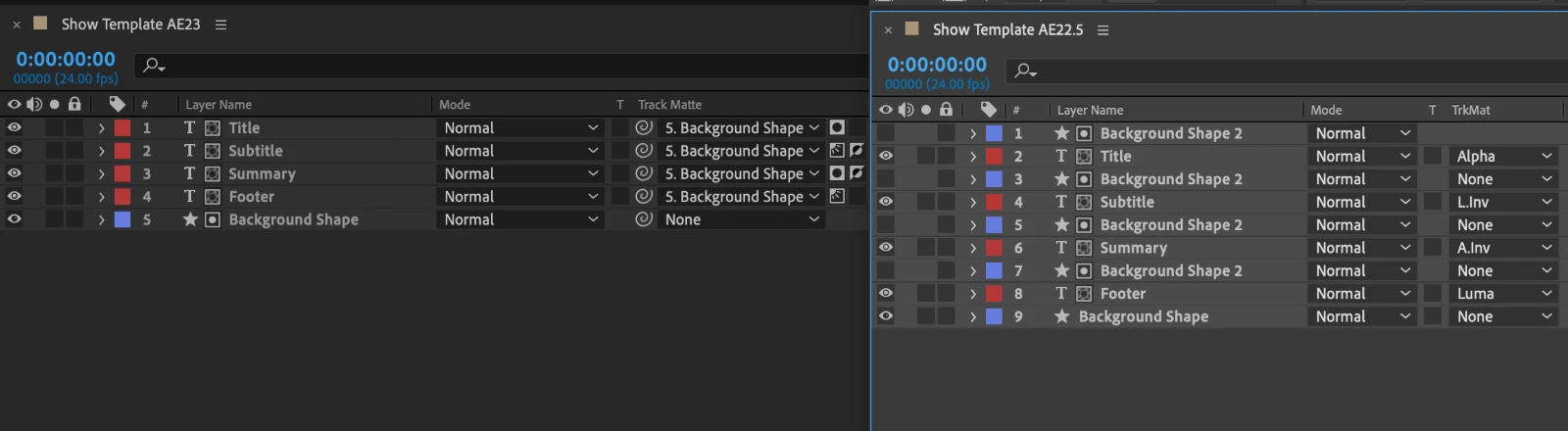
- Moving from v22.x to v23.0 - On opening a project in the 23.0 beta, you will be presented with a message that the project needs to be converted. Simply click “Ok”, and the project will be updated automatically. The old project will be untouched. “Save as” the project in 23.0 so that you don't need to convert again in the future.
- Moving from v23.0 to earlier versions of After Effects (i.e. 22.x or below) - Please use the option Save As > Save a copy as v22/v18 to create a project that is compatible with older AE versions.
- Please note that any expressions that calculate using layer indexes (such as wiggle) may need calculation adjustments.
- A Project in After Effects Beta 23 that’s been saved to After Effects 22.5:
How Do I Use Selectable Track Matte Layers?
You now have several new controls in the Modes column:
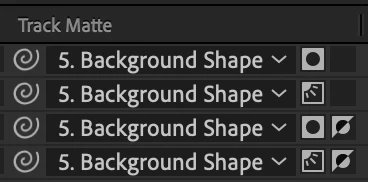
- A Layer List dropdown to pick which layer you use as a Track Matte
- This dropdown also displays which layer is currently selected as a Track Matte
- A pick whip to set which layer you use as a Track Matte source
- Two toggle switches that only show up when a layer has been selected as a Track Matte: Alpha/Luma toggle and Non-Inverted/Inverted toggle.
But What About Old Projects?
Because this is such a fundamental overhaul, we had to implement a project format change. Here’s how compatibility will work.
- Old projects that utilize Track Mattes will open correctly with a project version conversion (please file a bug with projects that behave otherwise) — except now you can move layers used as Track Mattes anywhere else in your layer stack.
- If you have identical layers used as Track Mattes for multiple layers in 22.6, you may want to delete all but one copy and use that one copy as the Track Matte source for all the layers — After Effects does not do this automatically.
- While projects created in After Effects 23 will not be able to be opened with After Effects 22, you can use the File > Save a Copy as 22.x…(or 18.x, etc.) command to export.
- If you are using any expressions that calculate using layer indexes (including wiggle), the calculation may need to be adjusted to account for the difference in layers.
Things to Remember
- Effects are calculated before Track Mattes are applied, but Layer Styles are calculated after: a drop shadow effect will be matted by a Track Matte, but a drop shadow layer style will not.
- You do not have to keep the Visibility switch on for your layers used as Track Mattes.
Fun Things to Try
- Combine Track Mattes and Blend Modes.
- Want to throw all your matte sources at the bottom of the layer stack and never think about them again? Do it!
- Want to stack a bunch of adjustment layers in your comp, but limit their visibility to a single layer of artwork? Go right ahead!
- Set two layers to use each other as their Track Matte.
- Use a blur on an adjustment layer, but set the Track Matte to the below layer’s Inverted Alpha to get an interesting glow coming from behind
- Use Calculations or Set Channels effects (or others) on an empty solid to blend together multiple layer’s RGB or A pixels to use as complex mattes.
- Need Layer 1 to appear to be going behind Layer 2 but you don’t want to switch to 3D or reorganize your layers? Select the Track Matte source for Layer 1 to Layer 2/Alpha/Inverted!
Known Issues
- Setting Track Mattes via scripting is not currently functional. We are currently working on compatibility with existing scripts as well as extending scripting to this new functionality – watch this space!
What We’d Like To Hear From You
- Of course, we want you to test that all your comps from existing projects are rendering correctly.
- We have not made changes to how a Track Matte is rendered, but please let us know if you see unexpected behavior.
- We’d love to hear how backsaving projects works for you.
- At this point, setting a layer as a Track Matte source disables its visibility by default. Please let us know what you think about this.
- Does the UI make sense to you? Anything you wish it displayed that it currently is not?
- Anything else you’d like to share that’s not on this list! We’re really looking forward to your feedback.
On behalf of the After Effects engineering team, thank you and happy track matteing!
 AdChoices