
johntronn
Known Participant
August 20, 2017
Answered

Exporting Selected Scene as Video

  • August 20, 2017
  • 11 replies
  • 15344 views

Hello,

I am working on an Adobe Premiere project: an 8 minute long video that consists of footage I shot on my DSLR camera. I am also using Adobe Animate to create some animations of hand drawn characters that I intend to import into my video on Premiere (think of the movie Space Jam - something with this concept of blending live action footage with animated characters).

Throughout the 8 minute video on Premiere, I will be importing roughly 50 short animated Scenes all at different times. So I create my first animated Scene on Adobe Animate, drew out the characters and animated them. I then go to "Export to Video", and generate a .mov clip of that first Scene. I then import the .mov clip into Adobe Premiere and place it where it needs to be in my video. Perfect!

Now I move onto creating a second Scene, draw out the characters and animate them. I go to "Export to Video" but it ends up exporting both the first and second Scene together as one .mov clip. Now I figured something like this might happen, however, knowing that I have another 48 Scenes to make, I was adamant on finding a solution to this so that I may export each of the 50 Scenes individually. So I thought "hey it shouldn't be too hard to research a way to Export individual Scenes into their own .mov clips".  Though, after endless research, I have not found any truly simple way of doing it.

I have read about going to "Control > Test Scene" to export individual Scenes into an .swf and then convert the .swf into a video via Swivel or other software conerters. Though despite this being a workable alternative, it's quite obvious to me that no one would like to use this method as part of their workflow when they have 50+ Scenes to go through and export separately.

For the life of me I cannot find a true solution to this issue on the forums except for maybe a few less effective work-arounds such as the one noted above, and even if I did consider them, they would eventually force me back onto these forums searching for a real solution all over again. I am unsure if this discussion will bring about some creative solutions to make exporting individual Scenes as .mov videos from Adobe Animate any easier but it's worth a try.

Thank you all for your time and help.

Regards.
This topic has been closed for replies.
Correct answer JoãoCésar17023019

UPDATE (12/20/2022):


New working link:

https://bit.ly/3G3ilHN


I haven't changed the code and I haven't tested it in depth so I can't say if it works well in newer versions of Animate. I'm only updating this answer to provide a new link because the previous one is broken.

__________________________________________________________________________


UPDATE:


Here is an improved - I hope - version:

animate_cc_jsfl_xul_export_scenes_as_videos.zip - Google Drive  (Export Scenes as Videos with GUI (XUL Based))


Changelog:

- It now supports a dialog box written in the subset of the XML User Interface Language (XUL);

- It is now possible to change the export path;

- It is now possible to change the video size (AS3 documents only by now);

- The dialog saves the settings from the previous sessions.


_____________________________________________________________


Hi again!


Got it, Colin.


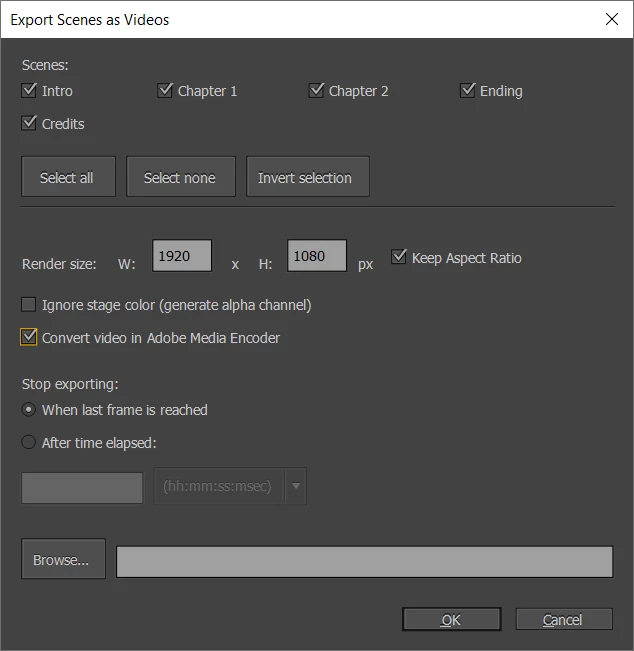
I rewrote the script so now it asks you which scene you want to export.


https://drive.google.com/file/d/0BxplDXBQ7gXzdlEyMXgtSjYyaFE/view?usp=sharing


For example:

- Type 1,2,3 to export the first scene, the second, and the third;

- Type 1,2-4 to export the first scene, the second, the third and the fourth (the dash means an interval);

- Leave 0 to export the current scene only.


I hope the script can help now.


Please let me know if there's a bug or something to improve.

11 replies

Colin Holgate
Inspiring
August 20, 2017

You have at least two easy solutions, though one would require using a calculator.

Instead of having 50 scenes in one FLA, take an existing scene that is most like the next one you're going to make, and save it as a new FLA, and delete its current animation. End up with 50 FLAs, one per MOV.

If you have other reasons to need to keep all of them in one FLA, you can use some code and some calculation to get just the scene you want. For example, if scene 4 is 125 frames long, and at 25 fps, you would have this code in the Actions panel of frame 1, scene 1:

gotoAndPlay(1,"Scene 4");

and in the File/Export/Export Video... dialog you select to export "After time elapsed". In the time fields you type 5.

That will make the animation jump to the start of the scene to export, and it will export 5 seconds, in this example case, which would be exactly the 125 frames of animation in scene 4.

johntronn
johntronnAuthor
Known Participant
August 21, 2017

Hi Colin,

Thank you for the very quick and informative reply, it is very much appreciated. I will try my best to respond to the two solutions you proposed.

Option 1: 50 separate FLA files

Having 50 separate FLA files for each Scene sounds doable and could definitely be something one could get used to in terms of having to deal with 50 FLA files in which to store in some folder on your desktop. However, it is on the Adobe Animate interface that having 50 FLA files becomes a less efficient option in my opinion. The screenshot I have attached will show that the Scenes can be nicely organized into a column in its own window readily accessible for me to access and make any necessary changes to. While on the other hand the FLA files stack horizontally above the Stage making it trickier to locate and open the target FLA file while many others are also open at the same time (which will be the case as I do go back to lots of my scenes to make slight adjustments and would need many of the FLA files to be open at once). Perhaps there is a way to organize FLA files into its own window/panel which would be great, however, at this moment I do not know how to do that.

Option 2: Action Script & "After Time Elapsed"

I had never used Action scripts before within Animate CC but this method worked perfectly! This method allows me to keep all of my Scenes into one FLA file at the cost of some calculations. However, I am sure that after checking Scene frame lengths, changing values in the "After time elapsed" box and changing Action scripts for over 50 times may become a tedious process that would make me search for another solution again. But for now, it is one I am willing to stick with.

With all this said, thank you so much Colin for your response. It was great being able to discuss this matter in a couple different ways for me to consider.

Regards