
Fluid Brush tool lag with Wacom One tablet
I recently switched to a PC after using Animate with my Wacom One tablet and have encountered a persistent and irritating problem. When using the Fluid Brush tool (my preferred tool for basically everything), the line lags behind the input significantly-- by a half second or more-- and finishes rendering only after I release. This did not happen on Mac.
And here's video of the problem in action:

I've checked all of the settings, driver versions, etc. as recommended in other threads, but the problem will not go away. I have:
--Confirmed that Wacom drivers are up to date
--Uninstalled/reinstalled Animate and reset all preferences
--Updated GPU drivers from Geforce Experience
--Tried both with and without Windows Ink activated, in both Animate and tablet settings
--Run in compatibility mode for older versions of Windows
--Adjusted High DPI settings for Animate
The problem is the same in all cases. But it's definitely a problem with how Animate is interacting with the tablet specifically-- If I drag animate back to my main desktop and use the mouse, there's no lag. This is extremely frustrating-- I really don't want to use Classic Brush; I just want Fluid Brush the way it worked on Mac. And using Animate is the main reason I got the Wacom in the first place.
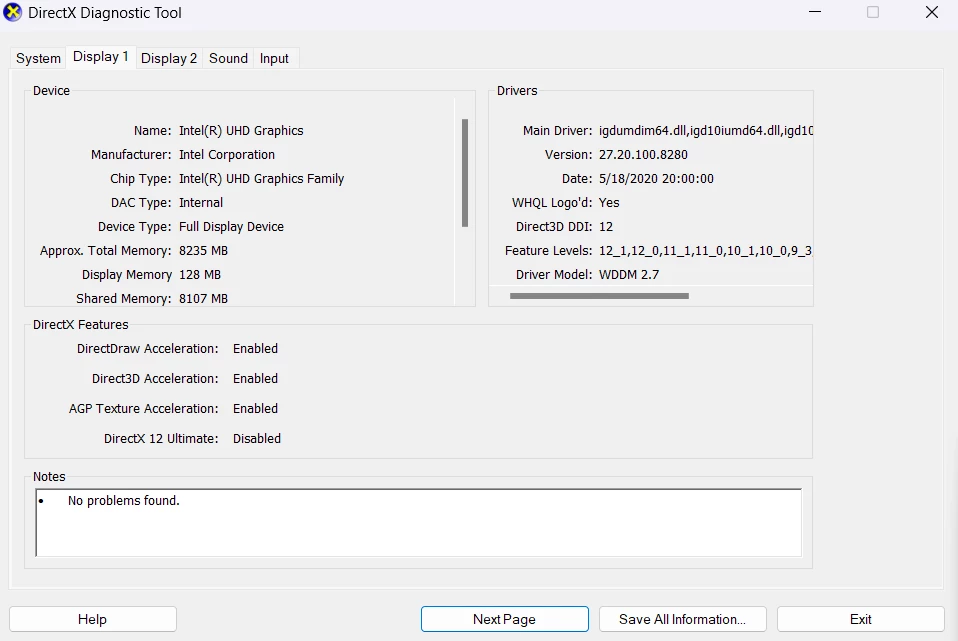
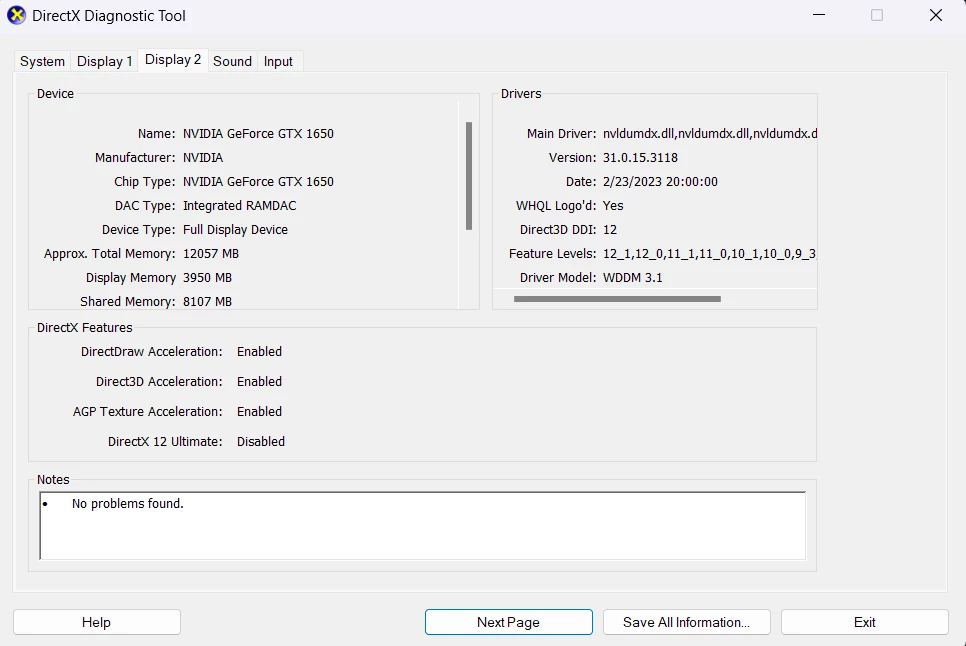
The display profiles from Dxdiag are below-- the tablet is Display 2. From what I've read it sounds like this is probably the result of some kind of conflict between the GPU and Animate's rendering, but I am completely stumped as to how to resolve it. Has anyone identified a solution for this?


 AdChoices