Participant
February 12, 2025
Answered

How to Execute JSFL Externally

  • February 12, 2025
  • 1 reply
  • 755 views

I am developing a VS Code extension in a Node.js environment and would like to execute Animate's JSFL scripts via VS Code commands to create various functionalities. However, it appears that there is no method to run JSFL externally. I recall that in older versions it was possible to execute JSFL from the command line, but that approach doesn't seem to work anymore. If anyone knows of any workaround for externally executing JSFL, I would greatly appreciate your advice.

Correct answer 용하3591437596tw

The example might not make it entirely clear, but on Windows, you need to specify the full path to Flash/Animate as well as the full path to the script you want to execute. You can omit the .exe extension, and it’s a good idea to enclose the paths in quotation marks in case they contain special characters or spaces. Example:

"C:\My CreativeCloud Installation Folder\Adobe Animate 2024\Animate.exe" "C:\My Scripts\test.jsfl" -AlwaysRunJSFL


This technique works for me. Here’s the test code inside test.jsfl:

fl.createDocument();
fl.getDocumentDOM().addNewRectangle({left:0, top:0, right:100, bottom:100}, 0);
fl.trace( "Hello, world!" );


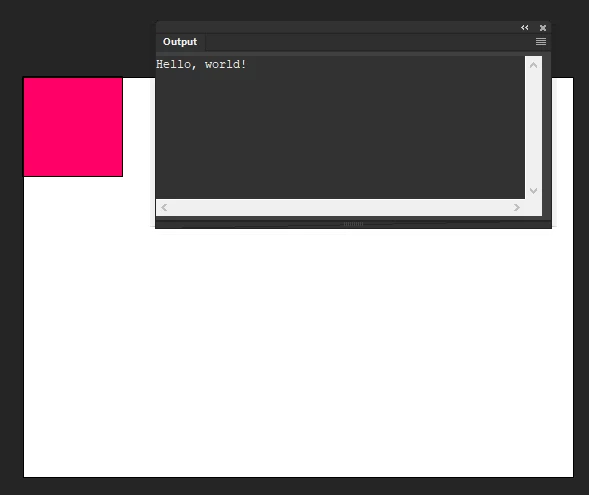
The result is exactly as expected - a new document is created, a rectangle is drawn at the specified coordinates, and "Hello, world!" appears in the output panel.


Unfortunately, I couldn’t get the AlwaysRunJSFL parameter to work, and this dialog still appears every time the command is executed:
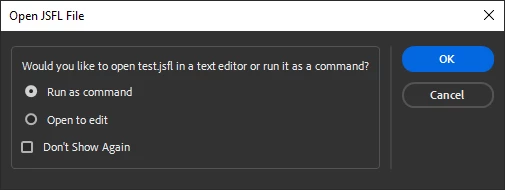


Thank you so much for your response. Thanks to your help, I figured out the issue. When I ran it from the command prompt, that dialog box never appeared. However, after uninstalling and reinstalling the program, the dialog box showed up. I guess I must have selected "Don't show again" by mistake. There wasn’t any option in the settings to bring it back, so reinstalling was the only solution. I really appreciate your assistance and hope this will help anyone who reads it in the future. Thanks again!

1 reply

Vladin M. Mitov
Inspiring
February 12, 2025

Hi,

Take a look on this thread.


From the documentation:


- Vlad: UX and graphic design, Flash user since 1998Member of Flanimate Power Tools team - extensions for character animation
Participant
February 12, 2025

Thank you for your response.

However, I have already tried the method mentioned in that thread, and it reports that flash.exe does not exist. Even when I tried running Animate.exe, it only opens without executing the internal code (I tested with fl.trace). If the method you mentioned worked for you, I would appreciate it if you could provide a detailed explanation.

Vladin M. Mitov
Inspiring
February 12, 2025

The example might not make it entirely clear, but on Windows, you need to specify the full path to Flash/Animate as well as the full path to the script you want to execute. You can omit the .exe extension, and it’s a good idea to enclose the paths in quotation marks in case they contain special characters or spaces. Example:

"C:\My CreativeCloud Installation Folder\Adobe Animate 2024\Animate.exe" "C:\My Scripts\test.jsfl" -AlwaysRunJSFL


This technique works for me. Here’s the test code inside test.jsfl:

fl.createDocument();
fl.getDocumentDOM().addNewRectangle({left:0, top:0, right:100, bottom:100}, 0);
fl.trace( "Hello, world!" );


The result is exactly as expected - a new document is created, a rectangle is drawn at the specified coordinates, and "Hello, world!" appears in the output panel.


Unfortunately, I couldn’t get the AlwaysRunJSFL parameter to work, and this dialog still appears every time the command is executed:


- Vlad: UX and graphic design, Flash user since 1998Member of Flanimate Power Tools team - extensions for character animation