


Participant
Apr 27, 2025 8:20 PM UTC
Answered

Problem exporting animate to unity animation

Hi there. I am trying to export my character from animate to unity but I am having a problem. The animation has 20 frames . On frame 1 and 20 the character is in default stance, but frame 10 I lowered the head and added a tween to smooth the bobbing motion. However as you see this is changing the size of the image and causing the issue.
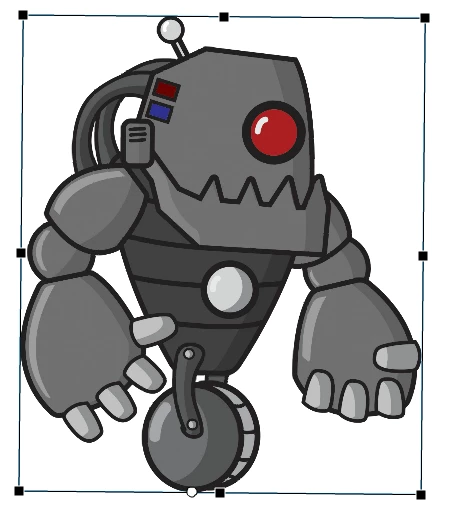
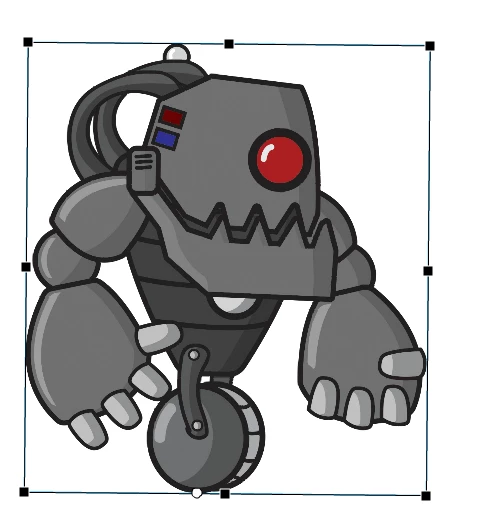
The below image is a demo scene in Unity showing that the character is moving up into the air at the part of the animation when his head is lowered.  Giving illusion of the character floating up and down.
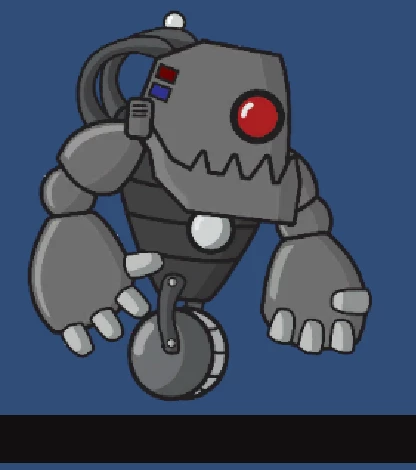
How can I achieve this animation without this happening? 

Is possible to lock the frame size ? I have tried all the options in animate such as scale content etc. I've also tried settings in Unity such as draw mode to tiled, but this makes the whole character stretch and doesnt look good for a robot. 


    Scott218279341e6rCorrect answer
    Participant
    Apr 28, 2025 11:42 AM UTC

    I managed to fix it. It was obvious. 

    So the problem isn't within Animate it's Unity. I didn't have the normalised pivot points in the sprite sheet set to the same location. Or at least I hadn't done it right. I think I had downloaded texture packer to do this for me, couldn't get it to work, and moved on.

    In Unity I manually copied paste all the points for each frame and it works now.

    4 replies

    Participating Frequently
    Apr 28, 2025 6:38 AM UTC
    It is possible to add a transparent background in animate according to the size of the square. 
    But I don't know how in Unity it will be suitable for collision
    Translate
    Participant
    Apr 28, 2025 10:15 AM UTC

    I tried something like that already. Basically I made a rectangle around the character and turned the transparancy to 0 via the alpha. Unfortunately once the transparancy is 0 it seems that Animate ignores that anything is even there, so the boundary box starts changing size again. 

    I tried the same sort of thing by using a mask layer with no luck either. 

    Translate
    Scott218279341e6rAuthorCorrect answer
    Participant
    Apr 28, 2025 11:42 AM UTC

    I managed to fix it. It was obvious. 

    So the problem isn't within Animate it's Unity. I didn't have the normalised pivot points in the sprite sheet set to the same location. Or at least I hadn't done it right. I think I had downloaded texture packer to do this for me, couldn't get it to work, and moved on.

    In Unity I manually copied paste all the points for each frame and it works now.

    Translate