
Some symbols have glitched tweens or can sometimes disappear after exporting
Hey, this is my first time posting something to the Adobe forum, so hopefully I'm speaking in the right place.
So, I'm playing a file that I had animated over the past month. Roughly 70-75 seconds long, uses just under 29 MB, and runs on ActionScript 3.0. When I'm playing a file inside, everything seems to be going normal except for some output lag probably caused by the density of symbols in some areas. That's not really my problem here. The problem I'm having here is that sometimes, the tweens of symbols (primarily nested symbols) tend to glitch and show themselves being extremely buggy. Not all tweens do this, but even if a tween looks completely normal in the file, it will tend to do actions post-export that should not be possible.
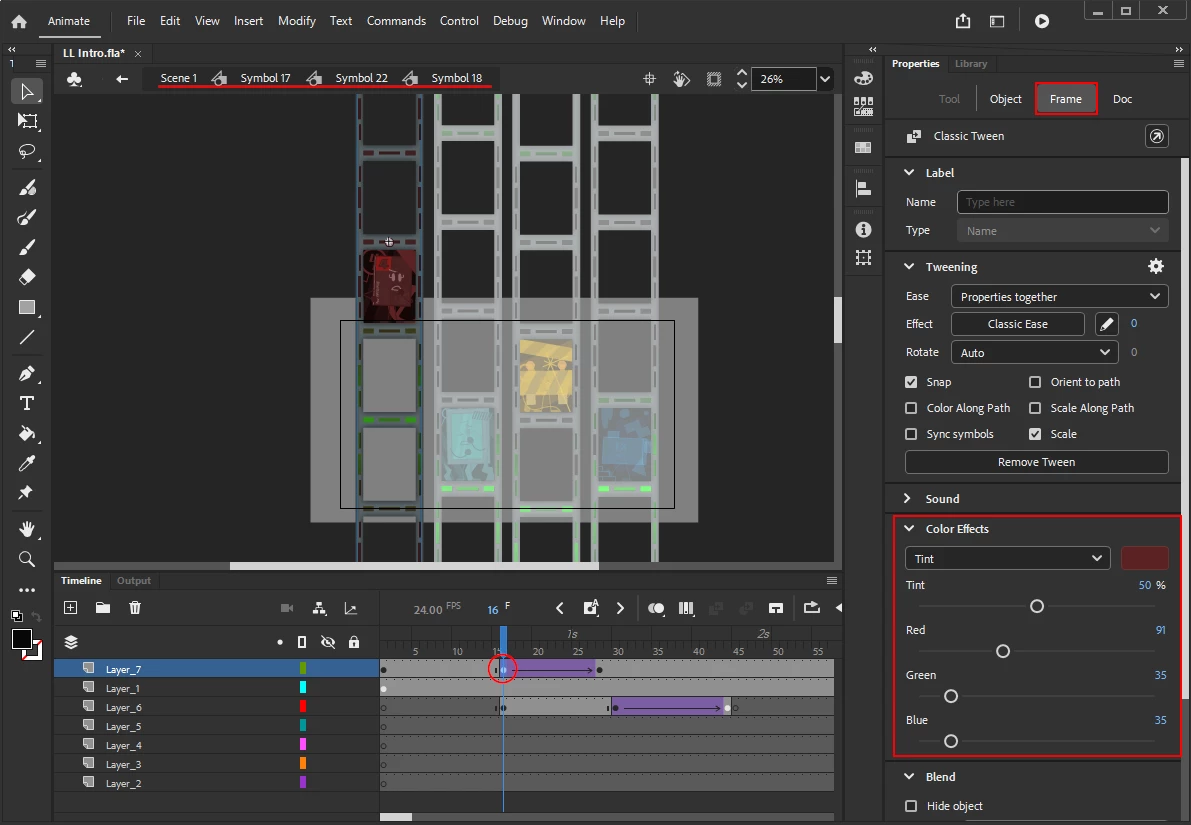
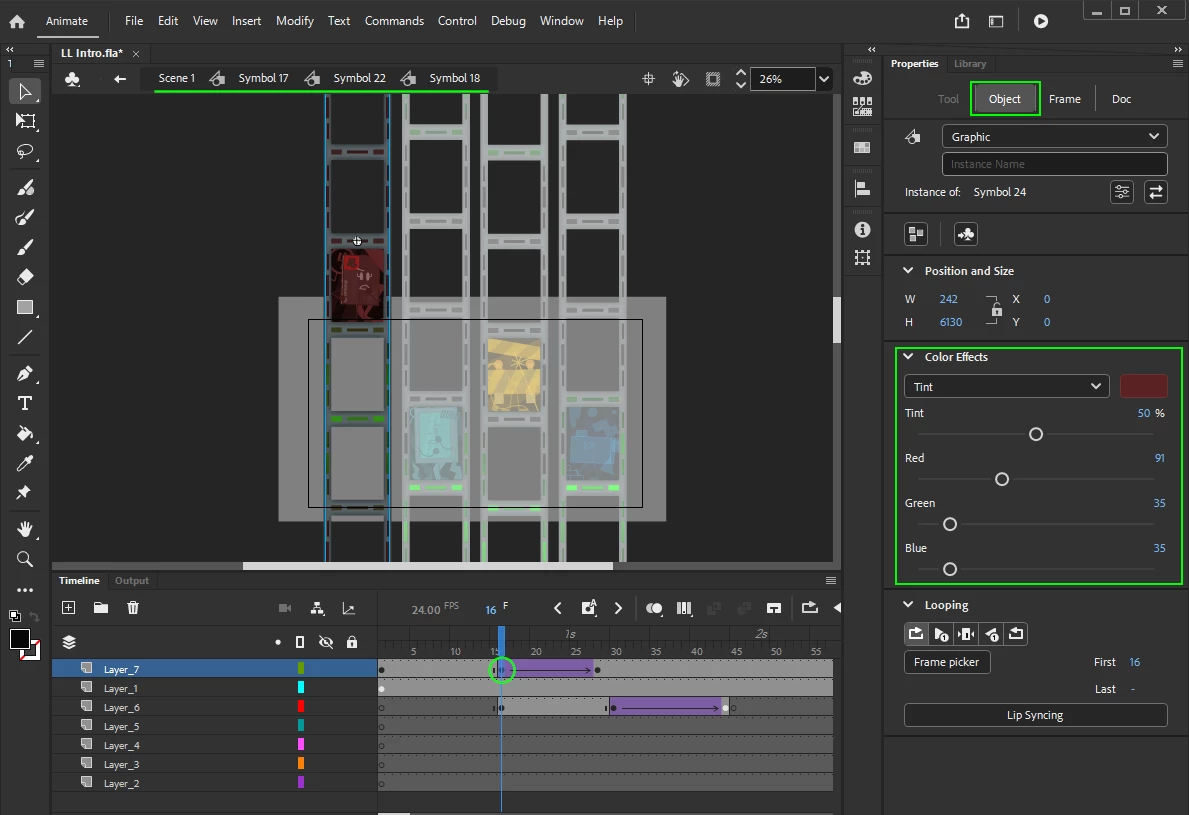
An example of this I will provide is a symbol that moves down through a Classic Ease. Some symbols nested within this symbol will pulse colour at specific intervals, but as a separate symbol they do not move other than the Color Effects being tweened (it just moves with the symbol it is nested inside of). Looks normal in the file, but after exporting, these parts of the tween will move in the opposite direction of what is displayed in the file, before jumping back to it's proper end position at the end of the tween. Some other symbols may also overshoot their designated tweens post-export, going too far in the tweening motion before jumping to it's intended spot at the last frame.
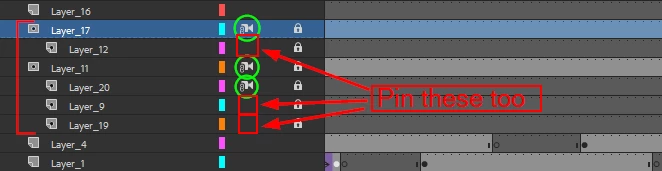
And then, the biggest exporting issue I'm having right now is that some symbols masked in the main file (aka. not nested inside any other symbols) will not show at all. What looks like a proper motion inside the file becomes mostly a black screen in areas where it is masked, but all symbols/objects that aren't masked still show. One reason I think this may occur is the fact that some layers inside the mask are locked to the camera tweens (I used the camera tool as well), and others aren't. But then again, if this really made such a massive issue, then shouldn't Adobe Animate prohibit users from individually changing whether or not masked layers follow the camera (as in, if the mask parent is locked to the camera, all masked layers must be as well, and vice versa, regardless of what layer changes this status)?
All symbols inside of my file are Graphics. Not sure if that may have anything to do with any issues, but if you believe it does, let me know! And if showing the exported files compared to the parent files to show what should show up would help, I can provide them. Same will go for any other questions you may have.
Thanks!


 AdChoices