I just checked and I have viewing and editing permission for the folder containg the images.
YOU do but does Bridge?
OK, One of the biggest problems that Catalina has given us is the need to have to change permissions on folders. Have you checked to see if the folder the original files are in have their permissions set to allow Bridge (or any application) access?
To do this, select the folder that you're working with and press Command-i (i for information). A new window will pop up on the left side of the screen. On the bottom you will see a region called "Sharing & Permissions:"
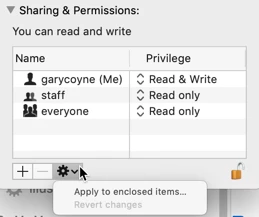
See if "everyone" has read and write" priveleges?
If not, try this:
To do anything here, you need to unlock the padlock on the bottom right. Click it and a window will pop up asking you for your authorization (your Mac password). Once that's done, clic on the "Everyone" and on the right change "Read only," to "Read & Write."
Now, if there are folders inside this, go to the dropdown gear below and select "Apply to enclosed items..." and you can save yourself some time.
HOWEVER: be judicious when you do this. This should ONLY be done if there are nothing but documents inside these folders. Never ever do this if there are applications or preferences or other application-related files. Don't ask me how I know this to be true. Otherwise, I do this all the time as necessary.



 AdChoices