

pacofdezsaura
Participant
April 14, 2020
Answered

Adobe Bridge does not allow deleting files

  • April 14, 2020
  • 1 reply
  • 1099 views

I have an iMac with OS Catalina version 10.15.4, I think that since the update to the spring version of Catalina, I cannot delete files from Bridge, I thought it would be something specific that would be corrected and I have used Finder for it, but time passes and it continues the problem.
I detail below how it occurs. When from Bridge I try to delete a file, they are usually photographic (raw, jpsg, tiff, etc.) that are on an external disk (WD My BooK), after confirming the request, a warning message informs me "Error during the operation delete. Some files may not have been processed "but the file disappears. So if I get out of the containing folder and go back in I find the file again.
 

This topic has been closed for replies.
Correct answer gary_sc

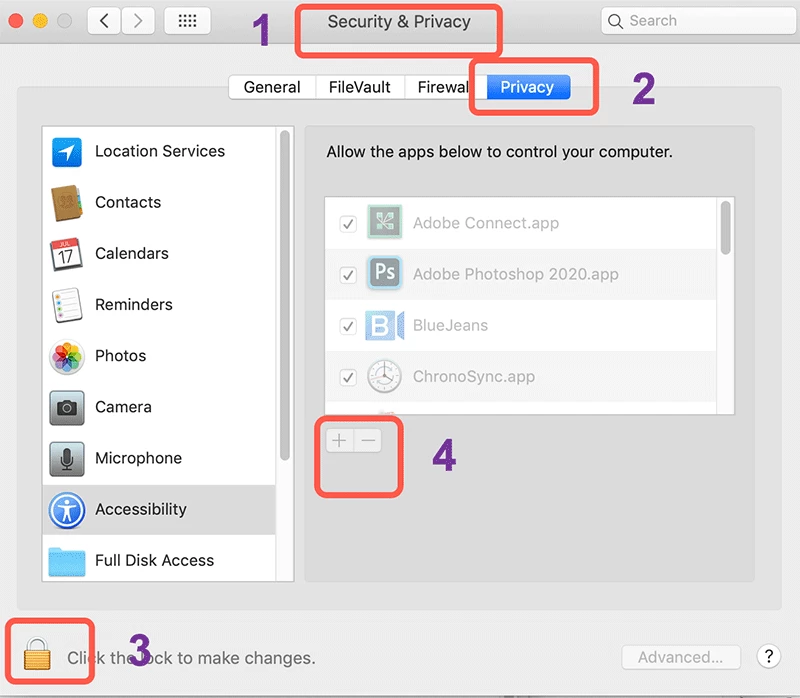
Go to your System Preferences and select Security and Privacy (found in the top section). Now click on the Privacy setting (#2 below). Now click on the lock on the bottom left (#3) and provide your administrator code. Then click on the "+" symbol at #4. This will bring up the standard Mac Open window. Look for Bridge, select it, it will now appear in that window and make sure it's checked. Close everything down and see if that makes it all work.


Please let us know if this works for you.


1 reply

gary_sc
Community Expert
gary_scCommunity ExpertCorrect answer
Community Expert
April 14, 2020

Go to your System Preferences and select Security and Privacy (found in the top section). Now click on the Privacy setting (#2 below). Now click on the lock on the bottom left (#3) and provide your administrator code. Then click on the "+" symbol at #4. This will bring up the standard Mac Open window. Look for Bridge, select it, it will now appear in that window and make sure it's checked. Close everything down and see if that makes it all work.


Please let us know if this works for you.


pacofdezsaura
Participant
April 14, 2020

Ok wonderful. Thank you very much