MichaelJude
Participant
April 14, 2020
Answered

Bridge 2020 not seeing files on external hard drive, Mac OS Catalina

  • April 14, 2020
  • 6 replies
  • 13061 views

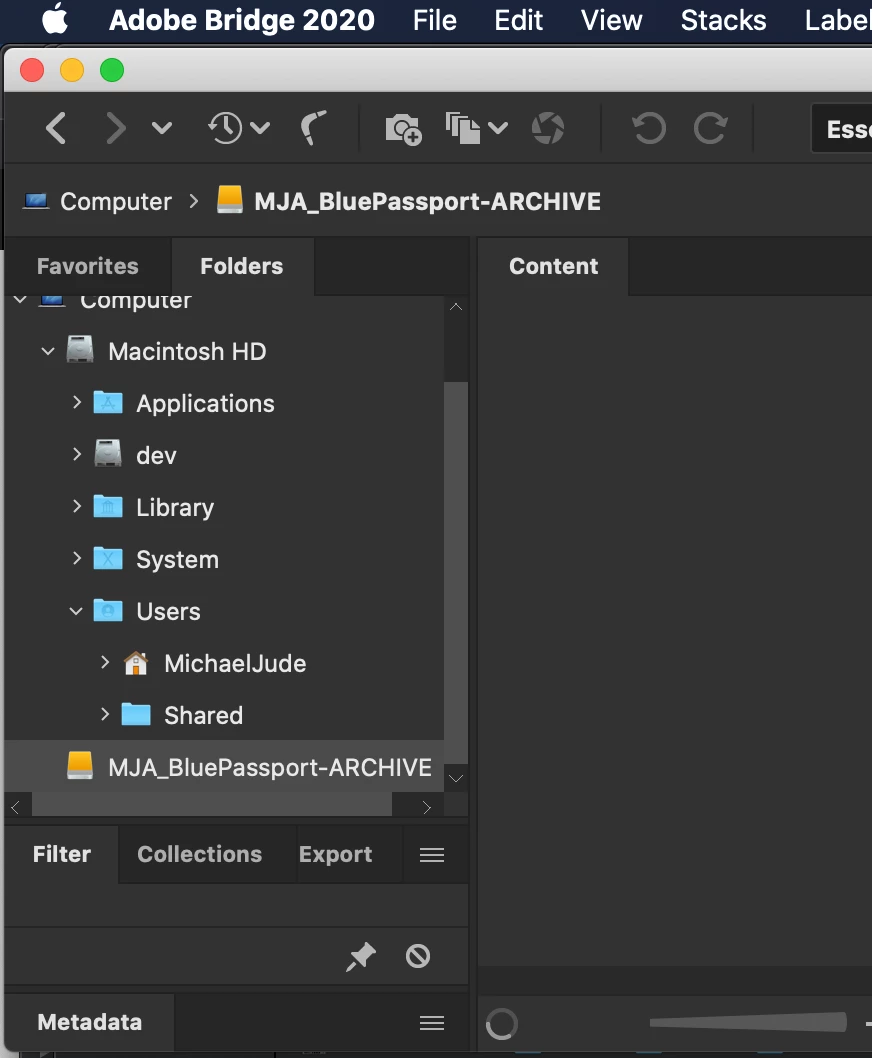
When I plug in my Western Digital USB drives, the new Bridge can see the drive, but not any files or folders on the drive. Previous versions had not problem with these exact drives. I can still access everything through Finder, but doing so doesn't get them linked in Bridge. I have tried this from nikunj.m


going "to the System Preferences for macOS, then navigate to Security and Privacy and select the Privacy tab. Add Bridge 2020 under the Accessibilty list and grant permissions to Bridge under Files and Folders.

Once you have made the changes, restart the computer"


That did not help either.
This topic has been closed for replies.
Correct answer gary_sc

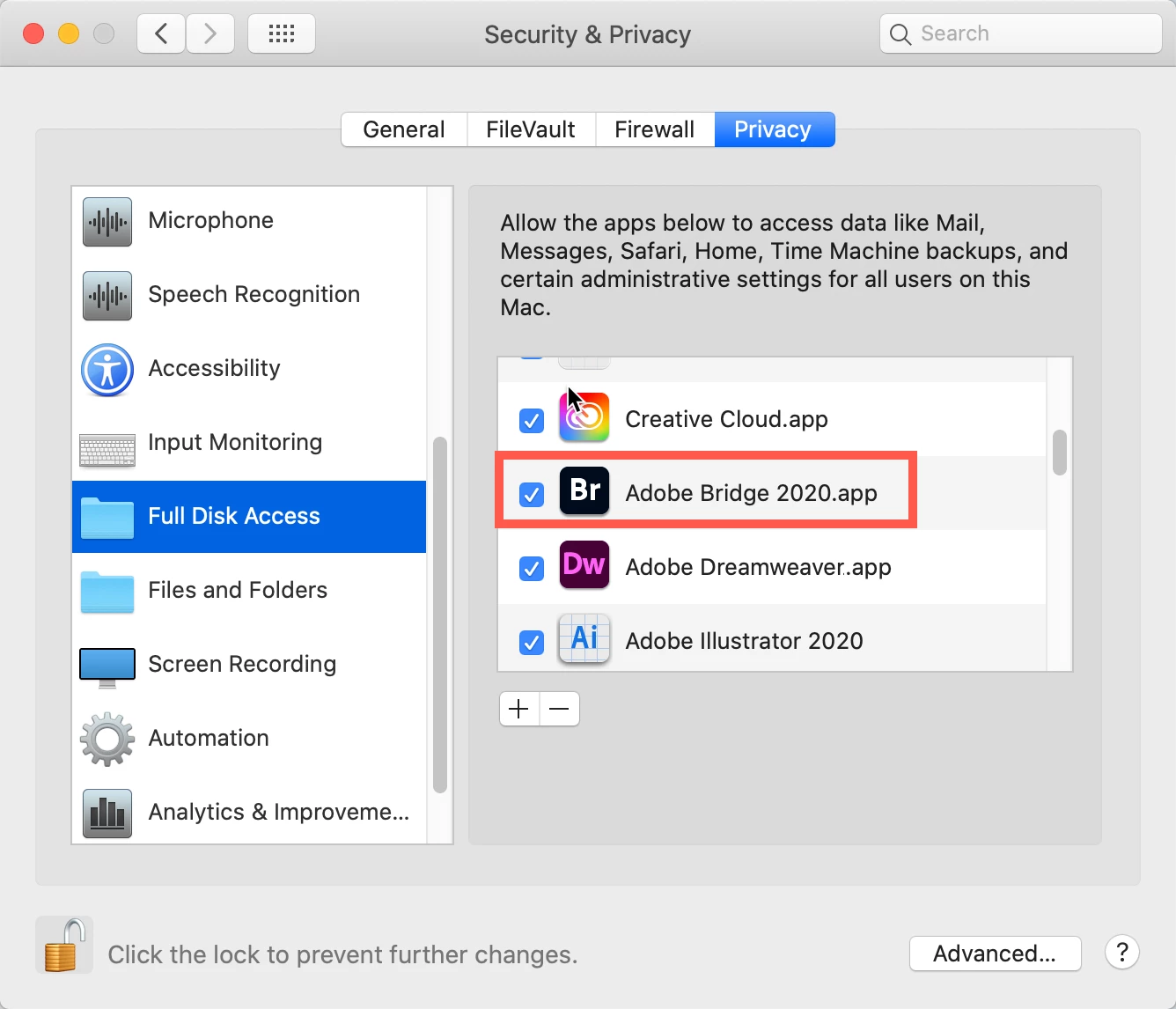
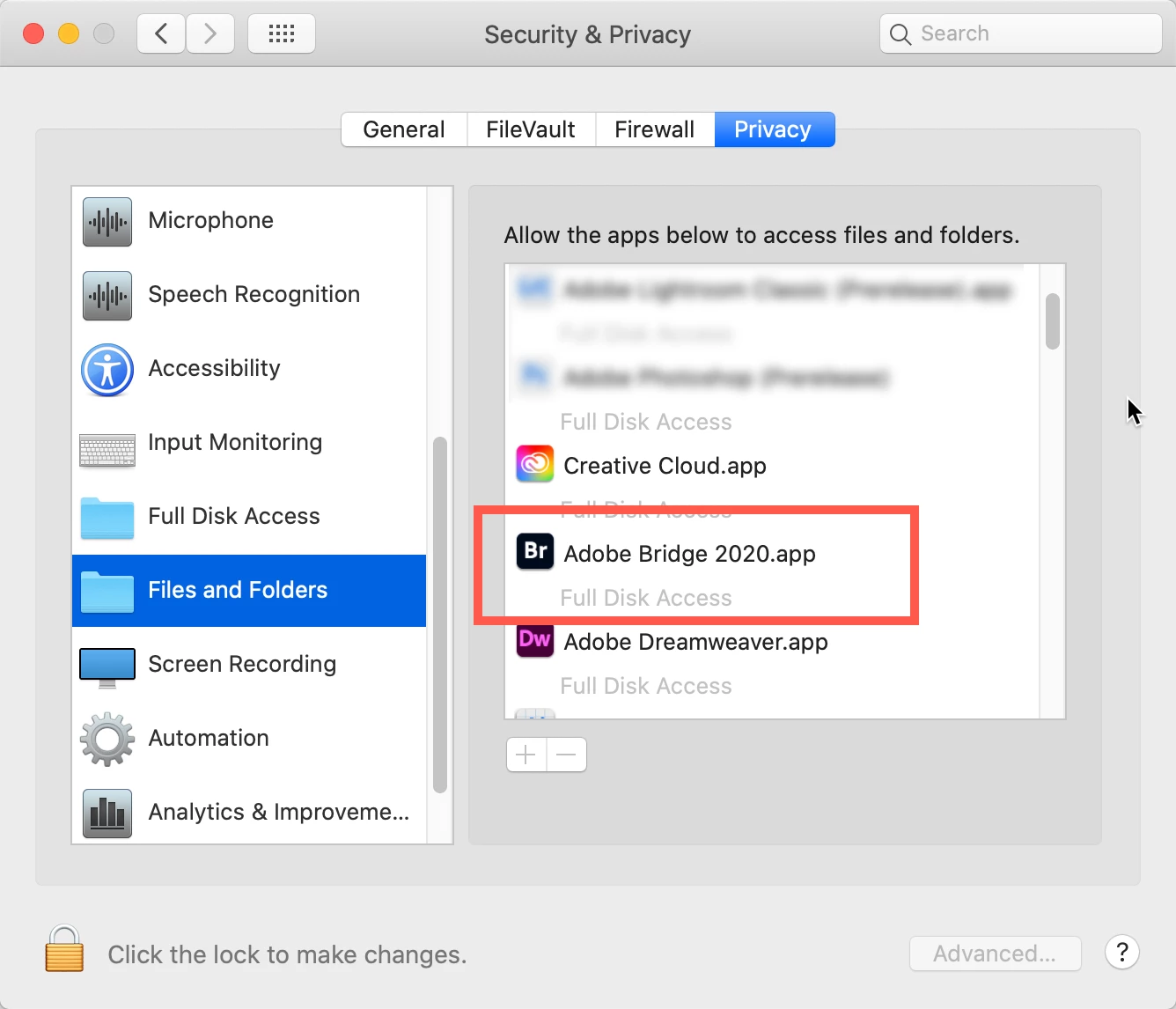
Let me add the following (the screenshots are from High Sierra but they cover the same issues all the way to Big Sur:


Go to your System Preferences and select Security and Privacy (found in the top section). Now click on the Privacy setting (last tab). Now click on the lock on the bottom left and provide your Administrator code. Now select the Full Disk Access option and click on the "+" symbol. This will bring up the standard Mac Open window and let you add any application you want or need to have full access. Look for Bridge, select it, it will now appear in that window and make sure it's checked. Next go to the Files and Folders option and do the same thing as above (although there's nothing to check, just add. Close everything down and see if that makes it all work.

Please let me know


6 replies

Participant
September 12, 2024

having the same issue at the moment. Hopefully i will be able to sort it out with th help of this topic

Participating Frequently
December 19, 2022

this solution was very helpful. thank you

Participant
December 16, 2021

Thank you so very much.


gary_sc
Community Expert
gary_scCommunity ExpertCorrect answer
Community Expert
May 19, 2021

Let me add the following (the screenshots are from High Sierra but they cover the same issues all the way to Big Sur:


Go to your System Preferences and select Security and Privacy (found in the top section). Now click on the Privacy setting (last tab). Now click on the lock on the bottom left and provide your Administrator code. Now select the Full Disk Access option and click on the "+" symbol. This will bring up the standard Mac Open window and let you add any application you want or need to have full access. Look for Bridge, select it, it will now appear in that window and make sure it's checked. Next go to the Files and Folders option and do the same thing as above (although there's nothing to check, just add. Close everything down and see if that makes it all work.

Please let me know


Participant
October 21, 2021

Gary!! Thank you. God I love Google, adobe community support and people like you. Thanks for your help!

gary_sc
Community Expert
Community Expert
October 21, 2021

:>)

MichaelJude
Participant
April 14, 2020

Sorry Gary, but that did not work. I changed changed the Everyone permissions to Read & Write and then restarted the computer, but there has been no change and Bridge is still not seeing anything on the drive. Any other suggestions?

gary_sc
Community Expert
Community Expert
April 14, 2020

Hi Michael,


When you purchased the WD drive, was it formatted for Mac or PC?


Also, please click on the drive and do a Command-i again, what does it say for formatting:


(and fyi, I'm kind of grasping at straws here, this is a puzzler)


MichaelJude
Participant
April 15, 2020

I formatted these drive for Mac OS Extended Journaled when I bought them a few years ago. Again, Bridge CS5 + the previous OS worked with these drives perfectly. But now that I run OS Catalina and had to upgrade to Bridge 2020, I'm having this issue. I even tried unistalling Bridge, restarting the Macbook, reinstalling Bridge, and restarting the Macbook again per jbm007's suggestion, but still the same issue. (I tried that first with keeping the preferences, then again trashing the preferences.) Yes the files appear in Finder; I can navigate and even open them from there.


I appreciate this help.


gary_sc
Community Expert
Community Expert
April 14, 2020

Hi Michael,


Thank you for trying that 1st approach. Can you please try this 2nd one:


In the Finder select the folder that you're documents/images are contained in and press Command-i (i for information). A new window will pop up on the left side of the screen. On the bottom you will see a region called "Sharing & Permissions:"


To do anything here, you need to unlock the padlock on the bottom right. Click it and a window will pop up asking you for your authorization (your Mac password). Once that's done, click on the "Everyone" and on the right change "Read only," to "Read & Write."


Now, if there are folders inside this, go to the dropdown gear below and select "Apply to enclosed items..." and you can save yourself some time.


HOWEVER: be judicious when you do this. This should ONLY be done if there are nothing but documents inside these folders. Never EVER do this if there are applications or preferences or other application-related files. Don't ask me how I know this to be true. Otherwise, I do this all the time as necessary. It's probably a good idea to not do this to a drive as a whole.


Please let us know how this works out,

Participant
September 7, 2020

This worked for me:  Went to System Preferences -> Security & Privacy -> Privacy-> Files&Folders->Adobe Bridge2020 Then click "Removeable Volumes"

Participant
January 23, 2021

Thank you. This worked for me running OS Big Sur amd Bridge 2021