Inspiring
July 20, 2018
Answered

Bridge CC Folders Panel not showing the folder I am in

  • July 20, 2018
  • 2 replies
  • 6003 views

this happened to me before but I can't remember how I fixed it after I updated to the latest CC version on my mac 10.13.6 High Sierra.

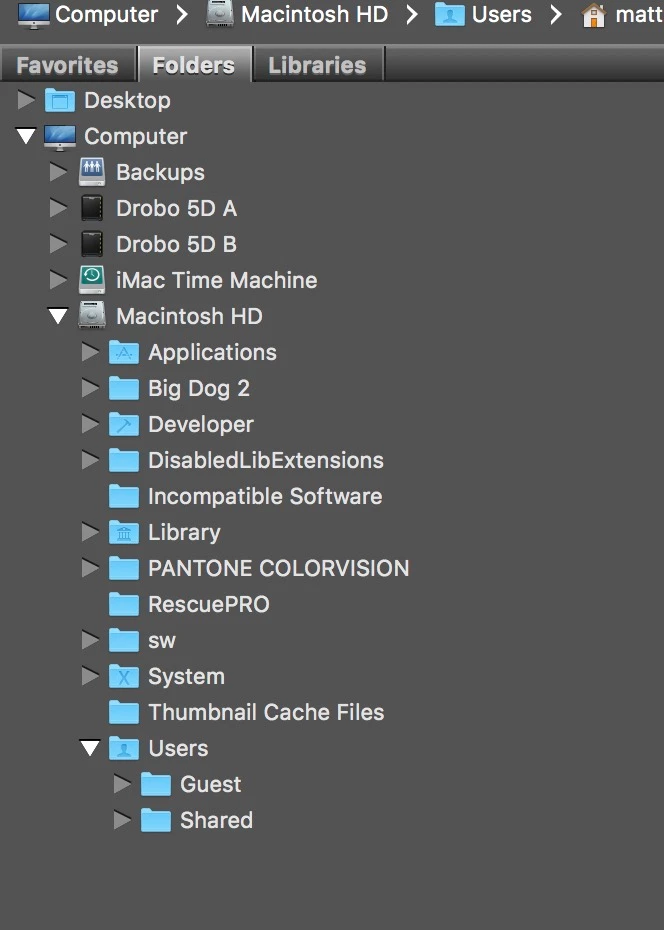
Usually, the Folders Panel shows the tree of folders and has the one I am in "open" in the panel.

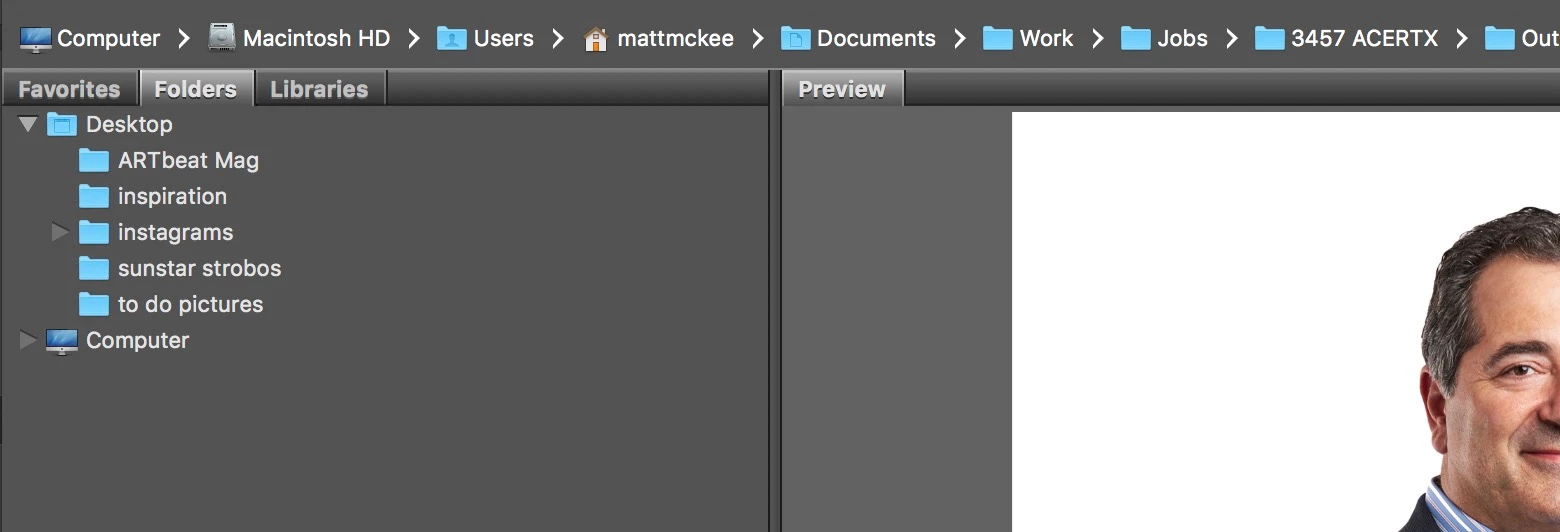
After the update, I am in the folder but the folder panel doesn't even show my user folder. It shows the computer folder, and guest folder but not my Matt folder.

What do I do to change this?
Correct answer mckeephoto

Check this site: Troubleshoot Adobe Bridge for freezes and performance issues

Consider resetting Bridge Preferences.

  1. Start Adobe Bridge and immediately press Ctrl+Alt+Shift (Windows) or Command+Option+Shift (Mac OS) until the Reset Settings dialog box appears.
  2. Select all three options--Reset Preferences, Reset Standard Workspaces, and Purge Entire Thumbnail Cache--and then click OK.

Resetting didn't do it. The Folders panel still defaults to the top level folders and doesn't open them when I drag and drop.

However, "Show Hidden Files" seems to have fixed it! All of the missing folders showed up and drag and drop seems to go to the current folder in the Folders Panel.

Now, next question, why would my user folder, and everything in it, be considered a hidden file? Is it a permissions issue somewhere?

2 replies

Participating Frequently
January 22, 2020

I am experiencing this issue again on the 2020 versions of PS/Bridge where drag & drop functionality is not automatically updating the Folders Panel path tree.  resetting and even deleting pList files for Bridge did not work either.


resetting to the defaults didn't work, but deleting the pList files and restarting my machine did solve the issue.  sorry for the confusion on my post.


*update 01/24/20*


the issue has returned over the course of the last few days.  deleting the Bridge .pList file only resolves the issue temporarily and the Folder Panel stops updating after only a few hours of use.

Participant
July 14, 2021

same thing here.... why damnit.

Participating Frequently
September 27, 2022

This is more than annoying, it's just bad UX/UI design on Adobe's part.

Please, someone, tell me why on Earth anyone using Bridge would want to have an ADDRESS bar at the top of the window like a web browser where you can paste a network directory path that DOES NOT SYNC with the Folders panel as its default behavior?!

Of course, users should also have the Preference to disable that sync should they choose to do so.
But the minority of people who would want that can go looking for it in Preferences.
Otherwise, make Bridge useful to the masses.

ADOBE BRIDGE in 2022:


Windows Explorer in 2022:


Norman Sanders
Legend
July 20, 2018

Click on guest and drill down.

Inspiring
July 21, 2018

Thanks norman.sanders​. Unfortunately that doesnt address the problem. Every time I drop a folder onto bridge, it closes the folder tree so I can’t simply click on the folder above it or below it.

to drill down multiple layers of folders and hard drives to get to the folder right next to the one I am in is frustrating and time consuming.

it used to be that I could drop a folder on the bridge icon and the folder panel would show the folder tree open down to that folder. After the update, the folder panel doesn’t do that.

Norman Sanders
Legend
July 21, 2018

Check this site: Troubleshoot Adobe Bridge for freezes and performance issues

Consider resetting Bridge Preferences.

  1. Start Adobe Bridge and immediately press Ctrl+Alt+Shift (Windows) or Command+Option+Shift (Mac OS) until the Reset Settings dialog box appears.
  2. Select all three options--Reset Preferences, Reset Standard Workspaces, and Purge Entire Thumbnail Cache--and then click OK.