kathleenw6615717
Participant
April 20, 2017
Answered

Bridge CS3

  • April 20, 2017
  • 1 reply
  • 825 views

I cannot see my photos in the most of my files.  Just a few.  I can tell that they are in there by the bar on the right.

When I click on the black space I will hit on a photo and it will open.  Can someone tell me what went wrong please?

    This topic has been closed for replies.
    Correct answer Stephen Marsh

    Hi Kathleen, the info was in the link provided in my post, specifically the 2nd section:

    2. Reset preferences, reset the default workspace, and purge the cache.

    Damaged preferences or workspaces can cause unexpected behavior in Adobe Bridge. Purging the cache can fix display issues for thumbnail previews.

    • Start Adobe Bridge and immediately press Ctrl+Alt+Shift (Windows) or Command+Option+Shift (Mac OS) until the Reset Settings dialog box appears.
    • Select all three options--Reset Preferences, Reset Standard Workspaces, and Purge Entire Thumbnail Cache--and then click OK.
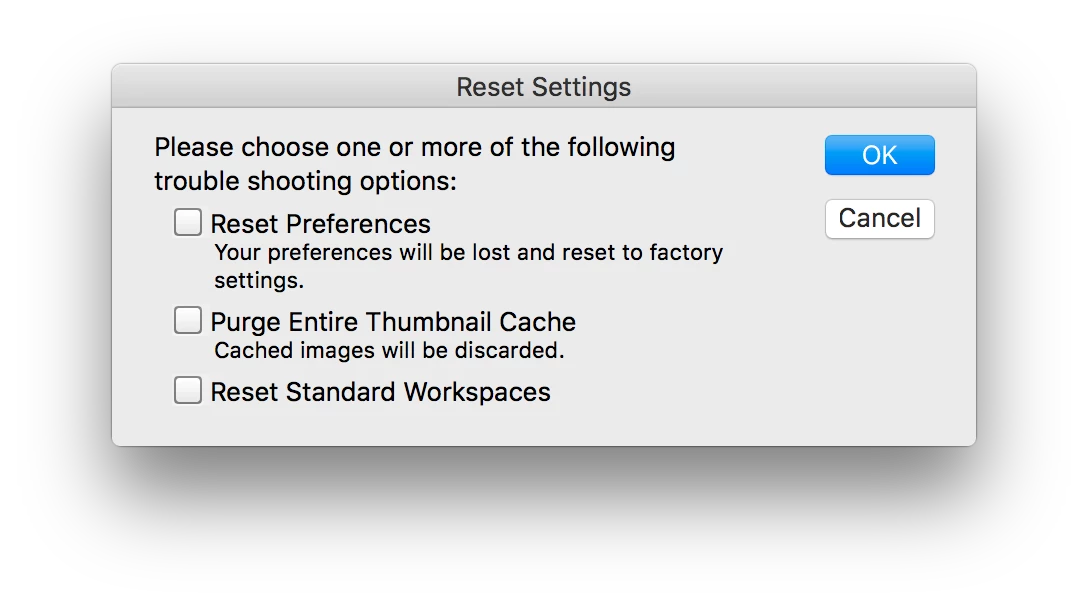
    You need to be fast in holding down the three keys after you click the Bridge icon to start the program, otherwise you will have to quit and start over again until you hold down the keys before the program starts. My advice is to get your fingers on the keys but don’t press down before clicking the program icon.

    I personally would try one option at a time, rather than all three at once, otherwise you will not know which option fixed the issue (also no point in resetting things that are not broken).

    1 reply

    Stephen Marsh
    Community Expert
    Community Expert
    April 21, 2017

    Try resetting your prefs and cache:

    Troubleshoot Adobe Bridge for errors and freezes

    kathleenw6615717
    Participant
    April 21, 2017

    You're talking to a 73 year old with not kids or grands.  I went to Bridge Preferences and there I saw cache. What do I do to reset it?  Thank you for answering me Stephen.

    Stephen Marsh
    Community Expert
    Stephen MarshCommunity ExpertCorrect answer
    Community Expert
    April 21, 2017

    Hi Kathleen, the info was in the link provided in my post, specifically the 2nd section:

    2. Reset preferences, reset the default workspace, and purge the cache.

    Damaged preferences or workspaces can cause unexpected behavior in Adobe Bridge. Purging the cache can fix display issues for thumbnail previews.

    • Start Adobe Bridge and immediately press Ctrl+Alt+Shift (Windows) or Command+Option+Shift (Mac OS) until the Reset Settings dialog box appears.
    • Select all three options--Reset Preferences, Reset Standard Workspaces, and Purge Entire Thumbnail Cache--and then click OK.

    You need to be fast in holding down the three keys after you click the Bridge icon to start the program, otherwise you will have to quit and start over again until you hold down the keys before the program starts. My advice is to get your fingers on the keys but don’t press down before clicking the program icon.

    I personally would try one option at a time, rather than all three at once, otherwise you will not know which option fixed the issue (also no point in resetting things that are not broken).
