
santinmike
Known Participant
March 4, 2022
Question

Bridge is corrupting my RAW files (all SD cards)

  • March 4, 2022
  • 5 replies
  • 3308 views

Since a few months I started having some corruption issues with my RAW files. In the begining the issue  seemed appear randomly. When viewing in Bridge the photos in my SD, a few of them would look funcky and the problem would persist when opening them in Camera RAW. When trying to open those files in my computer (macBook Pro M1), the files would keep looking funcky. So I had to delete them and I started thinking that there was soemthing wrong with my camera or SD card. After trying it with other SD cards and even buying a new one, the problem persited: Some of the images would look funcky. I started fearing that my camera was damaged (canon 6D Mark II, firmware: 1.1.1). Nevertheless, after spending several hours doing multiple tests, I am confident to say that trying to view my RAW files in Bridge before transfering them to my computer is corrupting them. However, it does not seem to systematically corrupt every file, but some of them. The onlt way to avoid them being corrupted is to transfer them thorugh the Finder before opening Bridge and view them.


1) Insert SD card with newly taken photos in RAW file

2) Copy all RAW files in a local folder

3) Open one by one to check that they are Ok

-----> The files seem to be Ok (Apple Preview)

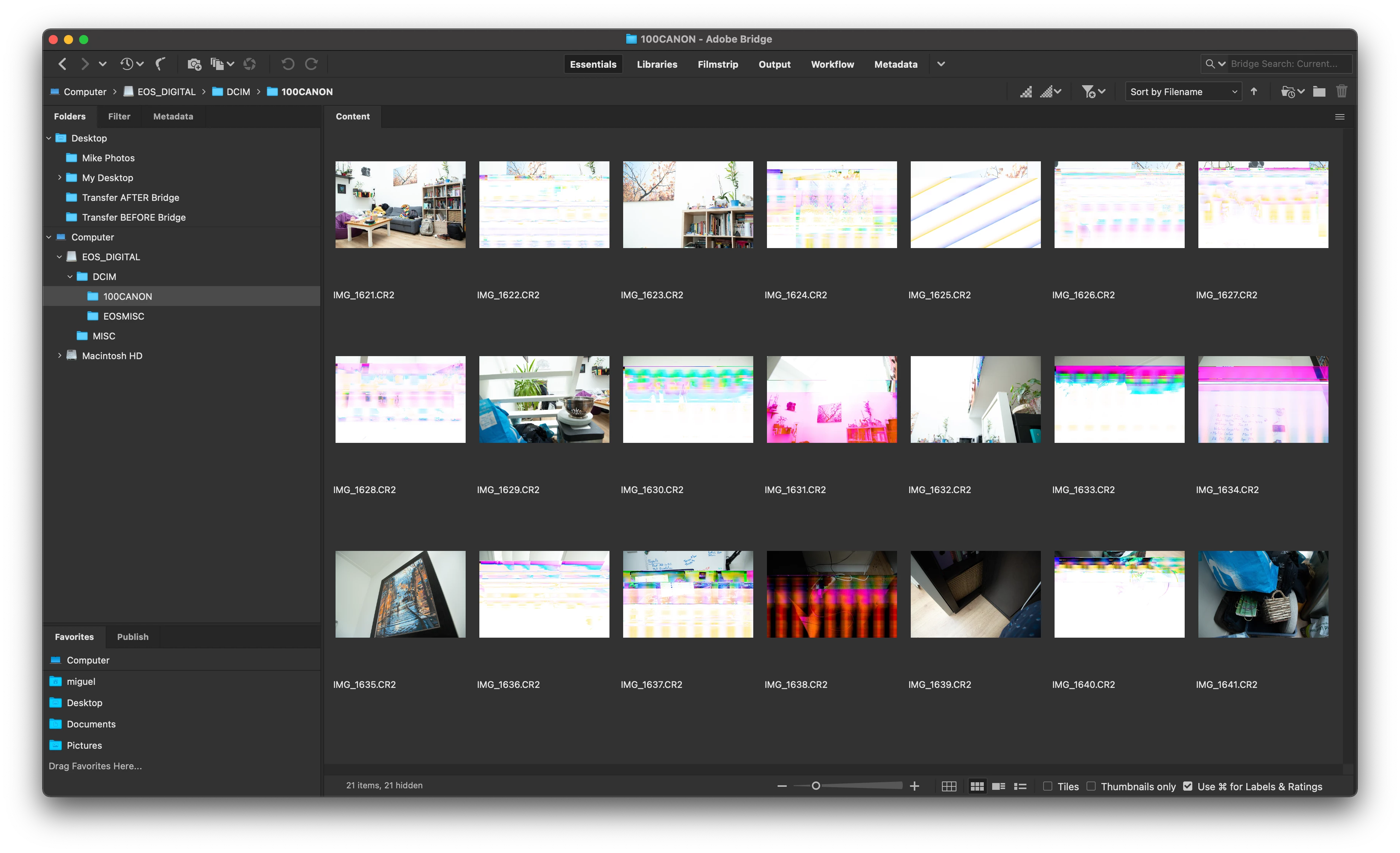
4) Open Bridge to view the photos in the SD card

-----> The files show to be corrupted (Brdige / PS)

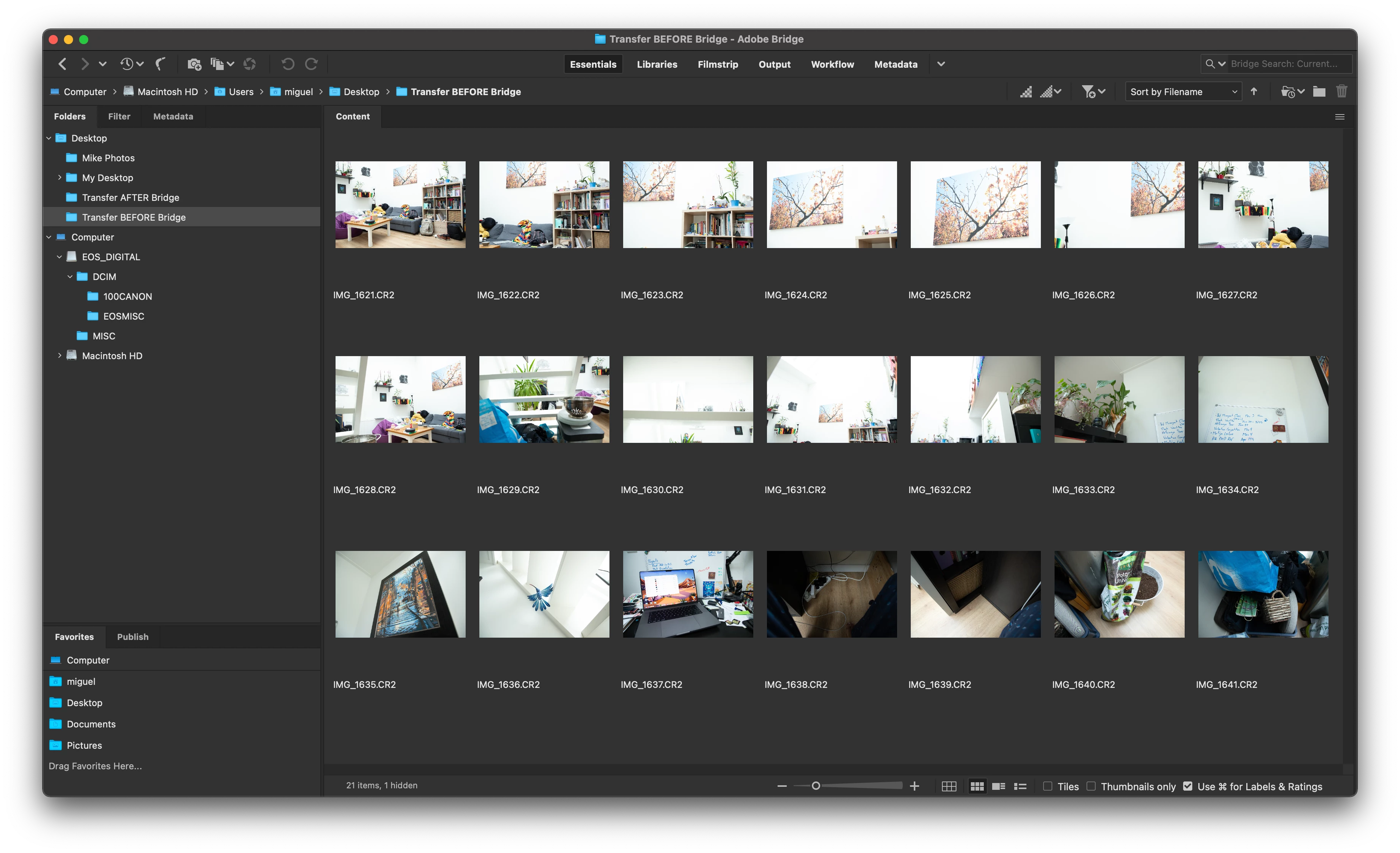
5) Naviagte to the new folder where the RAW files were copied

------> The files seem to be OK (Brdige / PS)

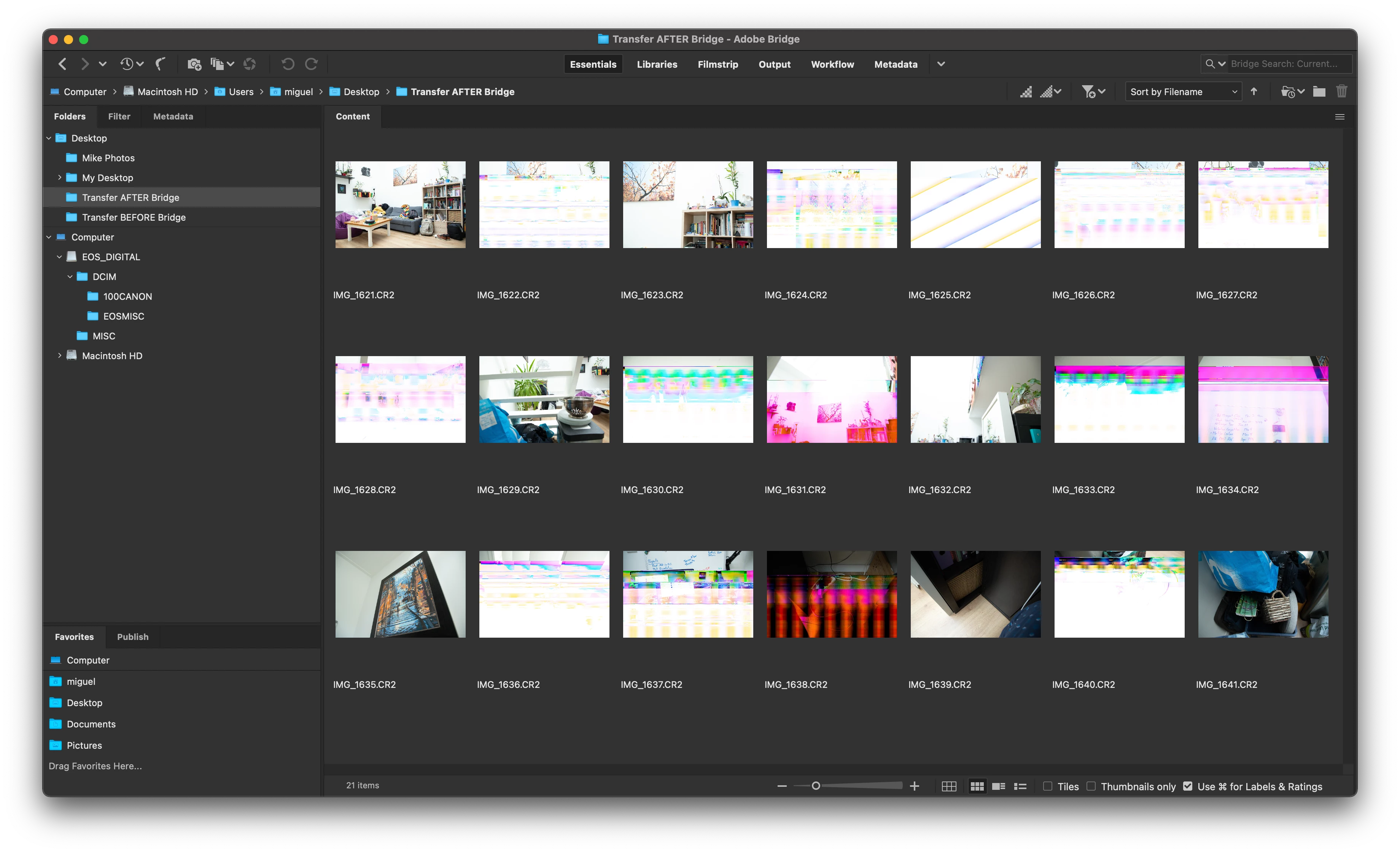
6) Copy RAW files from SD card to a second local folder

------> The files show to be corrupted (Brdige / PS / Apple)


1st Local copy of the files (Trasferred BEFORE viewing the SD card in Bridge)
 

SD card files (Trasferred BEFORE viewing the SD card in Bridge)
 

2nd Local copy of the files (Trasferred AFTER viewing the SD card in Bridge)
5 replies

Participant
June 19, 2025

I have had this issue come up a couple of times with tiff and jpeg files as well (files located on a network server). When I see the corrupted thumbnail, I try to have it regenerate the thumbnail but it does not fix it most of the time. I open the file in photoshop and it looks like the corrupted thumbnail. The windows explorer thumbnail looks corrupted and when I open the file in the windows photo viewer and it is corrupted as well. Although the file modification date has not changed, 100% something is going on with bridge corrupting the files. I do not know how, but something is happening. I end up restoring the files from a backup. It might have to do with a network communication issue in my case.

JSFannon
Participant
July 13, 2025

I'm having the exact same issue with Adobe Bridge, and YES it is absolutely corrupting images.  I've copied images directly froma CF card to my computer and then opned them with Bridge and get the results of a corrupted image.  I can open the file in another program and it appears just fine.  This is only occuring with Bridge.

Participant
November 5, 2023

following up on this again - running into the same issue here and quite panicked as how to go about fixing it 

gary_sc
Community Expert
Community Expert
November 5, 2023

As stated many times already, Bridge CANNOT do anything to an image. Period. 

if you opened up an image on your computer by just LOOKING at the image, with just your computer's native image looking capabilities, and it didn't look right, would you say your native OS's image lookin capabilities damaged your images? I think not. 


Bridge has no mechanism in to do any pixel altering capabilities whatsoever. 

Now, I'm not saying there is nothing happening here, m just saying it's not Bridge. What's important is to find the problem and deal with that. Otherwise you're wasting time and energy. 

Participant
November 5, 2023

Hi Gary, 


I read the entire thread, and realize this was stated many times. However, I figured it was worth asking again since the photo was loading completeley fine in bridge in smaller preiviews, and when clicking on it to view in a high quality preview, it would glitch to have that rainbow coloring. This is ONLY happening in Bridge. When reopening the images that have 'glitched rainbow', they stay that way and never seem to revert back. I attached a screen recording of the issue. I think would be very helpful for you to watch so you can more understand what we are talking about here.


Looking forward to other resoures or reccomendationgs that have to share! Finding the problem is exactly what I am trying to do 🙂

kenr76452588
Participant
August 14, 2023

Did you ever find a solution? I've been having the exact same problem the past month or so. At first I thought it was my memory card reader but it seems to be solely with the photo downloader from Bridge. 

santinmike
Known Participant
August 14, 2023

Unfortunately I did not find a solution for the issue. I belive Bridge is doing something weird to the photos in SD cards when they are read using a few particular card readers (not all of them). The problem only happened when I used my external card reader. If I use the SD slot of my macbook the probelm does not show up.


As a work around, something that worked in my case is:

1) Make sure that Bridge is closed

2) Copy all photos to a local folder in the computer

3) Eject the SD card (to have the files as a backup inc ase something goes wring)

4) Open Bridge and inspect the copied files to see if they are corrupted or not


I hope it helps 

gary_sc
Community Expert
Community Expert
March 5, 2022

Hi Santinemike,


What Lumigraphics is saying is completely true. "Looking" at a raw image, by itself" cannot change or alter a raw image (or any image for that matter). It's like looking at a picture on the wall and having that image be distorted by looking at it. (Any references to someone's glaze causing milk to curdle is not a valid point here! :D)


HOWEVER, the nature of the image's alteration does make me wonder about something else: can you please go into your ACR's Preferences and turn off your Graphic Processor?

First go to ACR's prefs

Then go to Performance and turn off the Graphic Processor.


Why this should happen and make a difference since you can properly see the images in your first screenshot I do not have a clue but I'm trying to come up with a reason for seeing what you are obviously seeing. 


To quote Sherlock Holmes from "A Scandal in Bohemia": "It is a capital mistake to theorize before one has data. Insensibly one begins to twist facts to suit theories, instead of theories to suit facts."


My data says that this MIGHT have a greater chance to cause the issue than your suggestion. Let's see where this goes.


santinmike
Known Participant
March 13, 2022

Hello gary_sc,


Thank you for your message and your interest in the probelm I am experiencing with Bridge. I followed the steps that you mentioned and restarted Bridge but the images that looked fuzzy still look fuzzy. Switching off the Graphics Processor made no difference. I turned it off, close Bridge, took some random photos with my camera and followed the steps I mentioned above. The result: Some of the images still get corrupted. The images that I imported through the finder BEFORE viewing them in Bridge look fine accross all software (Apple Preview, Bridge, PS, Topaz Labs Apps etc.), the images that were imported through the finder AFTER viewing them in Bridge look fuzzy accross all the mentioned software.


Obviously, Bridge is not systematically messing the RAW files of all people using it. I used it myself and had not problems for years. I have only been having trouble since a few months ago. And now that I am thinking aobut it, the issue more or less started when I got a new Macbook Pro M1.Maybe the new M1 architecture has something to do with this problem. I do not think all MacBook Pro M1 users are experiencing the same issue as me, but at least in my case I do believe Bridge is not merely "viewing painting on the wall".


As Bridge does create preview images of RAW files to speed up the process of viewing them as thumbnails, it is safe to assume that at least Bridge is opening the package in which painintgs arrive for printing a sticker of the paining and pasting it on the box. Something is happenign during that process that is damaging my files ONLY when they are found by Bridge as being delivered through an SD.


Best,

Miguel 


gary_sc
Community Expert
Community Expert
March 13, 2022

Hi Miguel,


Quick question: are you doing anything in Bridge on the images while the images are still on the camera card?


Thanks,

Legend
March 4, 2022

Bridge does not change files. However, you should never work directly on the SD card. ALWAYS copy files off the card first.

santinmike
Known Participant
March 4, 2022

That's what I thought as well. I thought that Bridge does nto do anything to the RAW files. That is why my first intuition was to blame it on the SD card or the camera. However, as I just showed in the images that I described, in my case I have been able to replicate the problem every time I follow the steps I mentioned.


If it was true that Bridge is not doing anything to the files, then viewing the RAW files in my SD cards in Bridge should not result in their corruption. However, as demostrated in my case, it turns out that viewing RAW files in Bridge does do something to them. In my case, they are getting corrupted when I view them directly form the SD card.

Legend
March 4, 2022

Since this isn't possible, something else is going on.