Hello gary_sc,
i am sorry!
The Mac OS is at 13 (currently 13.3.1) and Adobe Bridge 13.0.3.693.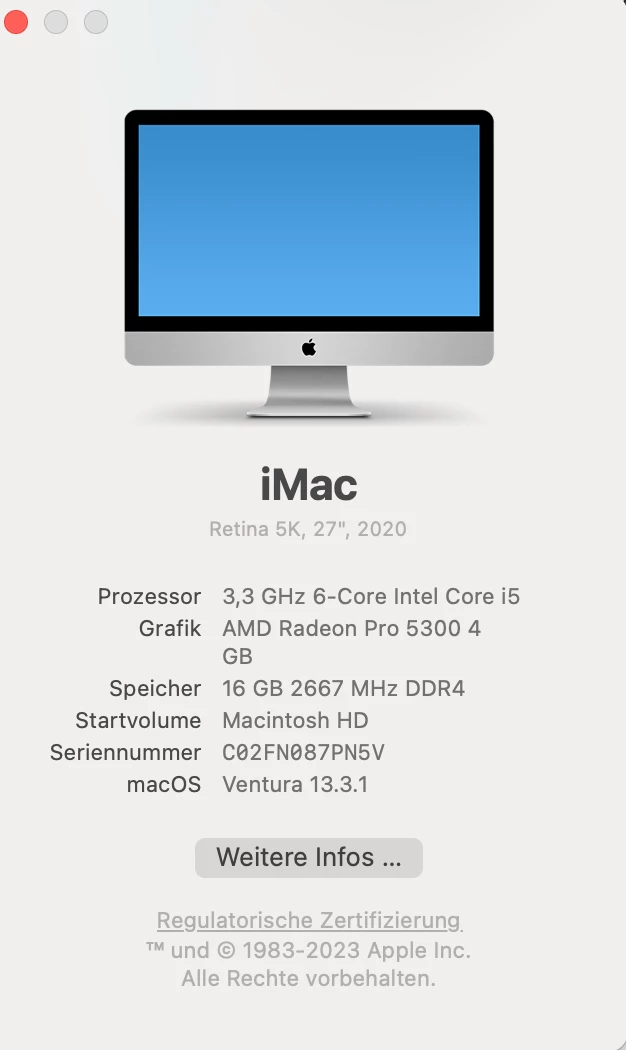

Hi, @Vikaholzheimer,
When you say you've 'changed the "rights" to the folder, but they are the same as the others,' it sounds like you've changed the rights in the Finder, not in the System Preferences. This might be language; I'm not sure, but please let me know if you changed the Permissions in the System Preferences.
Here are the instructions:
Go into the System Preferences and select the Privacy & Security tab on the left. Note that there are two options on the right you'll need to deal with: "Files and Folders" and "Full Disk Access."
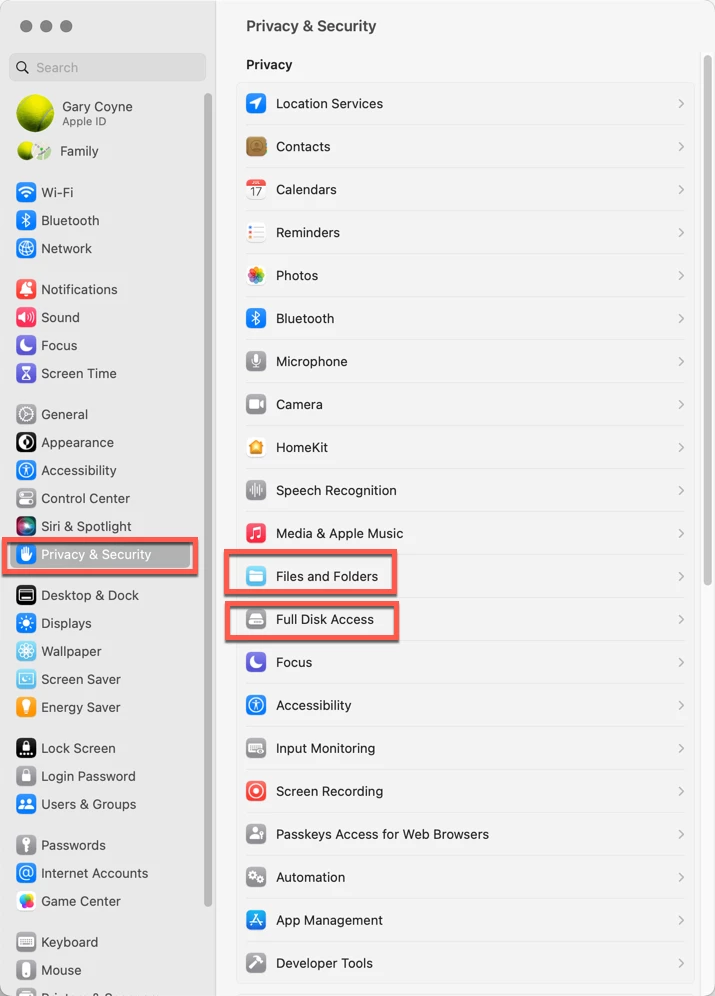
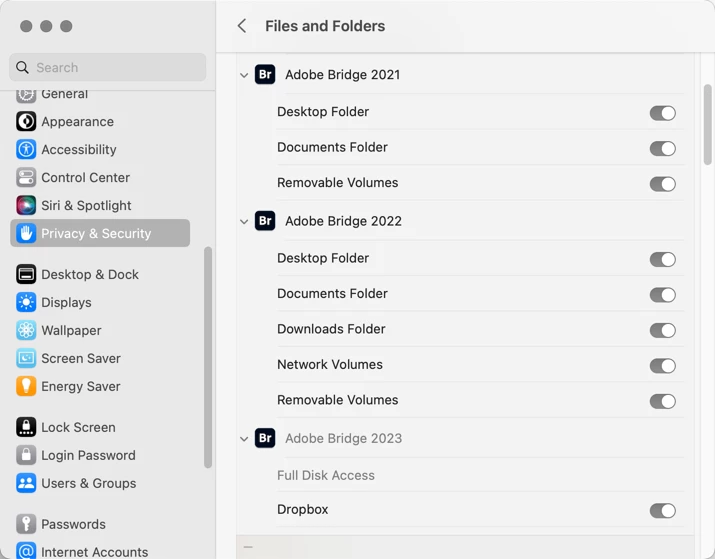
First, going into Files and Folders, note that in various years of different releases of Adobe Bridge, different needs are needed. I do not know why this is, but it's always better to check and make sure that just because you did it for one release, you may or may not need it for a subsequent release.
Lastly, go into the Full Disk Access option. If you do not see your application in the list, click on the "+" symbol at the very bottom of the window. This will bring up a standard Finder window. Navigate to your Applications Folder, find Adobe Bridge, and add it to the list (You will need to add your Administrator's password to do this.). Then you can "switch" it to the "ON" position.
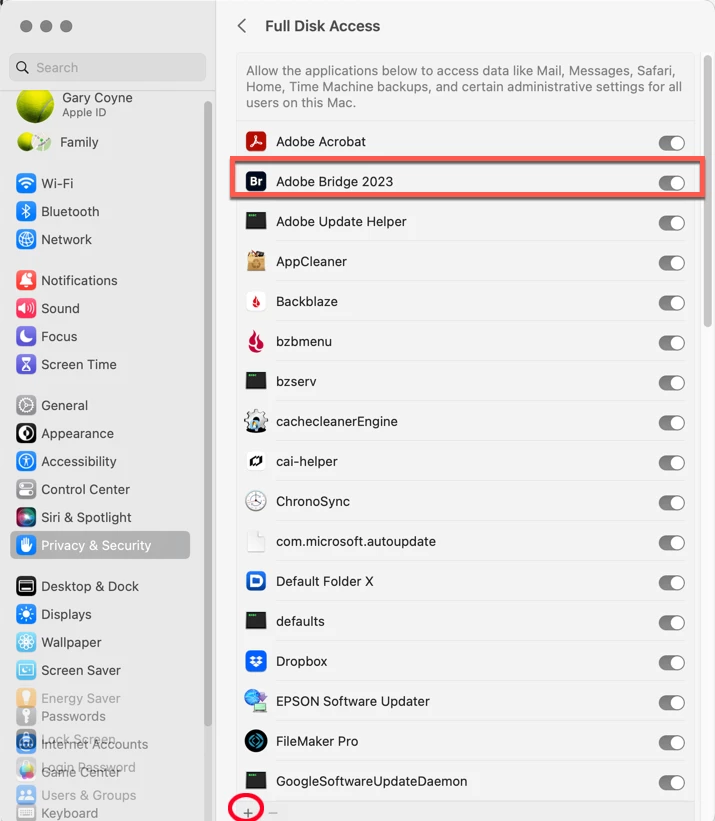
This should solve your problem.
Please let us know if that works or not.




 AdChoices