Known Participant
June 23, 2018
Answered

Bridge Showing Incorrect Color Profile

  • June 23, 2018
  • 4 replies
  • 6676 views

I am exporting AI files to PSD without color profiles. Checking the color profiles for the exported files in Bridge shows some with Untagged (correct) and some with sRGB (incorrect). If I delete the file, empty the trash, restart Illustrator and Bridge and then re-export the file, the color profile shows Untagged for the first few newly saved files and then a few more files on and it switches back to sRGB again. When I check the document profile in Photoshop the files that are tagged with sRGB in Bridge show up as Untagged RGB in Photoshop.

I have even had it happen where the file shows correctly as Untagged, but then if I rename the file in Bridge, it switches to sRGB.

This is happening with exporting PNG from PSD in Photoshop also.

Seems like a bug?
    This topic has been closed for replies.
    Correct answer Norman Sanders

    Consider resetting Bridge Preferences:

    1. Start Adobe Bridge and immediately press Ctrl+Alt+Shift (Windows) or Command+Option+Shift (Mac OS) until the Reset Settings dialog box appears.
    2. Select all three options--Reset Preferences, Reset Standard Workspaces, and Purge Entire Thumbnail Cache--and then click OK.

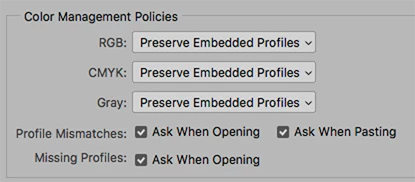
    Also, in Photoshop, Edit > Color Settings, that does this section look like?

    4 replies

    Known Participant
    April 19, 2024

    This doesn't solve your dilemma, but I have to ask.  What possible reason would you have to intentionally create untagged files?


    Untagged files are always bad.  They contain no information allowing accurate mapping  of the colors in the file(s) across multiple output devices.

    PixelFactory Agency
    Participating Frequently
    December 28, 2021

    It's the end of 2021 and this "bug" is still with us.
    I've got a huge task to do that needs a color profile check and the only way to do it efficiently would be with Bridge. But you know what? You simply can't trust this software! Please, if someone have a valid alternative to this software for check metadata of massive quantity of images let me know.

    All the resetting workaround suggested don't work, not because suggest things like this is wrong, but because Bridge (and almost the rest of Adobe softwares) is full of bugs from years!!!

    I'd really like to talk to someone at Adobe who cares about developing software for professionals, but I always fall back on the blame game between operators/technicians who never know which way to turn.

    DebRod25
    Participant
    November 27, 2018

    I have reset the preferences in Bridge and it still does not correct the issue.  The photo is untagged cmyk when open in photoshop but shows srgb in bridge.  Its not just this one photo either.  The only difference I see is my color management setting do no have the 3 boxes checked off in photoshop.  Any other suggestions?

    Community Manager
    January 8, 2019

    Hi DEBBIE RODRIGUEZ,

    Please check in Photoshop ->Edit Menu -> Assign Profile ->Check the profile it showing . If it still not align with Bridge please provide the screenshot of Assign Profile Pop up on photoshop.

    Thanks,

    Avinash

    Norman Sanders
    Norman SandersCorrect answer
    Legend
    June 25, 2018

    Consider resetting Bridge Preferences:

    1. Start Adobe Bridge and immediately press Ctrl+Alt+Shift (Windows) or Command+Option+Shift (Mac OS) until the Reset Settings dialog box appears.
    2. Select all three options--Reset Preferences, Reset Standard Workspaces, and Purge Entire Thumbnail Cache--and then click OK.

    Also, in Photoshop, Edit > Color Settings, that does this section look like?

    DebRod25
    Participant
    November 15, 2018

    I'm having the same problem, it hasn't been corrected in CC2019.  I tried resetting the preferences no joy, my color management is the same except for the check marks....any other suggestions?