
March 31, 2021
Answered

Camera Raw Error message

  • March 31, 2021
  • 2 replies
  • 292 views

I have just upgraded to IOS 11.2.3 Big Sur and upgraded to PS 22.3.0, Bridge 11.0.1 and ACR 13.2. Now I can't open RAW images from the bridge into Photoshop. I get the error message from PS " Can not open because of file # disk error" I have tried all the suggested fixes and have tried several card readers and cards to no avail. Any new suggestions?
    This topic has been closed for replies.
    Correct answer gary_sc

    Hi Barbara,


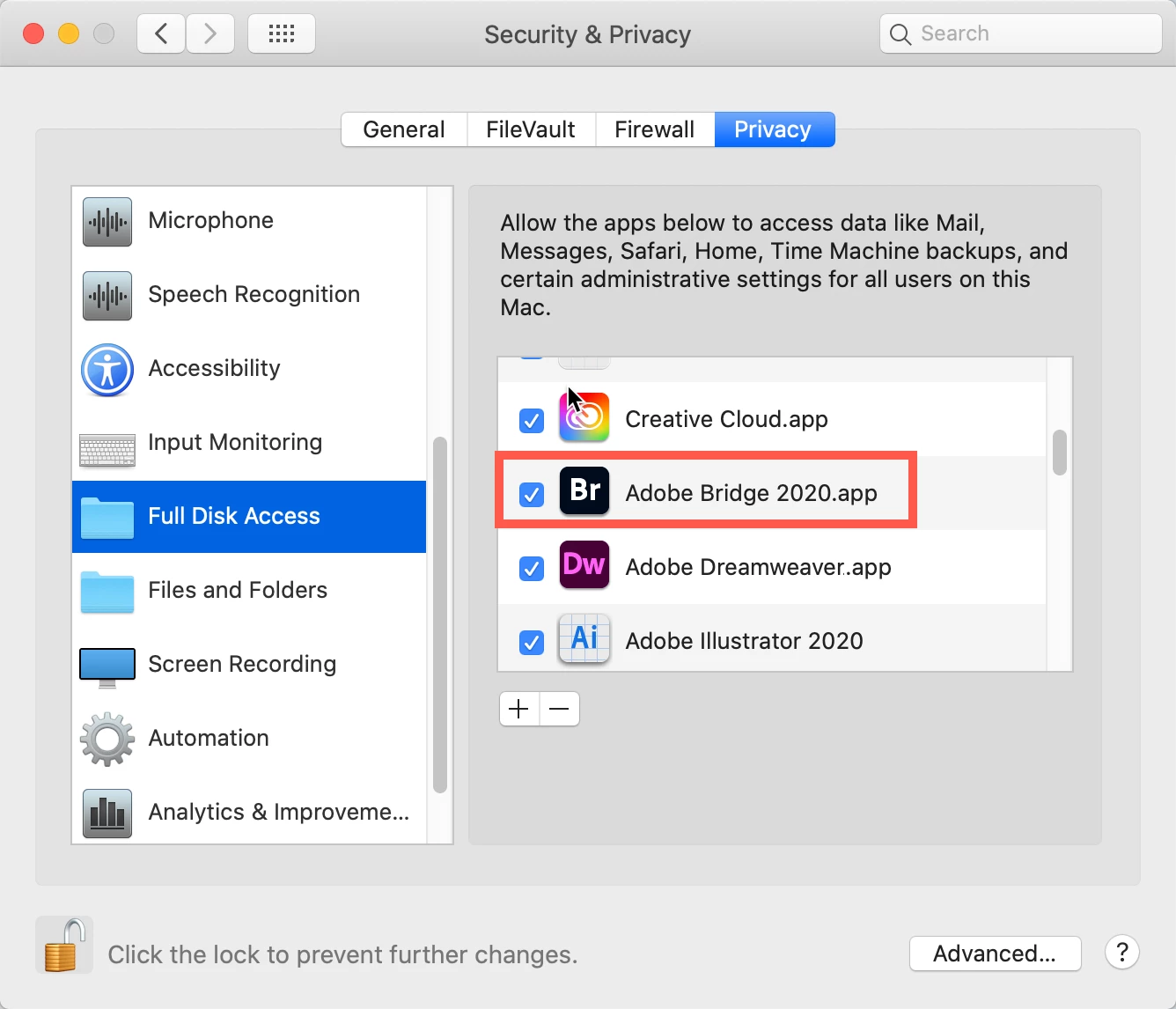
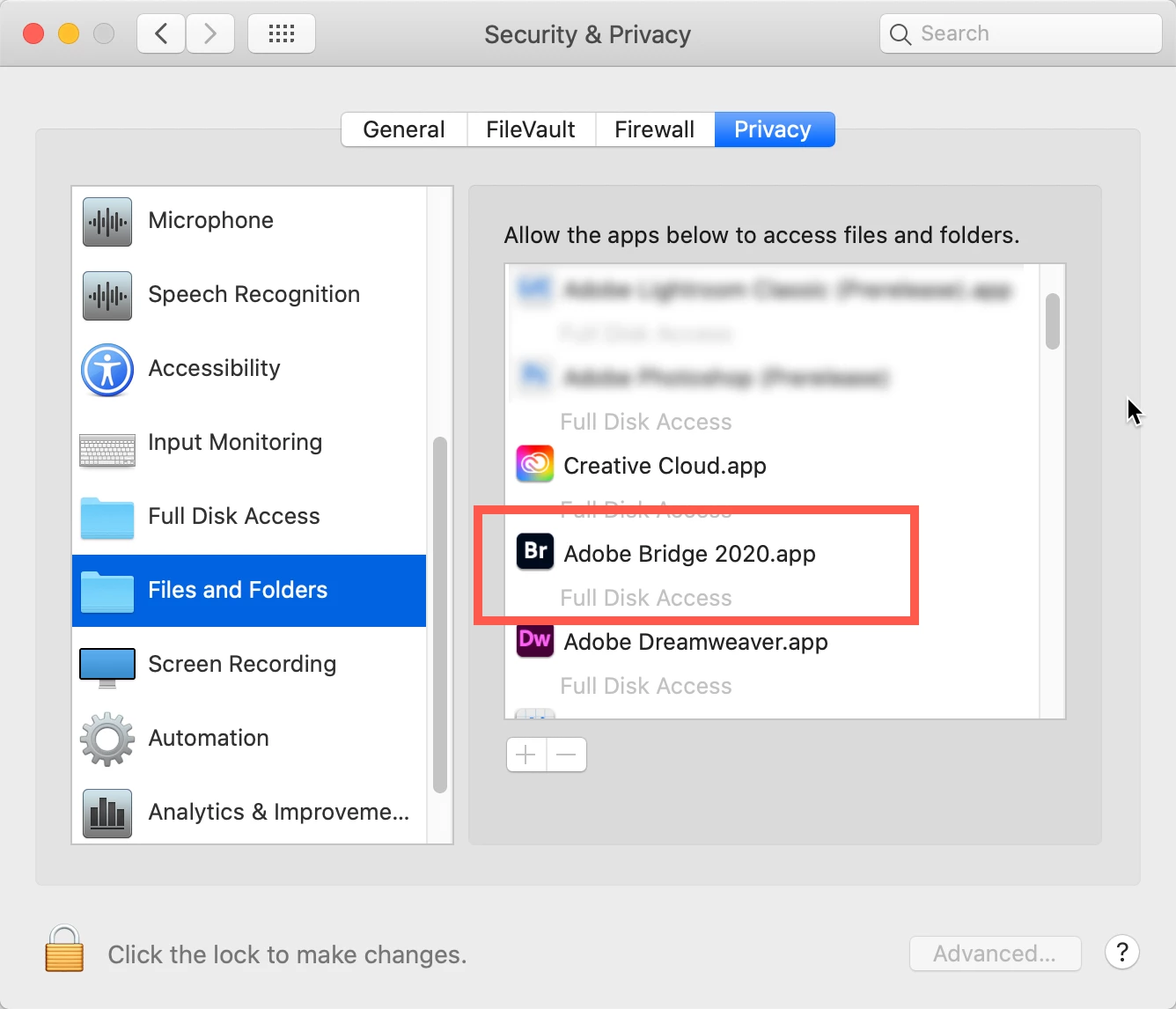
    Please try the following and see if this helps (note, the screenshots are from Mojave but the issues are still the same):


    Go to your System Preferences and select Security and Privacy (found in the top section). Now click on the Privacy setting (last tab). Now click on the lock on the bottom left and provide your Administrator code. Now select the Full Disk Access option and click on the "+" symbol. This will bring up the standard Mac Open window and let you add any application you want or need to have full access. Look for Bridge, select it, it will now appear in that window and make sure it's checked. Next go to the Files and Folders option and do the same thing as above (although there's nothing to check, just add. Close everything down and see if that makes it all work.

    Please let me know


    2 replies

    April 1, 2021

    Gary,

    Thank you this did work. I had gone to the accessability folder and added the bridge but not the other two folders. 


    gary_sc
    Community Expert
    Community Expert
    April 1, 2021

    Glad to hear it worked, thanks for letting me know


    gary_sc
    Community Expert
    gary_scCommunity ExpertCorrect answer
    Community Expert
    April 1, 2021

    Hi Barbara,


    Please try the following and see if this helps (note, the screenshots are from Mojave but the issues are still the same):


    Go to your System Preferences and select Security and Privacy (found in the top section). Now click on the Privacy setting (last tab). Now click on the lock on the bottom left and provide your Administrator code. Now select the Full Disk Access option and click on the "+" symbol. This will bring up the standard Mac Open window and let you add any application you want or need to have full access. Look for Bridge, select it, it will now appear in that window and make sure it's checked. Next go to the Files and Folders option and do the same thing as above (although there's nothing to check, just add. Close everything down and see if that makes it all work.

    Please let me know