Participant
November 4, 2022
Answered

Cannot remove side windows with tab key in Bridge 2023

  • November 4, 2022
  • 3 replies
  • 2013 views

In the older versions of Bridge, when I was in the Filmstrip Workspace, I was able to quickly and easily remove all of the other open windows, and display only the main window by pressing the tab key. In Bridge 2023 (Version 13.0.0.562) when I press the tab it just cycles through different buttons I could activate on the screen.


I used to enjoy having my Filmstrip Workspace were in the middle was my main preview window, then I had set up with contents on one side, favourites and folders, filters and collections on the other side. Then after selecting three of eight images, press the tab key to just have a full-screen view of all selected images in the preview window. 


It didn't just work with the filmstrip workshop, this is just my example, it used to work with any workspace, and when pressing tab it would hide the side windows. 


How can I get this back? Did it change to a different key? Or can I create a new keyboard layout that will restore the old shortcuts?


Cheers

 

Correct answer gary_sc

You can switch any Panel into full window view by pressing the tilde key "~" (the one to the left of the "1" key). This is not full screen view, that's the space bar. But if you have the Content Panel selected (there will be a thin blue line around the entire Panel, tap the tilde ~ key and the Content Panel's contents will fill up the window.


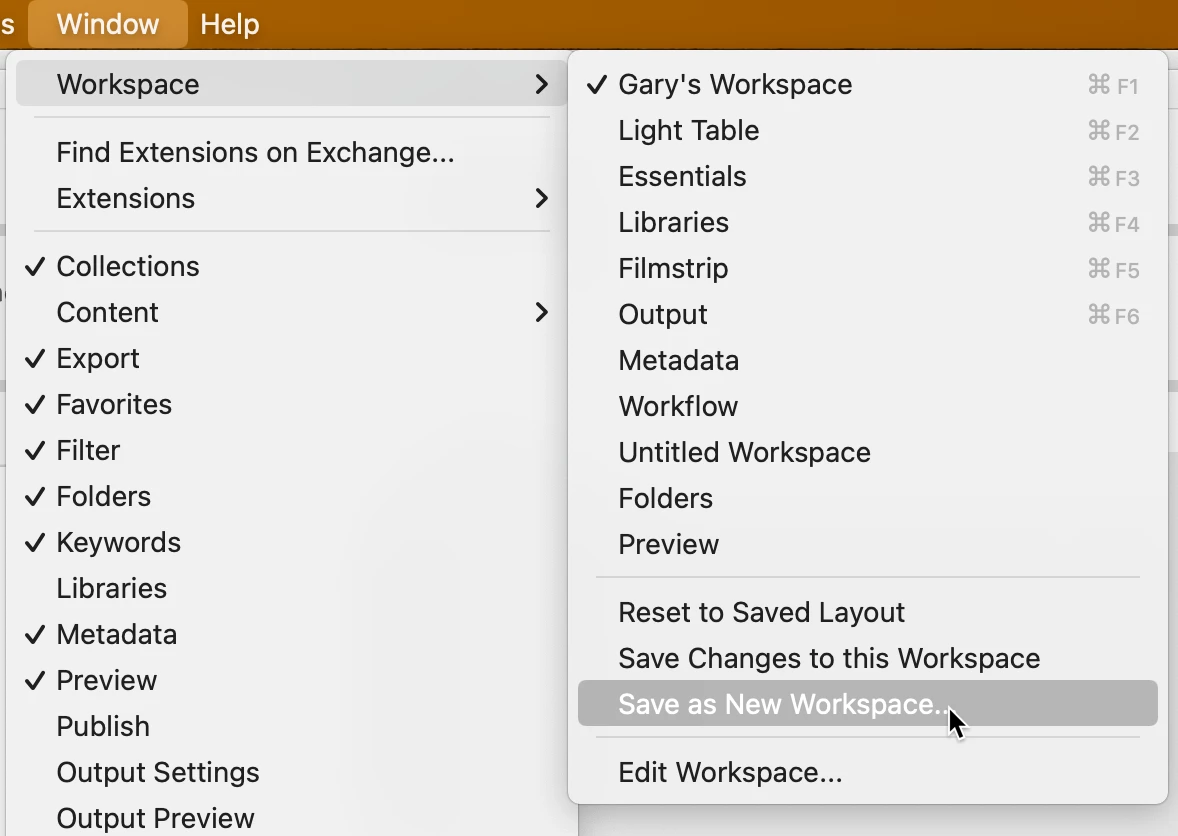
By the way, you do know you can create your own Workspace to suit your needs? Simply rearrange the various Panels to where they work best for you and save that workspace either from the Window (menu) -> Workspace… -> Save as New Workspace

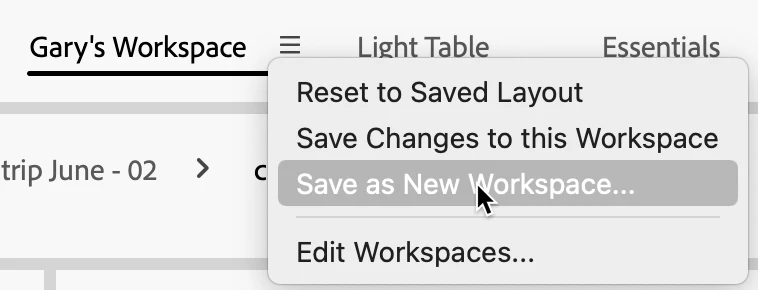
Or from the hamburger menu seen next to the active Workspace name

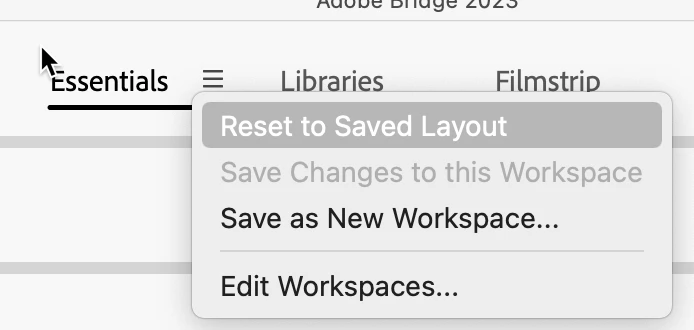
Also, once saved, you cannot destroy a workspace, all you have to do is to select "Reset to Saved Layout." Similarly, if your previous Workspace needed some changes, make the changes and then select "Save Changes to this Workspace."


If you select Edit Workspace, you can change the order of the Workspaces by dragging them left or right.


BTW, if you try to change one of the default Workspaces, you cannot "Save" them, but can do a Save as New Workspace

I hope this helps you.

3 replies

Participant
August 10, 2024

Agree, I also strongly miss that shortcut!

For my current project I want to have window on my secondary monitor to get an overview all all my shots while I'm working on the main monitor. I don't the other panels at that very moment but I don't to loose time creating a new workspace for that since I might want to change folder occationally or have a quick peek at the metadata as someone wrote.

miroslav belančin
Known Participant
November 25, 2022
I miss that option too
ashleyc86467363
Participating Frequently
December 12, 2022

Thanks @gary_sc for letting us know.  I don't why Adobe has to skrew around all the shortcut keys and hide a bunch of tools every other release.  I'm guessing that it has something to do with a UX 'expert' trying to prove their value.  Trawling through forums every time there is a new release to find out how to fix something that is broken is really tiresome.


Note to self, never update.

gary_sc
Community Expert
gary_scCommunity ExpertCorrect answer
Community Expert
November 4, 2022

You can switch any Panel into full window view by pressing the tilde key "~" (the one to the left of the "1" key). This is not full screen view, that's the space bar. But if you have the Content Panel selected (there will be a thin blue line around the entire Panel, tap the tilde ~ key and the Content Panel's contents will fill up the window.


By the way, you do know you can create your own Workspace to suit your needs? Simply rearrange the various Panels to where they work best for you and save that workspace either from the Window (menu) -> Workspace… -> Save as New Workspace

Or from the hamburger menu seen next to the active Workspace name

Also, once saved, you cannot destroy a workspace, all you have to do is to select "Reset to Saved Layout." Similarly, if your previous Workspace needed some changes, make the changes and then select "Save Changes to this Workspace."


If you select Edit Workspace, you can change the order of the Workspaces by dragging them left or right.


BTW, if you try to change one of the default Workspaces, you cannot "Save" them, but can do a Save as New Workspace

I hope this helps you.

NickSpirov
Participant
November 5, 2022

Thanks for the tilde shortkey, unfortunately it only works when the panel is highlighted. But WHY did they remove the Tab key in the first place??? It works in Photoshop, Illustrator, maybe others. It used to work in Bridge until now.

gary_sc
Community Expert
Community Expert
November 30, 2022

Hi, @NickSpirov 


If a panel is not highlighted, but the mouse cursor is OVER a different Panel, then press "Shift+tilde" keys