

OlyaFoto
Participant
Aug 19, 2020 9:24 PM UTC
Answered

Dual Monitors - Adobe Bridge

If you are wanting to use dual monitors in Bridge you are out of luck.


After spending hours looking at youtube, forums and speaking to Adobe support I have come to the conclusion there is no way to use dual monitors in Bridge.

Disappointing as it is...  save yourself the time....
This topic is closed to new replies. Start a new post to keep the conversation going.
LumigraphicsCorrect answer
Legend
Nov 1, 2021 7:42 PM UTC

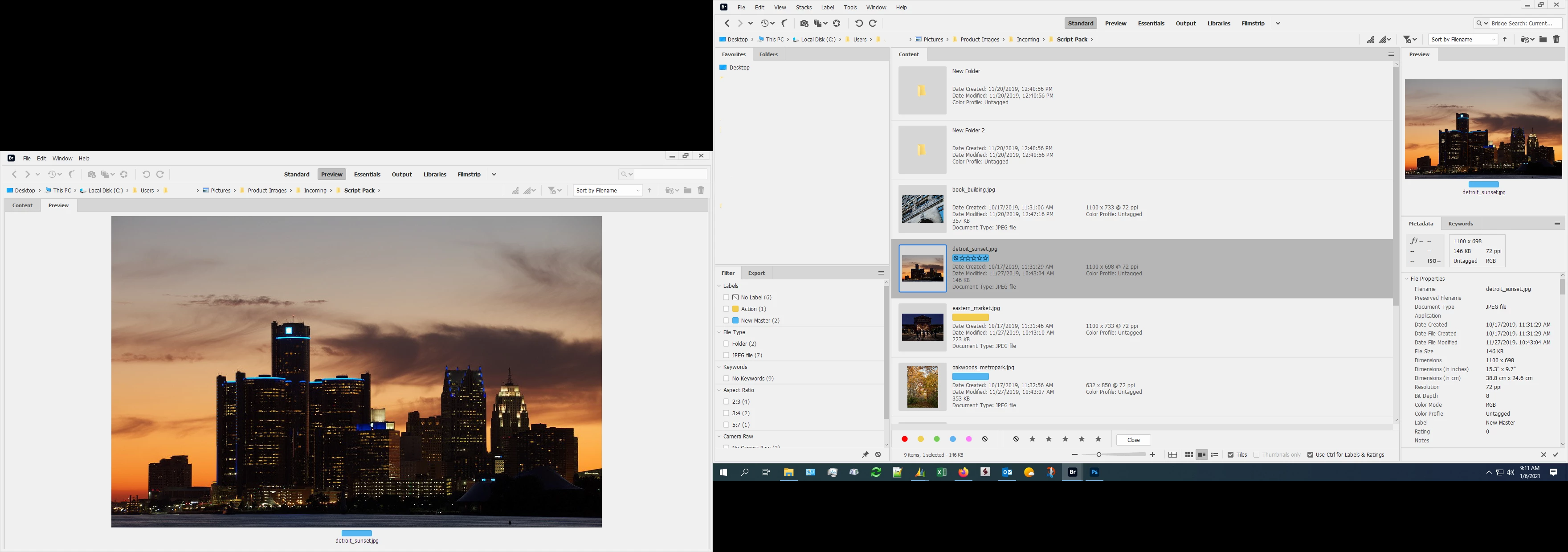
Lumigraphics script is excellent and works perfectly with full synchronisation of the windows. The two windows don't even have to be set to the same workspace so you can have different panels showing in each if you want.


https://www.dropbox.com/sh/mg817g9a9ymbasi/AADTmXUVxmFfM58bcyYE7yiwa?dl=0


Download the Utility Script Pack and move the entire folder into Bridge Scripts (directions are in the Help file.) WindowSync is the script you want.


24 replies

Adobe Employee
Aug 18, 2022 10:50 AM UTC

OlyaFoto,
The upcoming version of Bridge has this feature. You can now create workspaces spreading across multiple monitors. For eg. with Preview Panel on the second monitor, you can select the files in the Content Panel on the first monitor and view the larger sized preview in the Preview Panel on the second monitor.
If you want to try it out, install the Beta version of Bridge. Details below.
How to access the Beta build
What's new in the Bridge Beta

Translate
Erik Bloodaxe
Legend
Aug 12, 2022 2:59 PM UTC

Recently available  beta version of Bridge claims to offer multiple monitor support. I haven't tried it out yet. Could be what you want. No idea when this feature may be available for general release so don't hold your breath.

Translate
Legend
Aug 12, 2022 3:43 PM UTC

Yes but apparently not synchronized window support. The beta AFAIK adds floating palettes and multiple content tabs, I'm guessing similar to Photoshop. However, scripting support is still not fully implemented.

Translate
Inspiring
Aug 9, 2022 1:35 AM UTC

@Lumigraphics Thank you!  it worked fine on Monterey 12.3 - also I should have indicated Bridge is v. 12.0.2

Translate
Inspiring
Jan 7, 2022 12:40 AM UTC

WindowSync by Lumigraphics seemed just what I was looking for - I followed instructions, but initially only enabled the WindowSync and found no scripts then appeared under Tools > Utility Script Pack.  I then enabled all the scripts, restarted Bridge and found that most of the scripts do appear under Tools > Utility Script Pack BUT WindowSync (and Utility Pack Preferences Panel) do not appear (see screen shots).  Incidentally I also found "Utility Script Pack Help" appearing greyed out in the Help menu.  

I'm using Bridge 2022 on a Macbook Pro with macOS Monterey 12.0.1.  The external monitor (in extended mode) shows up OK under System Preferences > Displays and I can move other windows to it without any problem.

I'd be very grateful to get advice on getting WindowSync to function.  

Translate
Legend
Jan 7, 2022 1:00 AM UTC

You access WindowSync by selecting "New Synchronized Window" from the Window menu.

The preferences panel is in Bridge Preferences. Scroll down.

I'm not sure how Utility Script Pack Help would be greyed out, I add it but don't have any code that would disable it. You can access the Help file from the preference panel plus its a standalone file on my Dropbox.

Translate
Inspiring
Jan 7, 2022 1:37 AM UTC

That was quick! - many thanks @Lumigraphics - it's working 100% (not that it matters, but even the help item is not greyed out)

Translate
Erik Bloodaxe
Legend
Aug 4, 2021 8:07 AM UTC

I just chanced upon this old thread and thought I would recount my experience.

I am using Windows 10 with Bridge 2021, dual (identical) monitors and a Quadro RTX card.

I don't seem to have any issue in spreading out Bridge over two monitors. I just dragged out the window over two monitors, created panels where I wanted them etc. I have a large Preview panel on one monitor and my other panels on the other. All works fine! I saved the workspace I had created and it can be reopened anytime without a problem.

This appears to negate your concerns unless I am misunderstanding what you are wanting to achieve.

Translate
digabyte
Inspiring
Oct 19, 2021 8:44 PM UTC

Unfortunately this only works with identical monitors (or at least identical resolutions).  If you want to use multiple monitors with varying resolution, there is no solution.  I would like to have my "content" on my 42" 4k monitor, so I can see tons of thumbnails at once, but I'd like to be able to click on a thumbnail and see it full size on the 2k monitor I have set up for color.  Unfortunately, Adobe doesn't seem to think this is a useful feature in 2021, when EVERYONE has multiple monitors.

Translate
Legend
Oct 20, 2021 2:17 AM UTC

Not correct. I use Bridge daily and often with a window on each of two displays. Don't try to drag one window across two screens on either Mac or Windows. Just open a second window.

Translate
Legend
Aug 20, 2020 12:50 PM UTC

I use dual displays every day on Windows 10 and it works on my Mac setup as well. I wrote a replacement for the old "New Synchronized Window" command so a second window works decently too, no worse than a single window.


Translate
jbm007
Community Expert
Community Expert
Aug 19, 2020 10:58 PM UTC

Lumagraphics who post here a has a new script that allows for a second sync copy of Bridge on a second monitor.

Other spanning two monitors the workspace UI, yes you are out of luck.

Translate